


Setting up payment and checkout
Wix Stores Troubleshooting: Customers Unable to Checkout from Your Store
If customers are unable to checkout from your store, follow the steps below.
1. Make sure you've set up a payment method
In order to receive payment on your site, you need to set up at least one payment method. To get started, go to Accept Payments in your site's dashboard.
In most cases, Wix automatically connects you to the most suitable provider available in your region. The providers can include:
Wix Payments: Connect to Wix's own payment provider. Learn more about Wix Payments
Credit Card: Connect to a third-party payment provider (e.g. Square, Stripe) to accept credit card payments. Learn more about accepting card payments
PayPal: Accept payments through PayPal. Note that if you select the PayPal option, customers can pay by credit card even if they do not have a PayPal account. Learn more about PayPal
Manual: Accept cash, payment though apps, checks, bank transfers, or any other form of payment that is not tracked online. When selecting this method, customers see instructions at checkout explaining how to complete payment. Learn more about manual payments
2. Check if you've upgraded your site to a suitable plan
To accept payments in your store, you need to upgrade to a plan that allows you to accept payments.
Note: If necessary, you can switch to a suitable plan. Any remaining credit from your current Premium plan is deducted from the price of your new upgrade. Learn more about upgrading an existing premium plan
3. Create shipping rules
To sell to customers in a specific country, you must have a shipping /delivery / pickup rule that applies to that country.
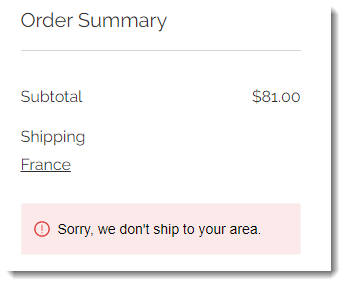
For example, if you create shipping rules for the US and Canada, and a customer in France tries to purchase a product, they get a message that your store doesn't ship to their area.
Tip: You can create shipping rules for individual countries plus an international rule to cover the rest of the world. Learn more about setting up shipping, delivery, and pickup.
4. Make sure that coupons or discounts don't reduce a product's price below zero.
If you have, for example, a $5 product, and a customer users a $10 off coupon on the product, the customer won't be able to check out because the price is a negative amount. To troubleshoot this problem, review which products each coupon or discount applies to.
Tip: You can create percent discount coupons (e.g. 20% off) instead of price discount coupons (e.g. $10 off) to avoid this problem.