


Wix Forms FAQ
Wix Forms: Saving Your Form Data to Your Contacts
When someone fills out a form on your site, a contact is created in your Contact List.
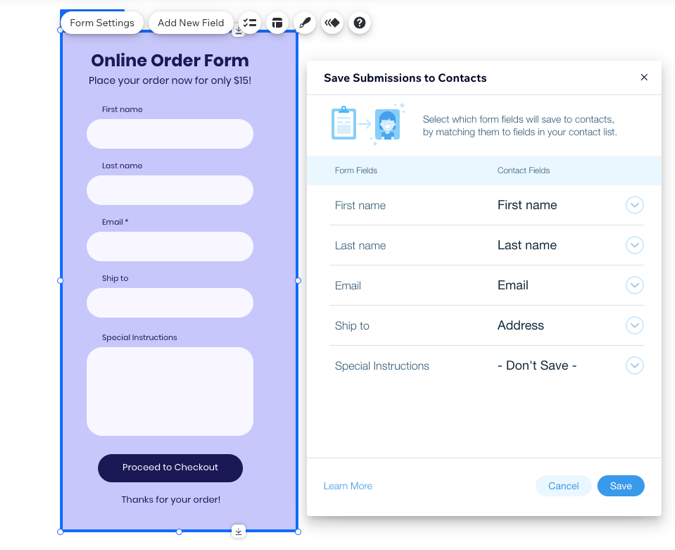
With old Wix Forms, some of the submission data is automatically saved but some you need to manually save. If you want data from a specific field in your form to show in your contacts, you must match it with a field in your contact list.
Notes:
This feature is only available for old Wix Forms.
In the new Wix Forms, all data for contact fields is automatically saved and it is not possible to collect information for custom fields.
Saving form fields to your contact list
Select which form fields to save to your contacts, by matching them to fields in your contact list. You can match all form fields at once, to easily view in one place which fields are connected. Alternatively, you can save individual form fields.
To save form fields:
Click the form in your editor.
Choose what to do:
Match all form fields
Click Form Settings.
Click the Contacts tab.
Click Choose Fields.
Click the drop-down next to each form field and select the relevant contact field.
Note: For form fields you don't need to save, select Don't Save. For form fields that don't have an existing match, select Create field and type in a name for a new custom field.Click Save.

Match individual form fields
Click the field in your form you want to save to your contacts.
Click the Settings icon
 .
.Click the drop-down under Save Field Data to Contacts.
Select a field to connect this form field to.
Note: For form fields you don't need to save, select Don't Save. For form fields that don't have an existing match, select Create field and type in a name for a new custom field.

Adding a custom field to your form
If you add a custom field to your Contacts and want to collect this information from your visitors (such as age or hair color), you need to add the relevant field to your form.
To add a custom field to your form:
Click the form in your editor.
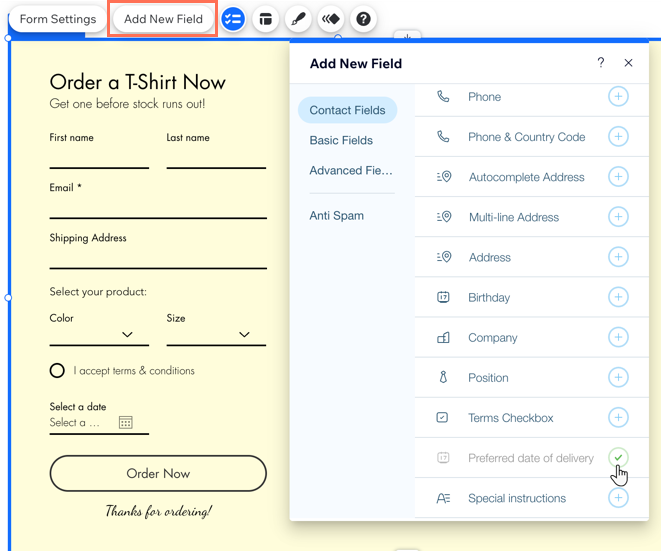
Click Add New Field.
Click Contact Fields and scroll until you find your custom field.
Click the Add icon
 to add it to your form.
Notes:
Form fields can only be saved to contact fields in a relevant format (For example: email addresses to email fields, text to text fields and numbers to number fields).
Some field data cannot be saved to the Contact List. All of these fields' data can be seen in the submission tables, Inbox & email notifications. These fields are:Upload file field
Signature field
Anti Spam field