top of page

Dropshipping with Wix Stores

Wix Stores: Setting Up Dropshipping with Printify

After you connect your store to Printify, you can select a product and start designing it!
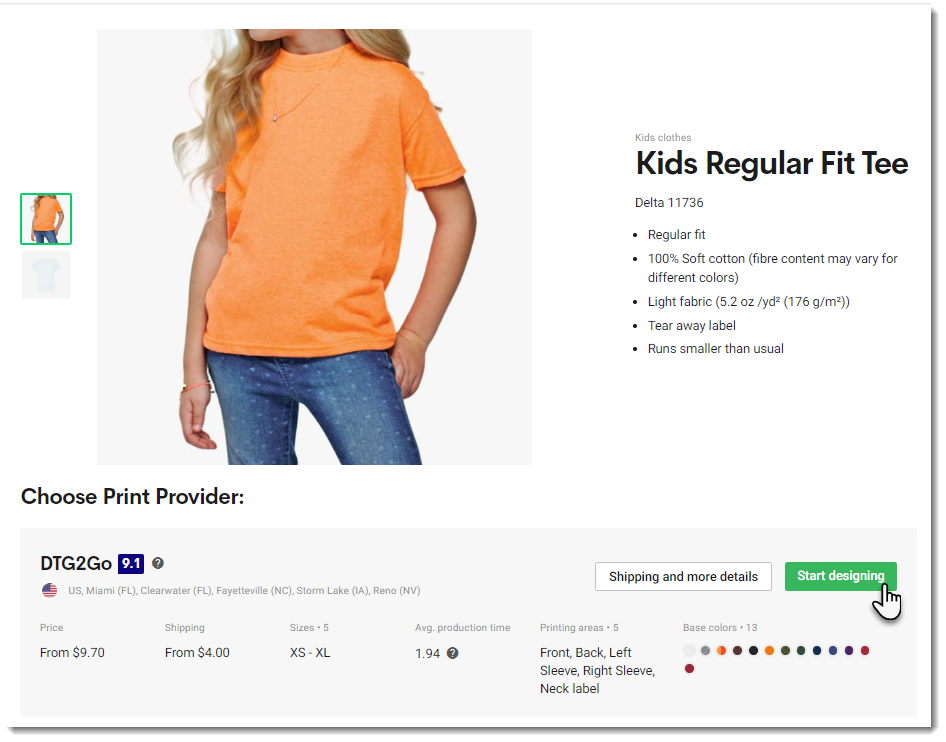
Printify is a print on demand (POD) service. You pay no subscription fees and there is no need to purchase inventory. You only pay when a customer places an order.

Step 1 | Create Products and Add them to Your Store

First, log in to Printify, click Catalog at the top, and choose a product. Then, create your first product and set pricing. Learn How

Step 2 | Set Up Shipping

Make sure you set up shipping in your Wix dashboard. Take into consideration Printify's shipping costs. You can charge for shipping separately or you might want to increase the product price so that it covers the shipping cost and then offer free shipping - the choice is yours.

Step 3 | Add a Billing Method in Printify

After a customer purchases a Printify product in your Wix store, you'll need to pay Printify for it. After this is done, Printify creates the product and ships it to your customer.

You can handle the payment to Printify in two ways:

  • Automatic: Set up automatic payment by adding a payment method  (PayPal or credit card) in the Printify dashboard.  Learn How
    When a paid order comes in, (or when you mark an order as "Paid"), your payment to Printify is processed automatically and the order is fulfilled. You won't need to do a thing.

  • Manual: When you receive an order, you can go to the Orders tab in the Printify dashboard and click Fulfill orders to pay for the order manually. It is then fulfilled by Printify.

Need A Professional Website?
Contact Us 
Today!

Wix Forms: Troubleshooting

Wix Forms: Removing a Form from Your Site

Wix Forms: Saving Your Form Data to Your Contacts

Wix Forms: Creating Automated Email Responses for Form Submissions

Wix Forms: Choosing Who Gets Notified About Form Submissions

Wix Forms: Viewing and Managing a Submissions Table

Wix Forms: Customizing the Success Message and Thank You Page of Site Forms

Wix Forms: Designing Your Site Forms

Wix Forms: Adding a Signature Field

Wix Forms: Protecting Your Site Forms from Spam

Wix Forms: Adding a Subscriber Opt-In Checkbox to a Site Form

Wix Forms: Adding a File Upload Field

Wix Forms: Managing Your Form Fields

Wix Forms: Managing Your Standalone Form Fields

Wix Forms: Translating Your Forms with Wix Multilingual

Wix Forms: Adding and Setting Up a Standalone Form

Wix Forms: Adding and Setting Up a Form on Your Site

Wix Forms: An Overview

Wix Functions: Creating a Custom Loyalty Program Reward

Wix Functions: Adding Custom Validations to Your Forms

Wix Functions: Adding Additional Fees at Checkout

Wix Functions: Creating a Function

Wix Automations: Understanding Conditions Operators

Wix Automations: Using the Run Velo Code Action

Wix Automations: Troubleshooting Wix Automations

Wix Automations: Creating a Multi-Action Automation

Wix Automations: Sending Data via Webhook

Using Zapier to Automate Connections with Third-Party Apps

Wix Automations: Sending Data to Google Sheets

Wix Automations: Managing Your Automations

wix experts
Graphic2Traffic web design
©
bottom of page