


Setting up sales channels
Wix Stores: Connecting Your YouTube Channel to Wix
Important:
We're in the process of releasing this sales channel so it's not yet available for all merchants.
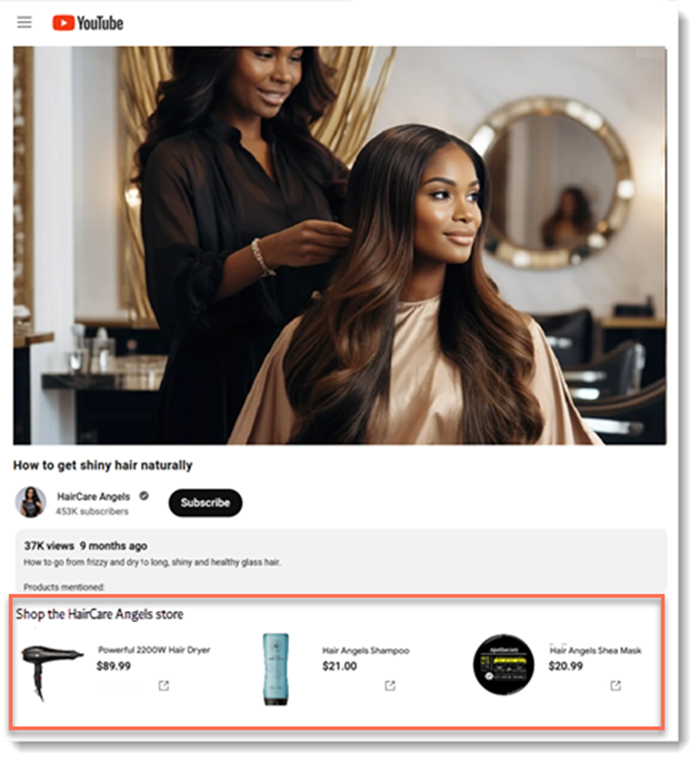
Connect your Wix store to YouTube and start monetizing your YouTube channel. After connecting, you'll be able to tag products in any of your videos and livestreams. In addition, you'll have the option of adding a store tab to your channel.
When a customer clicks any of your products, they're directed to your Wix store to complete the order.
Step 1 | Check eligibility for YouTube Shopping
Before you start the process of connecting to YouTube, it's worthwhile to review YouTube's requirements and see that your channel meets them.
Location requirements
YouTube Shopping is available in over 120 countries. You can check this list to make sure your location is included.Channel requirements
You must have one of the following:1,000 subscribers or more with 4,000 watch hours
10 million views for Shorts over the last 90 days
An official Artist Channel
You need to be in the YouTube Partner Program.
Your audience must not be set to "Made for kids".
You can't have any community guideline strikes against you.
Step 2 | Set up a Google Merchant integration
Monetizing your YouTube channel is available to merchants who have a Google Merchant Center account. You can create one through the Wix dashboard. Learn how to connect to a Google Merchant Center account.
Step 3 | Connect to YouTube Shopping
Once you're confident that you've met YouTube's requirements and have a Google Merchant Center account, you can go ahead and connect your Wix site to one of your YouTube channels.
To connect to YouTube Shopping:
Go to Google Merchant Solutions in your site's dashboard.
Click the Settings icon
 at the top right.
Log in to your Google user account.
Tip: Use the email or phone number that's associated with your YouTube account.Click View Terms & Conditions to review the conditions.
Select the I agree to YouTube's Terms & Conditions checkbox, and click Continue.
Select the YouTube channel that you want to connect to your Wix store.
Click Connect.
If successful, you'll receive confirmation that your YouTube channel is connected. If you were unable to connect, there will be an indication of why you were unsuccessful. You can make changes and try the same channel again or try to connect another YouTube channel.