top of page

Additional Wix Apps

Adding and Setting Up the Get Funding App

The Get Funding app provides a simple and effective way to raise funds straight from your site. Just connect your PayPal account, and start accepting donations for your project or cause.

An image example of how the Get Funding app looks on your site

Step 1 | Add and connect the Get Funding app

You can find the Get Funding app in the Wix App Market. Go to the App Market in your editor to add it to your site, then connect it to an existing or new PayPal account.

Wix Editor

Studio Editor

  1. Click Add Apps   on the left side of the editor.

  2. Search for the Get Funding app in the search bar.

  3. Click Add to Site.

A screenshot showing how to add the get funding app in the Wix Editor

  1. Select the Get Funding app in your editor.

  2. Click Settings.

  3. Click Connect with Paypal.
    Note: If you don't yet have a Paypal account, click Create one.

Step 2 | Customize the app's settings

Customize your settings to change the layout and display of your Get Funding app. Adjust style elements and edit the text to make your fundraising page reflect your unique cause.

To customize the app's settings:

  1. Select the app in your editor and click Settings.

  2. Click the Settings tab to customize the basic settings of the app:
    Choose an image or video that represents your cause:Image: Click Change to select a new image.
    Video: Select Video and enter the video URL.
    Click the Currency drop-down and choose which currency you want to accept donations in.
    Enter the default, minimum and maximum donation amounts.
    Select or deselect the checkboxes next to what you want to show.
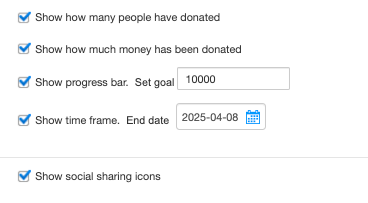
A screenshot showing which options users can display in their get funding app

  1. Click the Style tab to select the fonts and colors of the different elements of the app.

  2. Click the Texts tab to edit the text that appears in the app.

Need A Professional Website?
Contact Us 
Today!

Wix Chat: Automatically Sending Chat Messages or Responding to Chat Messages

Wix Chat: About Notifications

Wix Chat: Deleting Wix Chat

Wix Chat: Adding the WhatsApp Channel to Your Chatbox

Wix Chat: Viewing and Chatting with Live Site Visitors

Wix Chat: Customizing the Chat Icon on Your Mobile Site

Wix Chat: Translating Wix Chat

Wix Chat: Allowing Members to Chat with Each Other Using Members Chat

Wix Chat: Customizing Your Chat Settings

Wix Chat: Designing Your Chatbox

Wix Chat: Adding Wix Chat to Your Site

Wix Chat: An Overview

Your AI Site-Chat Conversations Quota

Designing and Customizing Wix AI Site-Chat

Training Your AI Site-Chat

Testing Your Wix AI Site-Chat

Adding and Setting Up Wix AI Site-Chat

About Wix AI Site-Chat

Wix Inbox: Sending a Broadcast Message to Your Contacts in the Wix App

Wix Inbox: Working with Site Collaborators

Wix Inbox: Connecting WhatsApp Business to Inbox

Wix Inbox: Connecting Your Facebook Page

Wix Inbox: Connecting Instagram to Inbox

Wix Inbox: About Wix Inbox Channels

Wix Inbox: Connecting Your Gmail Account

Wix Inbox: Managing Your Notification Settings

Wix Inbox: Managing Your Inbox

Wix Inbox: Setting Up Your Inbox Profile and Outgoing Emails

Wix Inbox: Sending Messages and Attaching Items

Wix Inbox: An Overview

wix experts
Graphic2Traffic web design
©
bottom of page