


Additional Wix Apps
Embedding a Yandex Map on Your Wix Site
Important:
The Yandex Maps app has been retired from the Wix App Market. You can still add a Yandex map to your site by using the Yandex map constructor to build the map and pasting the code into your site.
Add a custom Yandex map to your site to let your customers know where they can find your business.
Step 1 | Create a map using the Yandex Map constructor
The Yandex Map constructor lets you create your own map, where you can design routes and highlight locations. After creating the map, you'll be able to generate a code which you can embed on your site.
To create a map:
Log in to Yandex.
Go to the Yandex Maps constructor.
Click Create map.
Customize your map title and description.
(Optional) Add objects to the map using the Import option.
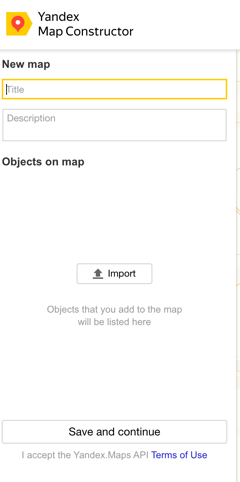
Click Save and continue.
Select Embed on site.
Customize the size of your map.
Click Get map code.
Copy the code in the box.
Step 2 | Embed the code on your site
After you've copied the code from the Yandex Map constructor, return to your site's editor to embed it.
To embed code on your site:
Wix Editor
Studio Editor
Click Add Elements
 on the left side of the Editor.
Click Embed Code.
Click Embed HTML.
Paste the code you copied from Yandex into the Add your code here (HTTPS only) field.
Click Update.
(Optional) Enter alt text that describes what you're embedding in the What's in the embed? Tell Google field.
When ready, publish your site.
Note:
We cannot provide support for external codes that were not created or tested with Wix. If you are experiencing an issue with your code snippet, please contact the provider directly.