


Wix Site Search
Customizing Your Site Search Bar
The Wix Site Search enables visitors to search for anything on your site. This app comes with a fully customizable search bar, allowing you to tailor its appearance and functionality to suit your needs.

Tip:
You can also customize the search results page where the results are displayed.
In this article, learn how to:
Customizing the search bar settings
Customize your search bar by editing the placeholder text (the initial text displayed before visitors begin typing) and fine-tuning the responsiveness to control whether results appear as the visitor types or only after they finish.
To customize the settings of your search bar:
Wix Editor
Studio Editor
Click the search bar in your editor.
Click Settings.
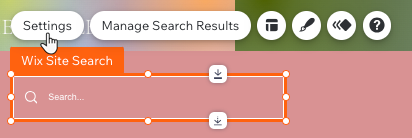
Edit the placeholder text which appears when the search bar is empty.
Note:
This text disappears when your visitor starts typing in the search bar.
Edit the Result Suggestion settings:Show result suggestions when a user starts typing: Enable or disable result suggestions. If enabled, result suggestions start appearing as the visitor is typing.
Show trending items before a user starts typing: Enable or disable showing items that are trending before a user starts typing.
Note: Enabling trending items is only possible if result suggestions are also enabled.
Changing the search bar layout
Adjust the alignment, margins and overall structure of your search bar to better integrate it with your site's design.
To change the layout of your search bar:
Wix Editor
Studio Editor
Click the search bar in your editor.
Click the Layout icon
 .
.
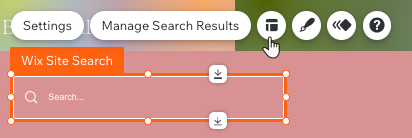
Choose a layout option (with or without a button).
Customize the alignment, spacing and padding of your icons and text.
Note:
The layout options available (alignment, spacing, and padding) differ depending on which layout you chose in step 3.
Customizing the search bar design
You can customize the design of your search bar for each of the following states:
Regular: When your bar is not in use.
Hover: When visitors hover their mouse over the bar.
Focus: When visitors have clicked the bar.
To customize the design of your search bar:
Wix Editor
Studio Editor
Click the search bar in your editor.
Click the Design icon
 .
.
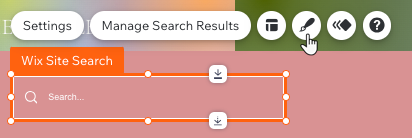
Select a preset design.
Click Customize Design to design it further.Click a tab to choose which state you want to customize; Regular, Hover, or Focus.
Customize the colors, borders, corners, shadows and text for each of the available states.
Change the position of your search bar:
To reposition your search bar, click and drag it to the header or footer of your site.