


Google Drive
Setting Permissions for Google Drive Files and Folders
Note:
The Google Drive app has replaced the Google Docs app.
With the Google Drive app, you can display any file or folder you have on your Google Drive. In order to do so, they must be set as "Public on the web". In this article, we'll show you how to change your sharing permissions, and also to set what viewers can do inside the file or folder.
Choose what you want to share in the Google Drive app to learn more:
Setting Permissions for a Google Drive File
Some common Google Drive files include Docs, Sheets, Slides, Forms and Drawings. To display any of these on your site, they must be public, however you can choose if you want to allow visitors to edit and comment as well.
To set permissions for a file:
Select the file you want to share.
Click Share on the top right.
Click the drop-down arrow
under Get Link.
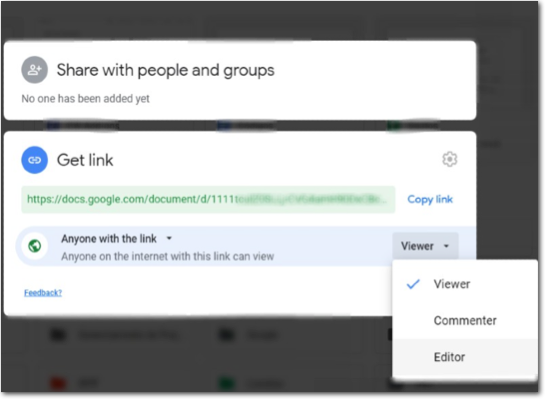
Choose to share the file with Anyone with the link.
To decide what people can do with your file when you share it, select either, Viewer, Commenter, or Editor.
Click Copy link.
Setting Permissions for a Google Drive Folder
Google Drive folders can contain multiple files. If you make the folder public, viewers have access to all the files inside it, unless you change their individual file settings. When making the folder public, you can also choose if others can contribute, or just view the contents.
To set permissions for a folder:
Select the folder you want to share.
Click Share on the top right.
Click the drop-down arrow
Choose to share the folder with Anyone with the link.
Click the drop-down and choose what viewers can do:Viewer: Anyone with the link can view the files in the folder.
Commenter: Anyone with the link can view and comment on the files in the folder.
Editor: Anyone with the link can view, comment, organize files, add new files, and edit existing files in the folder.
Click Copy link.