top of page

Setting up Retail POS sales

Wix Retail POS: Setting Up Text Receipts

Important:

  • This article is about Wix Retail POS tablet for brick & mortar businesses.

  • For info on using POS on a mobile device, click here.

Save paper by providing customers with receipts via text message (SMS). After you enable this option, you'll be able to select it at checkout.
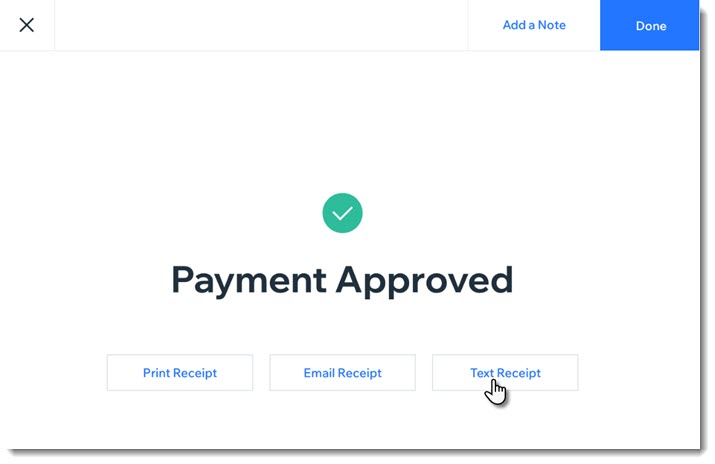
Screenshot of the screen you see after payment for a sale was approved. The screen show a text receipt option

Enabling text receipts

To display the text message receipt option at checkout, you must first enable text receipts.

To enable text receipts:

  1. Open the POS tablet.

  2. Tap the Menu icon  at the bottom left.

  3. Tap Settings.

  4. Tap Receipt on the left menu.

  5. Enable the Enable text receipts toggle.

FAQs

Click a question below to learn more about text receipts.

How do I enter phone numbers correctly?

Enter your customer's phone number, starting with the country code, then the area code, and the actual number. For US and Canadian numbers, enter 1 as the country code, as in the example below:

Screenshot of the field where you enter the phone number and the Text Receipt button

How can I send or resend a text receipt at a later date?

  1. Open the POS tablet.

  2. Tap Sales History from the bottom bar.

  3. Tap the relevant sale to select it.

  4. Tap Actions.

  5. Select Text Receipt.

  6. Enter the phone number and tap Text Receipt.

Need A Professional Website?
Contact Us 
Today!

Embedding a Yandex Map on Your Wix Site

Apps Made by Wix: Adding and Setting Up the Wix Weather App

Adding and Setting Up the Wix Hit Counter App

Embedding a VKontakte Community Widget on Your Site

Embedding Your Tumblr Blog and Posts

Wix Comments: An Overview

Adding Pinterest Content to Your Site

Wix Apps: Adding and Setting Up the PDF Viewer App

Adding and Setting Up the Open for Business App

Embedding an Odnoklassniki (OK) Like Button on Your Site

Adding and Setting Up the Site Badges App

Gift Card Payment Confirmation

Adding and Setting Up the Get Funding App

Adding and Setting Up the Get Files to Dropbox App

Apps Made by Wix: Adding and Setting Up the Dropbox Folder App

Adding and Setting Up the Countdown Clock App

Adding and Setting Up Wix Site Search

Understanding & Customizing Your Search Results Page

Customizing Your Site Search Bar

About Wix Site Search

Displaying a Different Variant (e.g. Color) of an Item in the Amazon App

Retrieving Your Amazon Credentials

Adding and Setting Up the Amazon App

Setting Permissions for Google Drive Files and Folders

Adding and Setting Up the Google Drive App

Displaying Events Using Your Site Colors or Google Colors in the Google Event Calendar App

Displaying Private Events in Your Google Event Calendar App

Managing Your Google Event Calendar App

Adding and Setting Up Google Event Calendar

Wix FAQ App: Using the Wix App to Display FAQs in Your Preferred Member Apps

wix experts
Graphic2Traffic web design
©
bottom of page