


Managing Retail POS orders
Wix Retail POS: Issuing Refunds
Important:
This article is about Wix Retail POS tablet for brick & mortar businesses.
For info on using POS on a mobile device, see our help articles on mobile POS.
Customers sometimes request a refund on past purchases. You can provide refunds for POS purchases right at your point of sale.
Issuing refunds for products or services
You can provide a refund for products or services that were purchased. When a customer buys more than one item, you can issue a refund for the entire order or for specific items in the order.
Note:
If your customer left a tip through the tablet during checkout, you can refund the sale only by refunding a specific amount (see next section).
To issue a refund on specific products:
Open the POS tablet.
Tap Sales History on the bottom bar.
Tap the store order you want to refund.
Tap Actions at the top right.
Tap Issue Refund.
Tap the Plus icon
 next to the product(s) you want to refund.
Tip: Tap more than once to refund more than one of the same item.
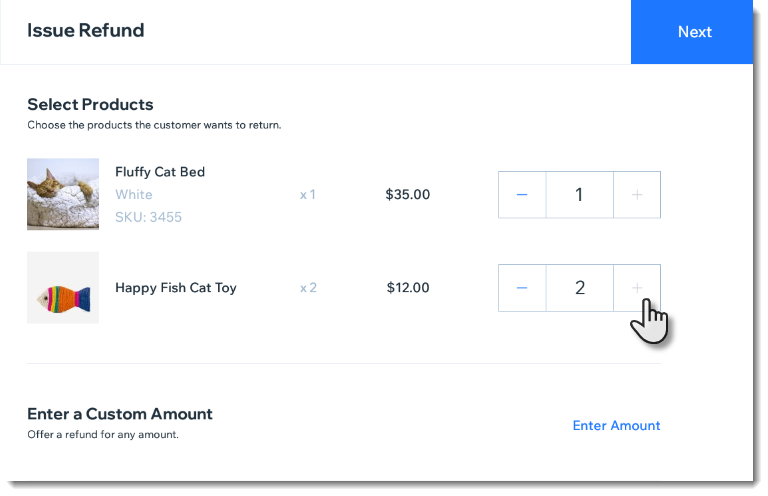
Tap Next.
Tap the Restock toggle (for items tracking inventory):Enabled: Inventory level for this item increases after making the refund.
Disabled: Inventory level remains the same.
(Optional) Select a reason for refund.
Tap Refund.
Note: This cannot be undone.(Interac payments only) Ask the customer to tap or insert the card.
Select a receipt option to complete the refund.
Issuing refunds of a specific amount
Rather than offering a refund for one or more items in the order, you may want to refund a specific amount of money, such as 50% of your customer's order total.
To refund a specific amount of money:
Open the POS tablet.
Tap Sales History on the bottom bar.
Tap the order you want to refund.
Tap Actions at the top right.
Tap Issue Refund.
Tap Enter Amount.
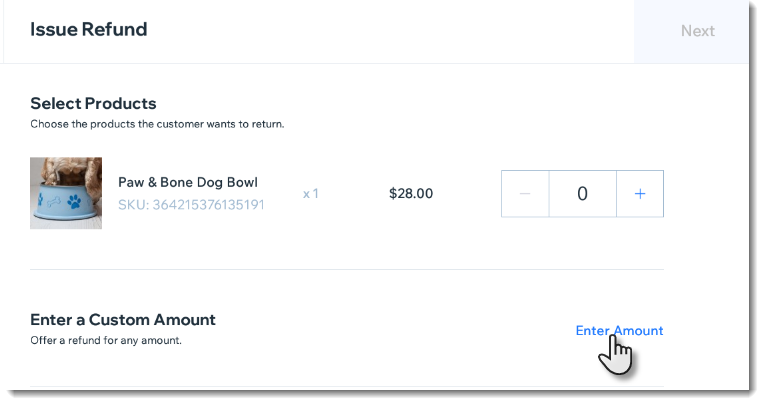
Enter the amount you want to refund, including cents. (e.g. $50.00).
Tap Next.
(Optional) Select a reason for the refund.
Tap Refund to complete the refund.
Note: This cannot be undone.(Interac payments only) Ask the customer to tap or insert the card.
Select a receipt option.
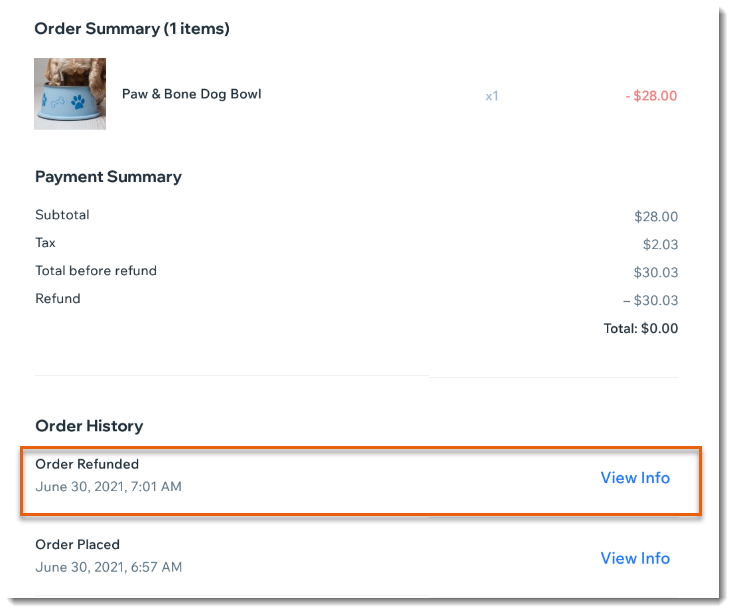
After you issue the refund, the order displays the refund details.
Refunding orders with split payments
When an order is paid for with 2 or more payment methods (e.g. 2 cards), you cannot process a refund in the POS tablet. This includes orders paid for with any combination of cash, cards, and gift cards.
You can, however, refund card payments from All Payments in your site's dashboard.
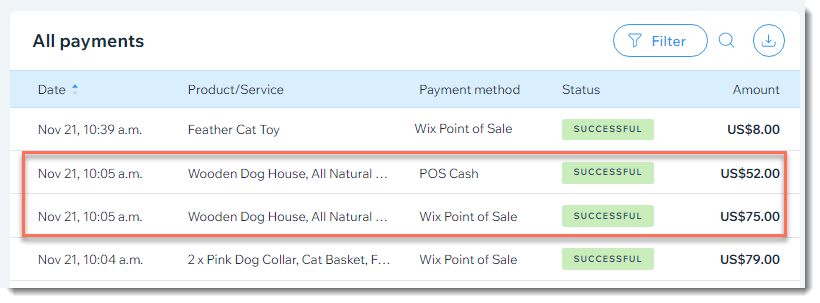
When there is a split payment, each payment appears as a separate line in the All Payments tab. In the image below, the customer paid $75 by credit card and $52 cash - all for the same order.
Note:
Cash payments must be refunded in person
Show me how to access All Payments in my site's dashboard
Go to your site's dashboard.
Click Catalog.
Select Payments & Finance.
Select All Payments.
FAQs
Click a question below to learn more about issuing refunds.
Can I refund an order paid for with 2 payment methods?
No. When a customer pays for an order with 2 payment methods (e.g. 2 credit cards), you cannot refund the order.
Can I refund a POS sale in my Wix dashboard?
Yes. To get started, go to the Store Orders tab in your Wix dashboard, select the relevant order, and click Issue Refund. Learn more about refunding customers
Can I refund gift card purchases?
You cannot refund the purchase of the gift card itself. In addition, when a customer pays for an order by redeeming a gift card, that purchase also cannot be refunded.
Can I refund an online order at my point of sale?
No. When a customer places an order online, you must process the refund in your Wix dashboard.
Does the customer need to tap their card to get the refund?
For most refunds, you do not need to ask your customer to tap or insert the card they used to pay for the sale.
If the customer paid for a sale with an Interac card, however, you are prompted to ask your customer to tap or insert the card to complete the refund.
What if my customers wants to exchange an item, instead of getting a refund?
You can also accept exchanges for products purchased at your point of sale. Products purchased online cannot be exchanged on your POS tablet.
How can I refund a sale that includes a tip?
There are 2 ways to refund customers, you can refund products in a sale or refund an amount that you specify.
For sales that include a tip, you need to refund an amount. If relevant, you can manually update your inventory amounts on desktop.