top of page

Creating your Wix Restaurants menu

Wix Restaurants: Creating a Combo Meal

Important:

This article is about the original Wix Restaurants Menus App. Try out our new menu app. Learn how to add and set up Wix Restaurants Menus (New) app.

You can offer a combo meal on your menu when you want to sell two or more dishes for a special price. For example, you may offer a special family dinner combo with multiple dishes, or a lunch special that includes a starter, main course and a beverage.

Before you begin:

Make sure that the dishes you want to add to the combo meal are available on your menu. Learn how to add dishes to your menu.

To create a combo meal:

  1. Go to Menus in your site's dashboard.

  2. Navigate to the relevant menu section.

  3. Click Add Dish.

  4. Enter the combo meal details:Name: Enter a name for the combo meal.
    Price: Enter a price for the combo meal.
    Tax: Enter taxes for the combo meal, if applicable.
    Description: Enter a description for the combo meal.
    Dish Labels: Add relevant labels to your combo meal (Special, Vegan, Vegetarian, Gluten Free, Organic and Spicy levels).
    Visibility: Select to show this combo meal to customers in the menu.
    Image: Click to add an image to the combo meal.
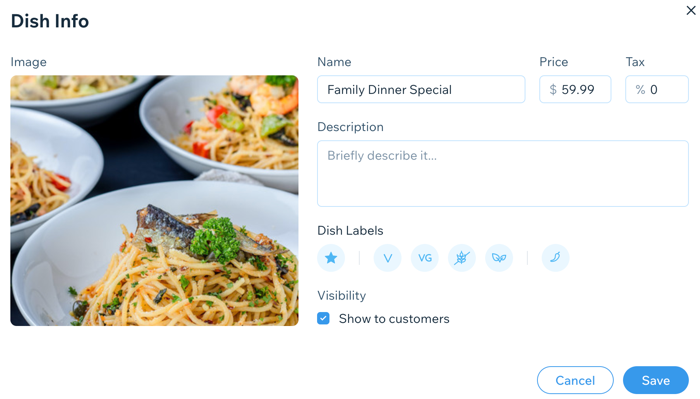
A screenshot of adding details to dish info.

  1. Click Save.

  2. Click + New Option and then New Option.

  3. Click New Choice at the top right and then Select Existing.

  4. Hover over and select the existing dishes you'd like to add to the combo meal.

  5. Click Add.
    Note: The dishes are added with their dish options. To remove the dish options, click Use without.

  6. Click Add.

Need A Professional Website?
Contact Us 
Today!

Wix Forms: Troubleshooting

Wix Forms: Removing a Form from Your Site

Wix Forms: Saving Your Form Data to Your Contacts

Wix Forms: Creating Automated Email Responses for Form Submissions

Wix Forms: Choosing Who Gets Notified About Form Submissions

Wix Forms: Viewing and Managing a Submissions Table

Wix Forms: Customizing the Success Message and Thank You Page of Site Forms

Wix Forms: Designing Your Site Forms

Wix Forms: Adding a Signature Field

Wix Forms: Protecting Your Site Forms from Spam

Wix Forms: Adding a Subscriber Opt-In Checkbox to a Site Form

Wix Forms: Adding a File Upload Field

Wix Forms: Managing Your Form Fields

Wix Forms: Managing Your Standalone Form Fields

Wix Forms: Translating Your Forms with Wix Multilingual

Wix Forms: Adding and Setting Up a Standalone Form

Wix Forms: Adding and Setting Up a Form on Your Site

Wix Forms: An Overview

Wix Functions: Creating a Custom Loyalty Program Reward

Wix Functions: Adding Custom Validations to Your Forms

Wix Functions: Adding Additional Fees at Checkout

Wix Functions: Creating a Function

Wix Automations: Understanding Conditions Operators

Wix Automations: Using the Run Velo Code Action

Wix Automations: Troubleshooting Wix Automations

Wix Automations: Creating a Multi-Action Automation

Wix Automations: Sending Data via Webhook

Using Zapier to Automate Connections with Third-Party Apps

Wix Automations: Sending Data to Google Sheets

Wix Automations: Managing Your Automations

wix experts
Graphic2Traffic web design
©
bottom of page