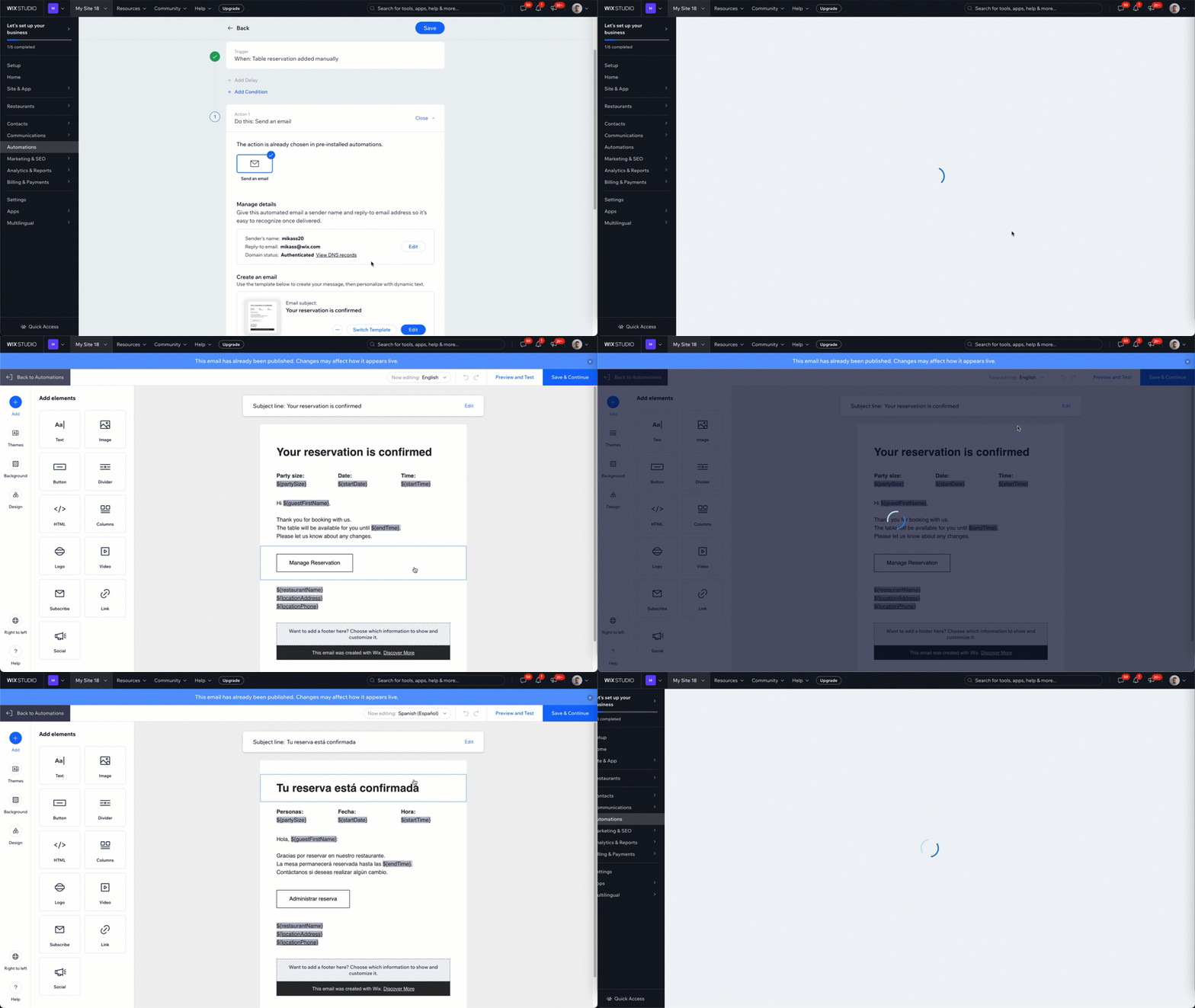
Table reservations
Wix Restaurants: Translating Your Restaurant Reservations
Enhance your restaurant reservation experience by translating your Wix Multilingual reservation form and confirmation page. This allows your customers to choose their preferred language from your site's languages, making it easier for them to make reservations in a language they understand.
Before you begin:
First you need to add and set up Wix Multilingual. You can add Wix Multilingual from your editor, your site's dashboard, or from the Wix App Market.
Step 1 | Manage the translations in your site's dashboard
Your restaurant reservation form and confirmation page both include default fields which translate automatically.
If you added any custom fields and policies, you can translate them manually in the Translation Manager. If you auto-translated your site, you should review the automated translations.
To manage your translations:
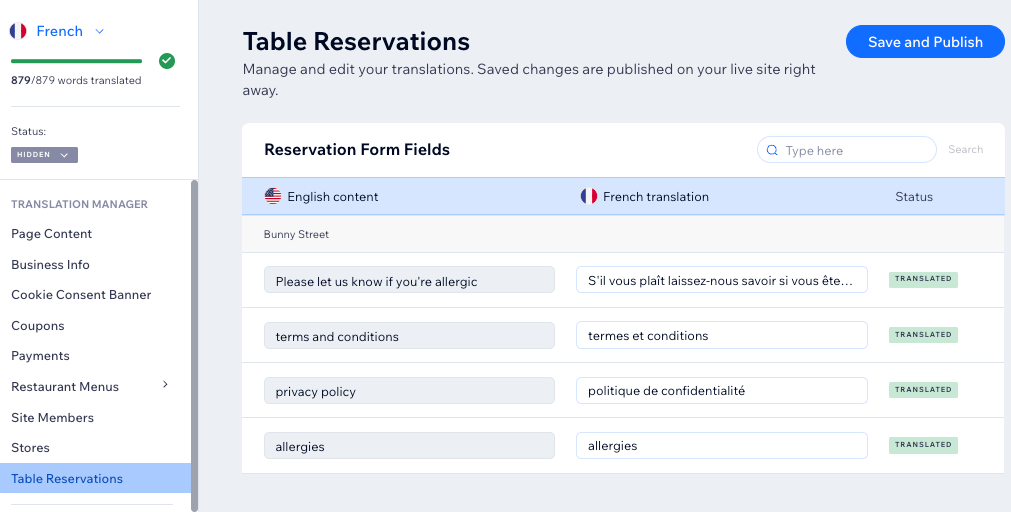
Go to Translation Manager in your site's dashboard.
Click Table Reservations on the left.
Choose the relevant option:If you auto-translated your site: Review the automated translations and edit if necessary.
If you didn't use auto-translation: Translate the custom fields and policies manually.
Click Save and Publish.
Step 2 | Manage the translations in your editor
Next, head over to your editor and translate the Reservation widget that appears on your site.
Some text may already be automatically translated, but you can review it and change it if necessary.
Wix Editor
Studio Editor
Click the Switch languages drop-down menu at the top of the editor.
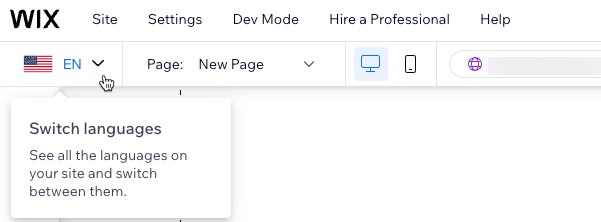
Select the language you want to edit.
Go to the page with your Table Reservations widget:Click Pages & Menu
 on the left side of the editor.
Select the relevant page.
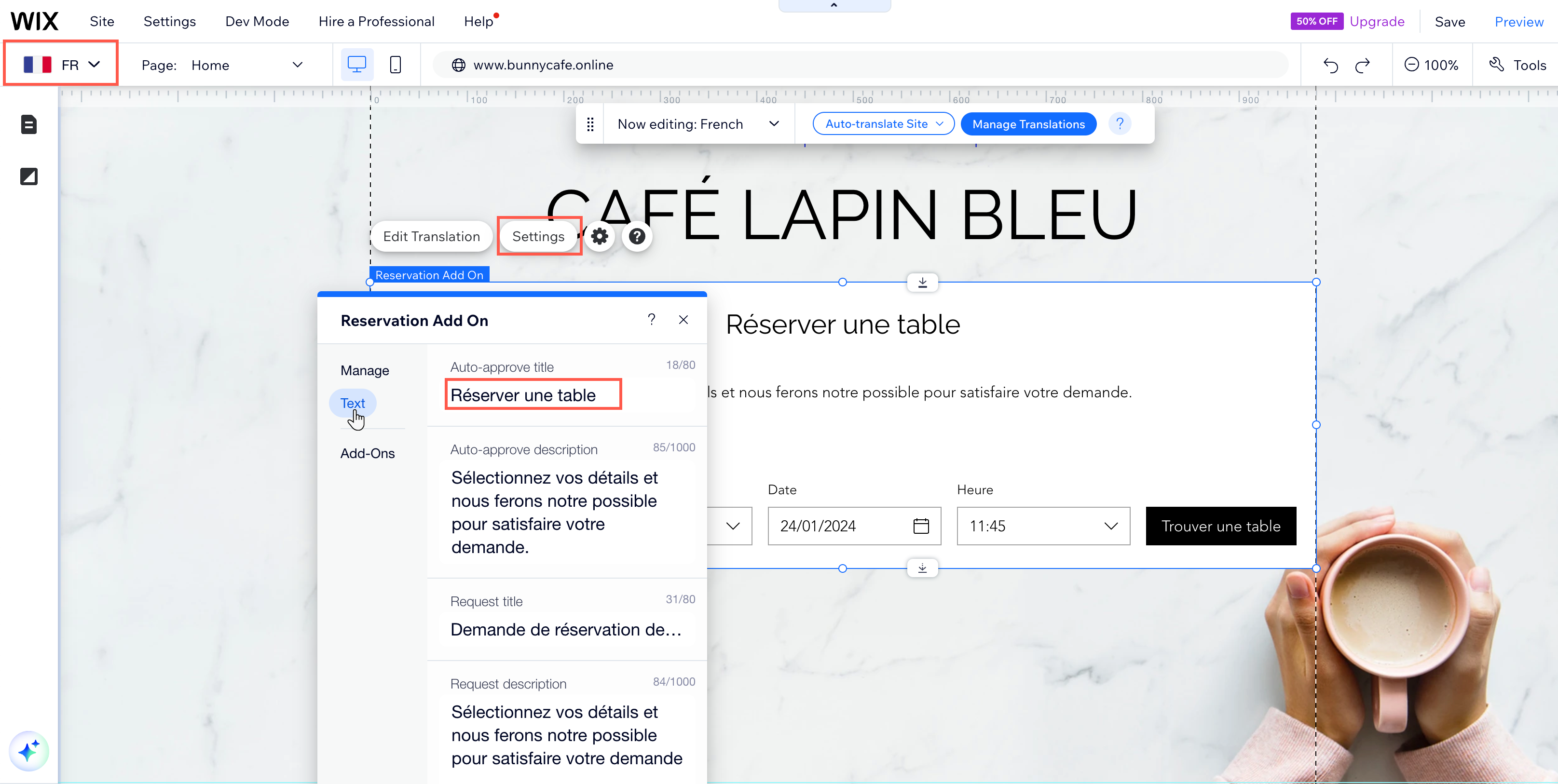
Click the Table Reservations widget on your page.
Click Settings.
Click the Text tab.
Update the relevant text as needed.
Click Save or Publish.
What's next?
Continue translating the other pages in your site. We also recommend translating your automated emails into your site's languages. This allows you to speak to your audience in their language, offering a more local experience.