


Taking online orders
Wix Restaurants: Setting Notifications for Online Orders
Important:
This article is about the original Restaurants Orders app.
We've released a new online ordering app. Learn how to add and set up the new Wix Restaurants Orders (New) app.
Choose how to receive notifications about online orders for your restaurant, and set an alert for orders you haven't handled in a certain time frame. You can also send a confirmation email to customers when they order from your restaurant online.
In this article, learn more about:
Receiving notifications for online orders
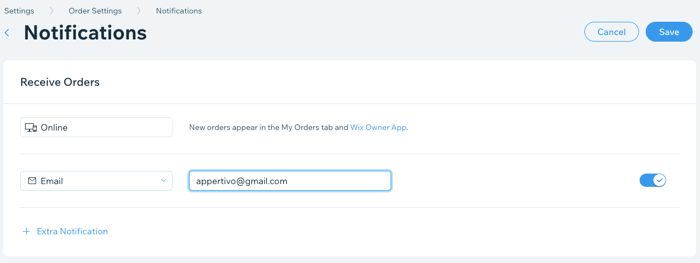
In the Notifications tab, you can choose how you want to be notified about online orders.
Note:
New orders automatically appear in My Orders tab and the Wix app. You can add additional notification methods.
To add notifications for online orders:
Go to Order Settings in your site's dashboard.
Click the Notifications tab.
Click + Extra Notifications to add an additional notification method.
Select the type of notification you receive as soon as an order comes in:Email: Enter your email address.
Print: Enter your printer ID. Click for setup information.
Fax: Enter your fax number.
Note: Our fax system is PCI-DSS compliant.
Phone call: Enter your phone number. Notifications are delivered via a text-to-speech system that supports 18 languages (see below).
Note: You may not receive phone call notifications if you use AT&T as your phone provider.
Webhook: Integrate with other third-party services. Click for setup information.
Show me supported languages for phone call notifications
5. Enter the relevant information in the field beside the notification type.
6. (Optional) Click Extra Notification to add additional notifications and repeat step 4.
7. Click Save.
Tip:
To temporarily disable a notification method, deselect the toggle  next to that method.
Receiving notifications for unhandled orders
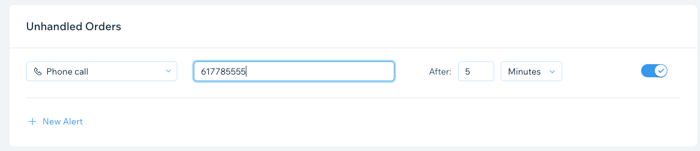
Add a method to alert you about cases in which orders are not handled after a certain amount of time.
Notes:
If a fax, printer, or webhook notification is successfully received, the order is considered "accepted". An unhandled alert will not be triggered.
You may not receive phone call notifications if you use AT&T as your phone provider.
To add notifications for unhandled orders:
Go to Order Settings in your site's dashboard.
Click the Notifications tab.
Click + New Alert under Unhandled Orders.
Select an alert method from the drop-down list and enter the relevant information.
Enter a number of minutes in the After field.
Select Minutes, Hours or Days from the drop-down list.
Click Save.
Tip:
To temporarily disable a notification method, deselect the toggle next to that method.
Sending order confirmation emails to customers
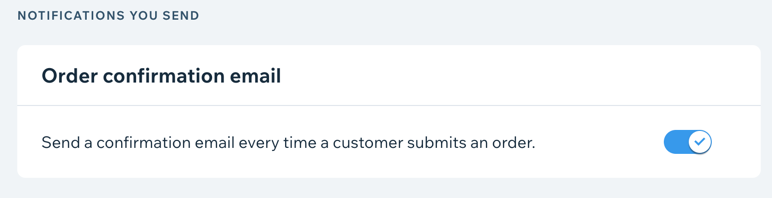
Send a confirmation email to customers when they order from your restaurant online.
Go to Order Settings in your site's dashboard.
Scroll down and click Notifications.
Click the Order confirmation email toggle to enable or disable sending a confirmation email to customers when they order online from your restaurant.
Click Save.
Troubleshooting order notification sounds
When you receive an order in your restaurant's online ordering system, you are notified with a sound. If you don't receive a notification for incoming orders, follow the steps below.
Step 1 | Check that your browser isn't muted
Make sure that the tab/your browser isn't muted. To check, right-click on the tab and click Unmute site.

Step 2 | Test the notification sound again
Turn your computer's volume up and test the sound again in your site's dashboard on the bottom left.

Step 3 | Check out other sites
Browse to other sites and make sure you can hear sounds on those sites.