


Taking online orders (NEW)
Wix Restaurants: Printing Online Orders from the Wix App
Important:
This article is about the new Restaurants Orders app.
Before you can start printing orders, make sure you have a compatible printer.
Automatically print incoming orders right from your device using the Wix app. Once you've connected a thermal printer, orders will be printed automatically whenever you have the app open. You also have the option to manually print your orders directly from the app.
Step 1 | Pair your printer with your device
Set up your thermal printer to automatically print orders placed by customers on your site. First, decide how you want to pair the printer with your device (Bluetooth, WiFi or Ethernet). Then, click a connection type below to see the steps.
Bluetooth
Ensure your printer's Bluetooth is turned on. In some printers, you need to turn on pairing mode. Then, open the Bluetooth settings in your mobile device / tablet and pair it with your printer.
Note: Allow location and nearby devices discovery permissions on your mobile device.
WiFi and Ethernet
Follow your thermal printer manufacturer instructions to connect it to the same network as your mobile device / tablet.
Important:
If you have any issues with pairing, contact the printer manufacturer's support for assistance. If you're having trouble connecting a printer, follow these troubleshooting steps.
Step 2 | Connect the printer to the Wix app
Once your printer and device are paired, open the Wix app to connect the printer to Wix Online Orders.
To connect the printer to the Wix app:
Access your online ordering settings in the Wix app:Go to your site in the Wix app.
Tap Manage at the bottom.
Tap Restaurants.
Tap Online Orders (New).
Tap the More Actions icon at the top right.
Select Manage settings.
Connect your printer to the app:Tap Thermal printing under Printing.
Tap Get Started.
Tap Next, then tap Next again.
Verify your printer is the one selected from the list and tap Next.
Tip: You can tap another printer on the list to select it instead.
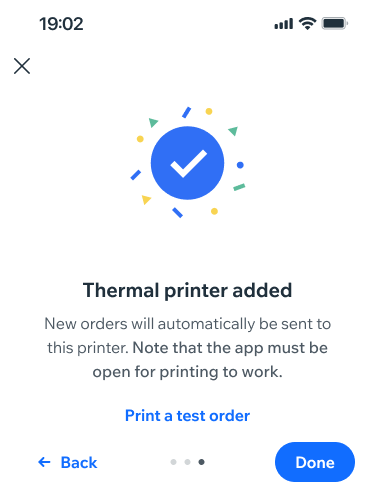
Tap Done.
Tip: Verify the printer is connected by tapping Print a test order.
What's next?
Now that the printer is connected, it will automatically print incoming orders. Auto-printing requires the app to be constantly open – for your convenience, your Online Orders page always stays on (even if you're inactive for a while).
FAQs
Click a question below to learn more:
How many printers can I connect?
You can connect a single printer to a single device (e.g. tablet or mobile phone).
How can I solve issues with printing?
Yes, learn how in this troubleshooting guide.
What does a thermal-printed order look like?
In the screenshot below, you can see an example of an order that was printed thermally through the Wix app.

How can I turn off auto-printing?
Go to your site in the Wix app.
Tap Manage
at the bottom.Tap Restaurants.
Tap Online Orders (New).
Tap the More Actions icon
at the top right.Select Manage settings.
Tap Thermal printer.
Tap to disable the Auto-print new orders toggle.

How can I adjust the number of copies for printing an order?
You can set the auto-print to make between 1 to 10 copies of every order.
Go to your site in the Wix app.
Tap Manage
at the bottom.Tap Restaurants.
Tap Online Orders (New).
Tap the More Actions icon
at the top right.Select Manage settings.
Connect your printer to the app:Tap Thermal printing under Printing.
Tap Thermal printer.
Tap the + or - icons next to Number of copies.
Note: This option is only available for auto-printing.

How can I manually thermal-print an order from the status view?
Go to your site in the Wix app.
Tap Manage
at the bottom.Tap Restaurants.
Tap Online Orders (New).
Tap More Actions icon
 on the relevant order.
Tap Print order.
