


Taking online orders
Wix Restaurants: Customizing Your Order Settings in the Wix App
Important:
This article is about the original Restaurants Orders app.
We've released a new online ordering app. Learn how to add and set up the new Wix Restaurants Orders (New) app.
Customize the way you handle incoming orders for your restaurant using the Wix app. Choose to pause online ordering for an hour, until the next business day, or turn off online ordering altogether. Get a quick snapshot of all your pickup and delivery options, and temporarily disable delivery areas.
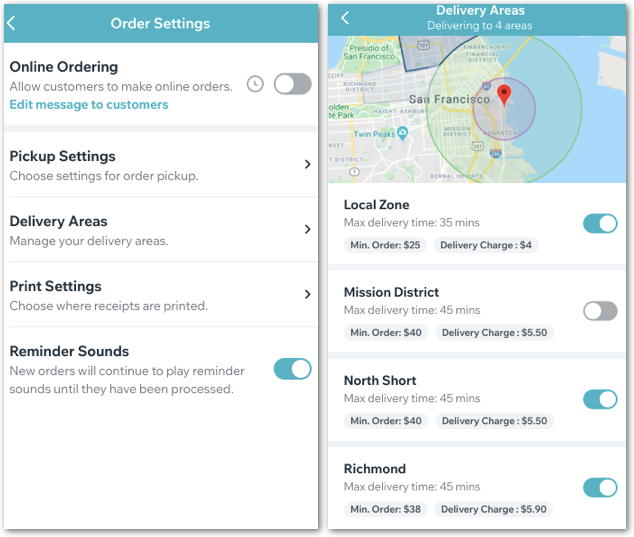
To customize your order settings in the Wix app:
Go to your site in the Wix app.
Tap Manage at the bottom right.
Tap Orders under the Business apps.
Tap the Settings icon
 at the top right.
Tap the Online Ordering toggle:Enabled: Customers can place online orders on your site.
Disabled: Choose whether to pause online ordering or turn it off completely. You can also include a message for customers letting them know why online ordering is currently unavailable.
Show me more
Pause online orders if the kitchen is overwhelmed or if you're running a special event and not taking orders from your site. You can also turn off online ordering completely.
To pause or turn off online ordering:
Tap the Online Ordering toggle to disable it.
Choose whether to pause or turn off online ordering:For the next hour: Online ordering is paused for one hour.
Turn off permanently: Customers cannot order online.
Note: You can reactivate online ordering at any time by tapping the toggle to enable it.
(Optional) Include a message to customers explaining why they cannot order online:Tap the Message (optional) field and enter your message.
Tap Done.
Tip: To edit your message while online ordering is off, tap Edit message to customers under the Online Ordering toggle.

6. Customize your pickup settings.
Show me more
Tap Pickup Settings.
Tap the Pickup toggle to allow pickup at your restaurant.Enabled: Customers can pick up their orders from your restaurant location.
Disabled: Customers cannot pick up their orders.
Set the pickup time:Tap Edit under Set Pickup Time.
Edit the number field and tap the Minutes drop-down to choose a timeframe from minutes, hours or days.
Tap Save.
Set the minimum order price:Tap Edit under Minimum Order Price.
Enter a minimum amount for pickup orders. Your customers are alerted if they don't reach the minimum amount.
Note: If you don't want to set a minimum amount, just set it to $0.
Tap Save.
7. Manage your delivery areas.
Show me more
View a list of your delivery areas, the minimum order amount, and delivery charge for each area.
To manage your delivery areas:
Tap Delivery Areas.
Tap the toggle next to a delivery area to allow delivery to that area.Enabled: The delivery area is active and customers can choose to get their order delivered to this area.
Disabled: The delivery area is not available and customers can't request a delivery to this area.
Note: You can set up new delivery areas or edit information such as the minimum order amount and delivery charge from your desktop.
8. Connect a printer for receipt printing.
Show me more
Tap Print Settings.
Tap the drop-down arrow to select a printer.
Select a WiFi-ready or bluetooth printer from the list of available printers.
Learn more about printing orders in the Wix app. If you're having trouble connecting your printer, follow these troubleshooting steps.
9. Tap the Reminder Sounds toggle to enable or disable it:
Enabled: Any new or unfilled orders will continue to play reminder sounds in the app until they have been processed.
Disabled: You won't get reminder sounds about new and unfilled orders.