


Taking online orders (NEW)
Wix Restaurants: Adding Modifiers
Let customers personalize their orders with modifier groups. Modifiers allow you to add options to menu items, like toppings on a pizza or dressing for a salad. Decide on the number of modifiers customers can choose and determine if a selection is required.
Before you begin:
Make sure you have the new online ordering app installed to add modifiers to your menu.
In this article, learn more about:
Adding modifiers to a menu item
Organize your menu modifiers into groups to make customization simple for your customers. Set limits, decide which options are free, and add extra charges for premium choices. Use these groups across your menu for easy management.
Before you begin:
Plan your modifiers in advance. List the groups, their contents, and related dishes. For example, outline pizza toppings, their prices, and how many customers can add.
To add modifiers to a menu item:
Go to Menus (New) in your site's dashboard.
Click Manage next to the relevant menu.
Click on a menu item or add a new one.
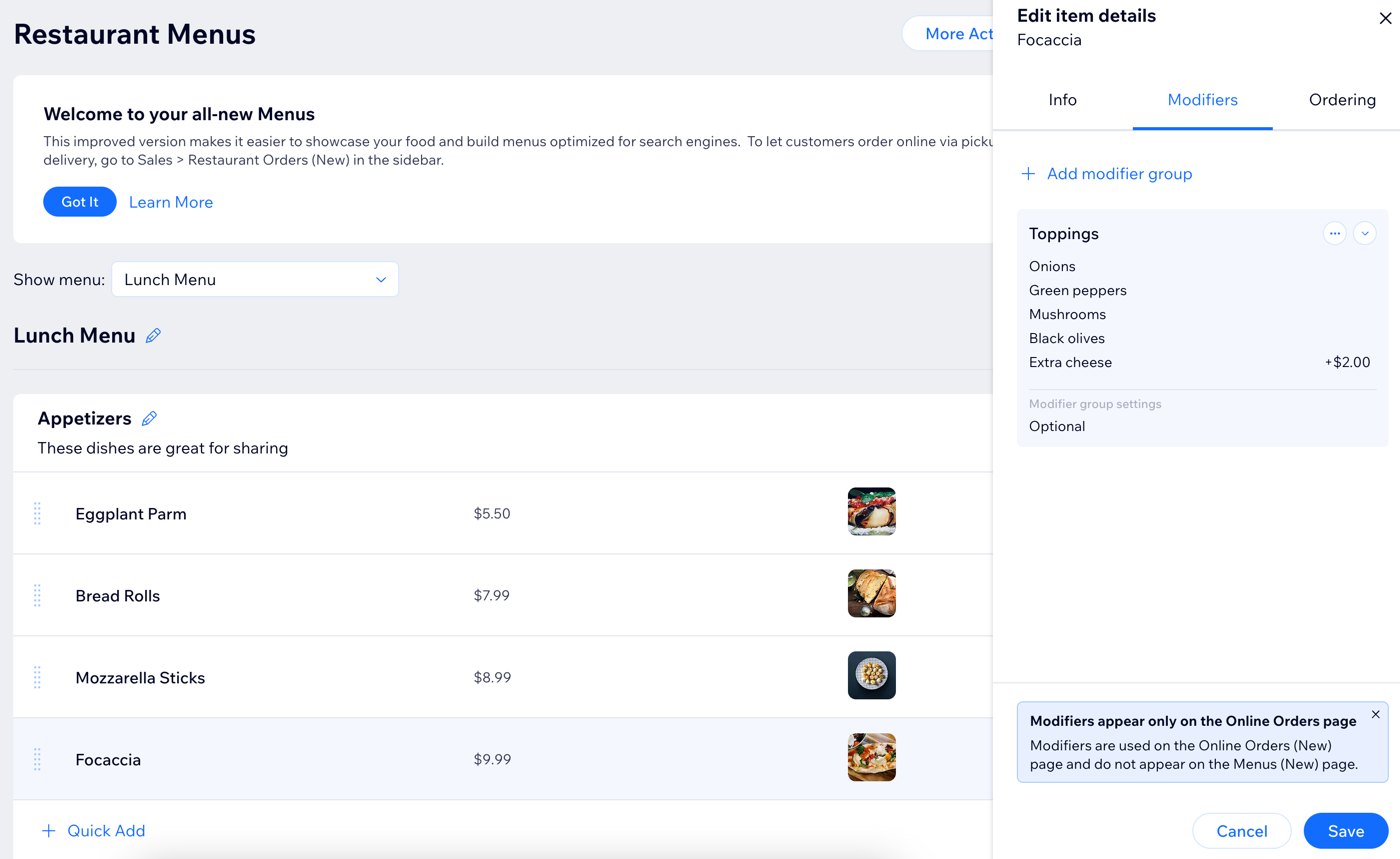
Click the Modifiers tab.
Click + Add Modifier Group.
Choose the relevant option:Select an existing modifier group. Then, click Add to Item and Save.
Create a new modifier group:Click + New Modifier Group.
Enter a modifier group name (e.g. "Dips" or "Toppings").
Add the first choice under Modifiers (e.g. "Salsa" or "Mushrooms").
(Optional) Enter a price (e.g. $0.5).
(Optional) Click the checkbox under Preselect to set default modifiers for customers.
(Optional) Click + Add Modifier to add more modifiers.
Decide if customers are required to make a selection under Modifier group settings:Optional: Customers can place the order without making a selection. Set the minimum and maximum number of modifiers that customers can add.
Required: Customers need to select 1 or more options to proceed with their order. Set the minimum and maximum number of modifiers that customers can add.
Click Save & Add.
Note: Once you create a modifier group, you can add it to any menu item and don't need to create it again.Click Save.
(Optional) Click + New modifier group to create additional modifier groups.
Examples of common modifiers settings
We collected some of the most common scenarios for which you'd want to use modifiers. Search for the combination or setting you would need.
The selection is optional
You can make a modifier group optional if you want to leave it open for the customer to decide. In some cases, customers may not need to customize the menu item they chose.
How many options can customers choose?
The required modifier group settings
How it looks live
Unlimited selection
Optional
Minimum: None
Maximum: No limit

Just 1
Optional
Minimum: None
Maximum: 1

Up to 2
Optional
Minimum: None Maximum: 2

The selection is required
You can make a modifier group required if it's necessary for the customer to state their preference(s).
How many options can customers choose?
The required modifier group settings
How it looks live
Unlimited selection
Mandatory
Minimum: 1
Maximum: No limit

Just 1
Mandatory
Minimum: 1
Maximum: 1

Specific number (e.g. 2)
Mandatory
Minimum: 2
Maximum: 2
Range of selection (e.g. 4)
Mandatory
Minimum: 1
Maximum: 4

FAQs
Click a question below to learn more about modifiers.
How many modifier groups can I add?
You can add up to 20 modifier groups, and up to 25 modifiers in each group. Once you create a modifier group, you can use it for any menu item.
Tip: If you have over 10 modifiers in a group, we recommend setting the maximum selection to up to 10. This ensures all modifiers appear on the page.
Can I mark a modifier as 'out of stock'?
Yes. You can mark individual modifiers as 'out of stock.' When you do, the modifier is grayed out on your menu and customers cannot select it.
Go to Manage Items in your site's dashboard.
Click the Modifiers tab.
Click the Stock drop-down next to the relevant modifier and select Out of stock.

How do modifiers look on my menu?
Modifiers allow your customers to choose various options from your menu's offerings by presenting them with grouped lists of selection.
You can set the modifiers so customers only choose 1 of the options (e.g. degree of doneness, Vegan friendly, etc.) This adds an instruction saying, "Choose one" next to the modifier name ("Crispiness Level" in the screenshot below).
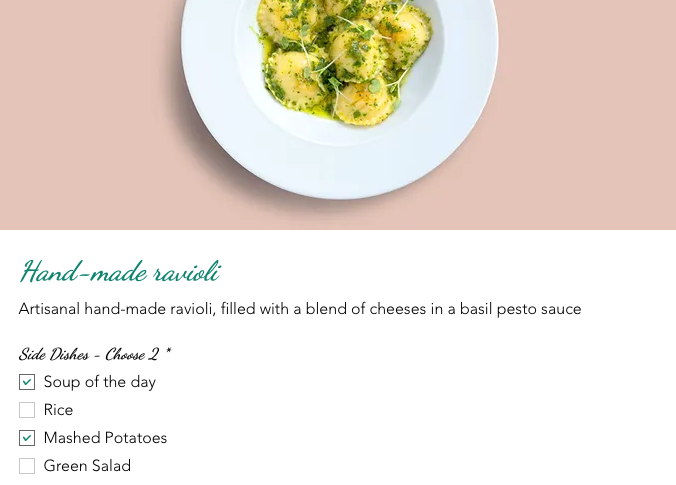
You can also allow customers to select multiple options (e.g. toppings on a pizza, side dishes). If you limit the selection amount, the relevant instruction automatically appears, for example "Choose up to X", or "Choose between X - Y".
Tip: If you mark a modifier group as required, customers see an asterisk (*) next to the selection.
Will modifiers be shown on my menu?
Modifiers are exclusive to the online ordering app and will not be visible on the menus app.