


Setting up Photo Albums
Wix Photo Albums: Adding Titles and Descriptions to Photos
Once you've created your albums and added photos, you can customize them further by adding a title and description to each of your photos. This allows visitors to your site to get more detail on each image.
In this article, learn more about:
Adding a title and description to your photos
Add catchy titles and informative descriptions to tell the story of each photo in your album.
To add a title and description:
Go to Photo Albums in your site's dashboard.
Click Manage Album next to the relevant album.
Click Edit on the top right.
Click the Text tab in the panel on the left.
Click the Galleries tab at the top.
Click the checkbox to enable or disable the title and description that appears on your gallery.

Customize how the text appears on your gallery:Alignment: Choose how you want to align your text (to the left, in the center, or to the right).
Vertical alignment: Choose how you want the button to align on hover (above, in the center, or below the photo).
Note: The above options depend on what gallery layout you choose. Different options are available if you choose Grid, Slider, Strip or Column layouts.
Click the toggle to add a Buy Now button.
Customize the text in the text box that will appear on the button.
Click the Media tab
Hover over the relevant gallery and click Manage Media.
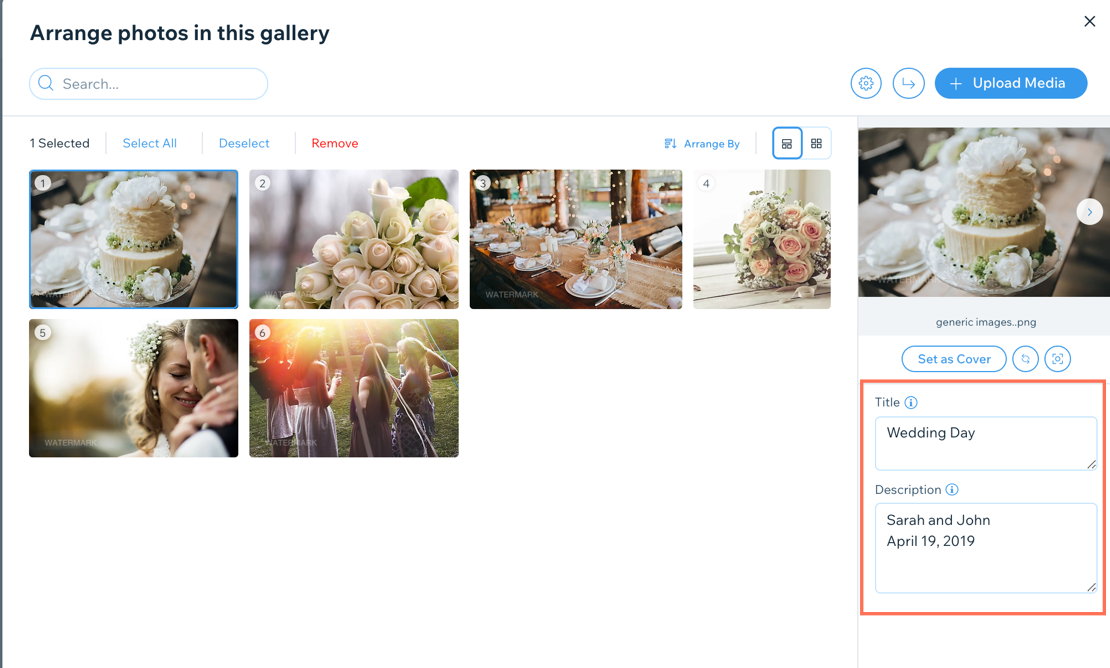
Select the relevant image.
Edit the title and description on the right.
Click Done on the bottom left.
(Optional) Publish your changes by clicking Publish Now at the top right.
FAQs
Click a question below to learn more abut adding titles and descriptions to your photos.
Some of my photo's titles and descriptions are being cut off. How can I fix this?
Set the text box height of the title and description to Set Manually and increase the size until it's big enough to fit in all the text.
