


Setting up Photo Albums
Wix Photo Albums: Adding New Media to an Album
You can add new photos and videos to your album at any time. Place them in existing galleries or create a new gallery just for them.
In this article, learn more about:
Adding new media to your albums
You can upload new media from your computer directly to your photo albums. Both photos and videos are supported media types.
To add media to your album:
Go to Photo Albums in your site's dashboard.
Click Edit on the relevant album.
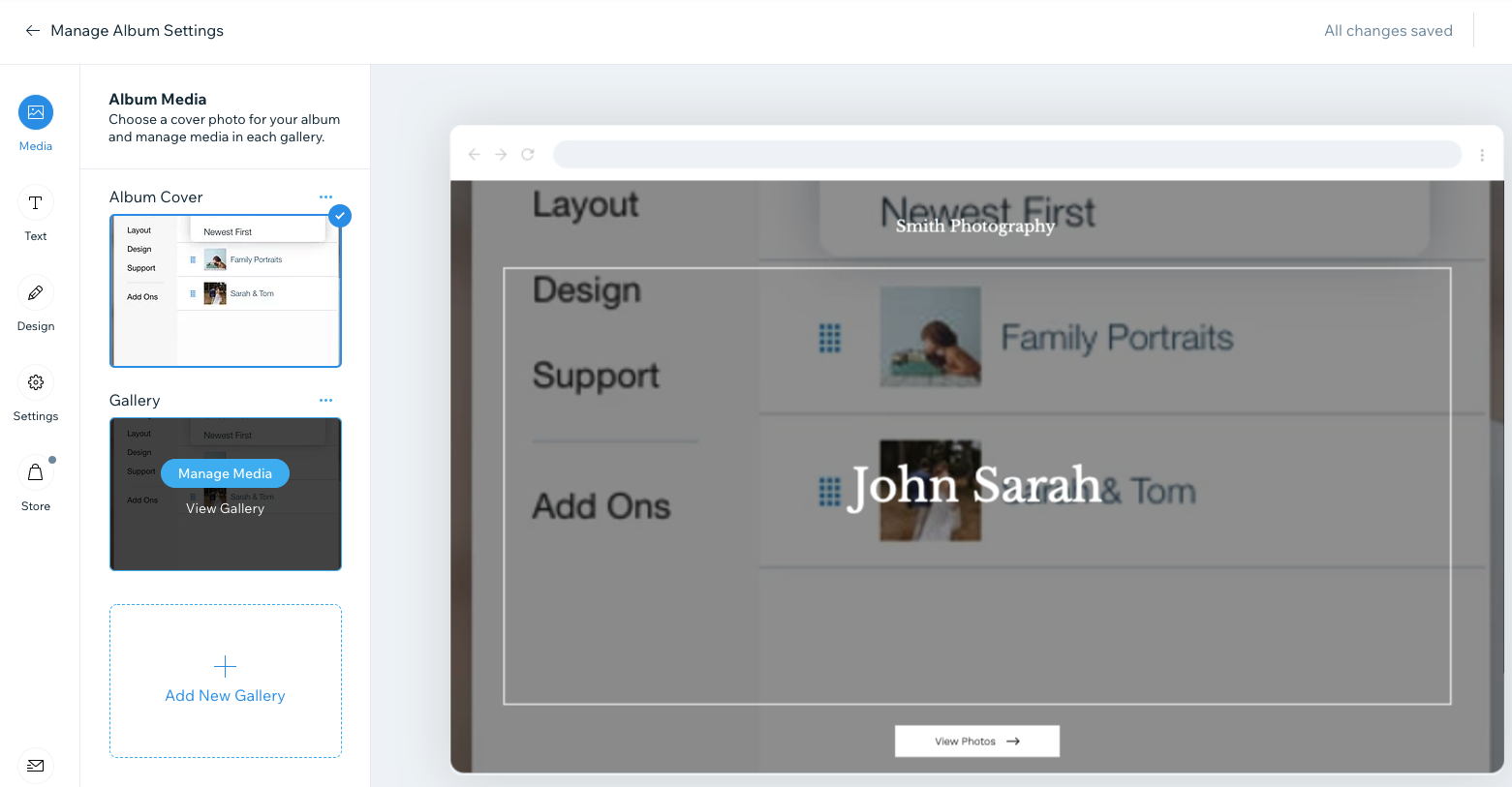
Click Media
 on the left.
Hover over the relevant gallery.
Click Manage Media.
Click + Upload Media at top right.
Select the relevant media file(s) and click Open.
(Optional) Replace the cover photo:Click Replace Cover Photo.
Click + Add Images at the top left.
Select the platform from which you wish to import your image on the left and select your file.
Once uploaded, select your file from the Media Files section of the import screen.
Click Apply.
Click the Focal Point icon to change the cover image's focal point.
Edit the Title field to give a name to your media.
Edit the Description field to add more information about your media.
Click Done at the bottom to save your changes.
Frequently asked questions (FAQs)
Click a question below to learn more about adding new media to your photo albums.
Will I have to republish my album for the new media to appear?
Yes. You will need to wait until your media upload is complete before you publish your photo album. Learn more about supported media sizes and formats.
Are there any naming conventions for the files I upload to my photo albums?
Yes. Please do not use special characters such as . ~ ! @ # $ % ^ & * ( ) ` ; < > ? , [ ] { } ' ” in the file names since this may lead to the media titles being cut after an upload to Photo Albums.
Including special characters in the names of files can cause issues when downloading media from albums using Mac devices. This can cause only one image or video to download instead of the whole album.
Can I edit my photos in Wix Photo Albums?
It is not possible to edit photos in Photo Albums. Edit photos outside of Wix before uploading them to Photo Albums.
Can I add photos from my site's Media Manager?
Wix Photo Albums has its very own Media Manager, stored on separate servers from your site's Media Manager. For this reason, it is not possible to add images from your site's Media Manager straight to your photo albums.
As a workaround, you can download images from your site's Media Manager and then upload them to your photo albums. Once you upload these images, you can edit their titles and descriptions. Learn more about downloading files from your Media Manager.