


Working with Wix Payments
Wix Payments: Failed Payout
Payouts from Wix Payments are automatically transferred to your bank account on a daily, weekly, or monthly basis.
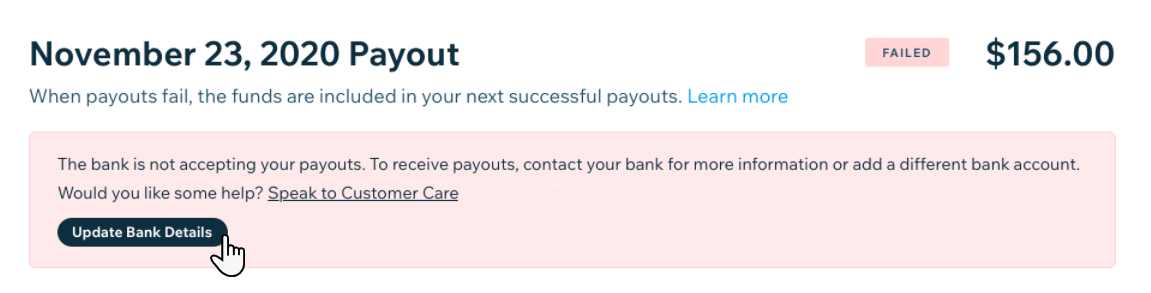
When a payout does not reach your bank account, it appears in your Payouts dashboard as Failed. The payout - along with any other funds that have finished processing - are then placed On Hold until the issue blocking your payout is identified and resolved. Once the issue is resolved, the funds will be included in your next scheduled payout.
There are many reasons why a payout may fail, such as incorrect bank account details, or even your bank changing ownership. Click on the payout in your Wix Payments dashboard to see any known details about the failed transaction. You will be able to see the issue and we’ll provide you with instructions on how to resolve it. Here's an example:
Tip:
You can also get information about the failed payout by clicking Payouts on Hold. The amount on hold includes your failed payout, plus any other available funds that cannot be sent to your bank because of the issue.
To help avoid payout failures, we recommend following our troubleshooting steps below.
Step 1 | Verify the bank details associated with your Wix Payments account
Make sure that you've registered your bank account details correctly; the bank account holder's name must match the name of the Wix Payments account owner.
For example, if you've registered to Wix Payments under Lisa Harrison but the associated bank account is listed as "Lisa's Cupcakes", the transfer will fail.
To verify the bank details:
Go to Accept Payments in your site's dashboard.
Click Manage next to Wix Payments.
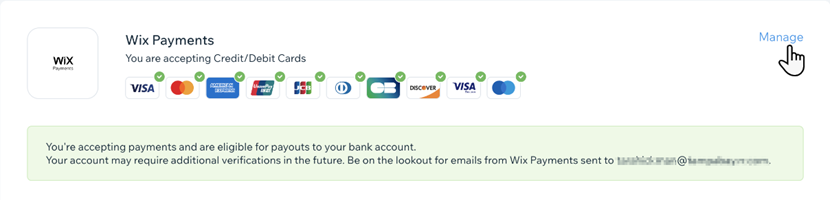
Click Edit Account Details next to Account Details.
Check the information listed under Bank Details. If necessary, correct it and click Resubmit.
Step 2 | Verify that your bank account can receive EFT payments
Wix Payments sends payouts to your bank account as EFT payments (Electronic Funds Transfer). If you're located in the United States, the payouts are sent as ACH transfers. If you have a failed payout, you should verify with your bank that your account can receive such a transfer.
If your account cannot receive EFT payments, update your settings to a different bank account that can receive them. Make sure that the account details match, as described in step 1 above.
To verify that your account can receive EFT payments:
Go to Accept Payments in your site's dashboard.
Click Manage next to Wix Payments.
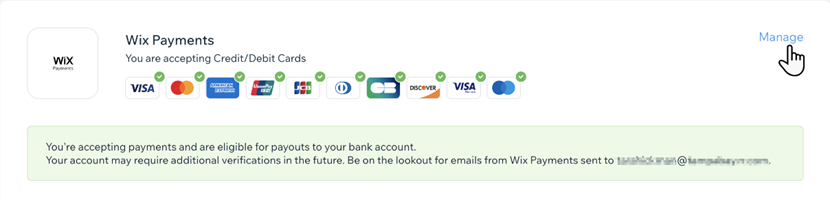
Click Edit Account Details next to Account Details.
Enter the new bank details under Bank Details and click Resubmit.
As soon as your payment details are updated, and your new account details have been verified, the funds will be included in your next scheduled payout.