


Getting Started with Wix Payments
Wix Payments: Adding Tap to Pay on Mobile as a Payment Method
Add Tap to Pay on mobile as a payment method to help your customers pay quickly and securely using your mobile device to take the payment.
Tap to Pay on mobile lets you accept payment on your phone without connecting any external hardware. Customers can either tap a credit/debit card directly on your phone or use their own phones to pay you.
Before you begin:
You must set up Wix Payments to accept payments via Tap to Pay on mobile.
You must download the Wix app to accept Tap to Pay payments on mobile.
Tap to Pay on mobile is currently available only in the United States.
General Info
Supported countries
United States
Supported currencies
USD
Processing fees
USA: 2.6% of the transaction amount + 0.20 USD
Notes
The currency used in your Wix account must match the currency in your Wix Payments account. If the currencies do not match, the transactions may be declined. Learn how to change your currency
Adding Tap to Pay
Go to Accept Payments in your site's dashboard.
Click Manage next to Wix Payments.
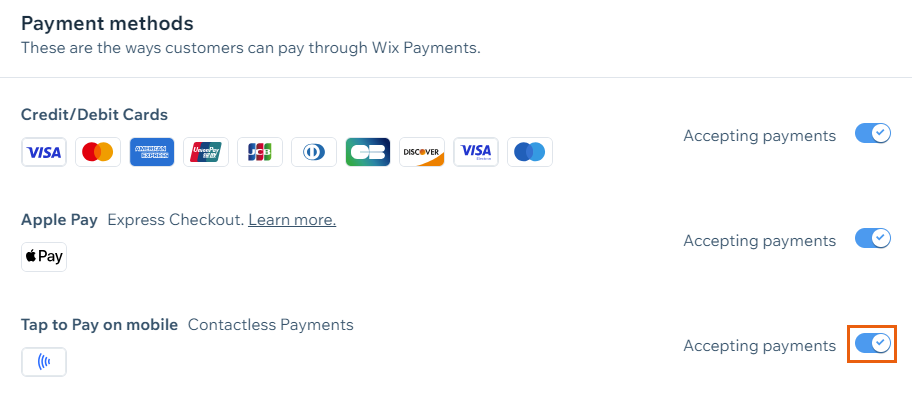
Enable the toggle next to Tap to Pay on mobile.
Note: You can disable the toggle at any time to remove Tap to Pay from your payment options.
Go to your site in the Wix app.Tap Manage
 at the bottom.
Tap Point of Sale under Getting Paid.
Tap the Connect icon at the top right.
 Tap Tap to Pay on mobile.
Tap Activate.
Important Information:
Items sold via Tap to Pay are subject to our list of prohibited goods and services.
Disabling card payments in Wix Payments will also disable Tap to Pay. You can, however, disable Tap to Pay payments without disabling card payments.