


Wix Forms FAQ
Wix Forms: Choosing an Address Field
There are 3 different types of address fields that you can add to your form. Choose the type that fits the amount of information you want to collect:
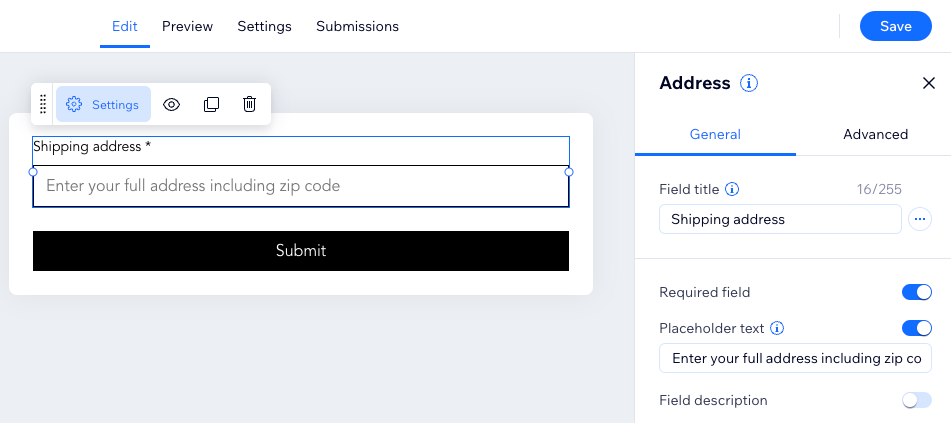
Basic address field: A single text box where visitors need to enter their entire address.
Multi-line address field: A field with multiple lines for visitors to enter their address, including a second address line, a city field, country drop-down, etc.
Autocomplete address field: A field that suggests an existing street address as you begin typing.
Adding an autocomplete address field
An autocomplete address field suggests a street address to site visitors once they begin typing their address into the field. The address field takes information from Google Maps.
Note:
This feature is only available in old Wix Forms.
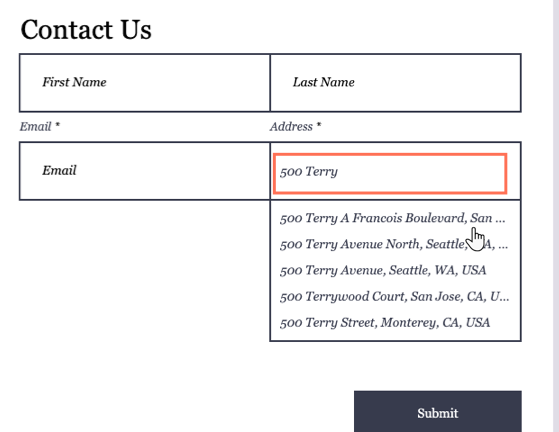
To add an autocomplete address field:
Click your form in the editor.
Click Add New Field.
Click Autocomplete Address in Contact Fields.
Click the autocomplete address field in the form and click Edit Field.
Customize the autocomplete address field by updating the settings:Click the Field Title textbox and enter the field name.
Tip: Learn more about adding field titles to your form.
Under Show initial text choose to add a 'hint' or placeholder text inside the field to help visitors know what to write:None: No text appears inside the field.
Placeholder text: Text appears inside the field before visitors enter their info.
 Click the Required field checkbox to make the autocomplete address field mandatory.
Choose to limit the autocomplete address search results to a specific country under Search Preferences.None: The autocomplete address field does not limit its search to a specific country.
Filter by country: The autocomplete address field only searches addresses in a country that you choose. Click the Choose a country drop-down to select a country for the autocomplete address to use in its search.
Adding a multi-line address field
Multi-line address fields have different subfields, like a second line for a street address, a city field, postal or zip code field, and a country drop-down list.
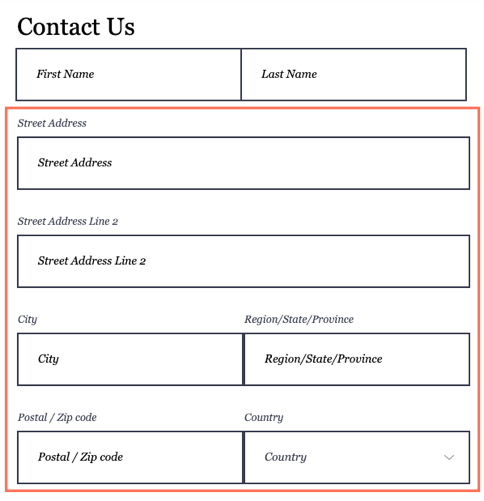
To add a multi-line address field:
New Forms
Old Forms
Click your form in the editor.
Click Edit Form to open the form builder.
Click Multi-line address under Contact fields.
Click Settings.
Customize the address field by updating the settings:Click the Field Group Name text box and enter the field name.
Tip: This name is only visible on your submissions table.
Enable the Required field toggle to make the address field mandatory.
Enable the Show "Address line - 2" toggle to add a second address line field.
Click the Advanced tab to edit the following advanced settings:Enable autocomplete: Enable the toggle to offer real-time address suggestions when someone starts entering info.
Field Key: Use this key to reference the form field in code.
Notes:
Multi-line address submissions will be shown as one column in your submission table.
Multi-line address layout adjusts depending on your sites regional settings.
Adding a basic address field
A basic address field is a one-line address field. Unlike a multi-line address field, visitors are limited to one text box to enter their entire address. You can set a character limit for this field.

To add a basic address field:
New Forms
Old Forms
Click your form in your editor.
Click Edit Form to open the form builder.
Click Add
 on the left side of the builder.
Click Address.
Click the Address field and click Settings.
Customize the address field by updating the settings:Click the Field Title text box and enter the field name.
Tip: Learn more about adding field titles to your form.
Enable the Placeholder Text toggle so appears inside the field before visitors enter their info. Edit the text under Placeholder text.
Enable the Required field toggle to make the address field mandatory.
FAQs
Click a question below to learn more.
Can I add multiple types of address fields to my form?
Yes, you can combine multiple types of address fields in a single form.
Note: The autocomplete field is only available for old Wix Forms.
The multi-line address field includes 4 individual fields by default. Does this count toward my premium plan field quota?
No. When you add a multi-line address field, all 4 fields collectively count as 1 field toward your premium plan quota.