top of page

Creating your event

Wix Events: Setting Registration Opening & Closing Times in Advance

Set the dates and times for when guests can RSVP or purchase tickets for an event. Scheduling the opening and closing of registration in advance is useful if you want to promote events well ahead of time but aren't ready to accept registrations yet.

Additionally, you may choose to close registration a few days before the event to allow sufficient time for preparation.

A screenshot of an event where guests can click Details to register.

In this article, learn how to set registration dates for:

Setting registration dates for RSVP events

Manage when guests can register for your RSVP event by specifying custom registration periods, including start and end dates and times. This lets you determine the exact period during which registration is available, so it aligns with your event planning and preparation needs.

To set when registration opens and closes for an RSVP event:

  1. Go to Events in your site's dashboard.

  2. Click Manage next to the relevant event.

  3. Click the Settings tab.

  4. Click Edit next to Registration settings.

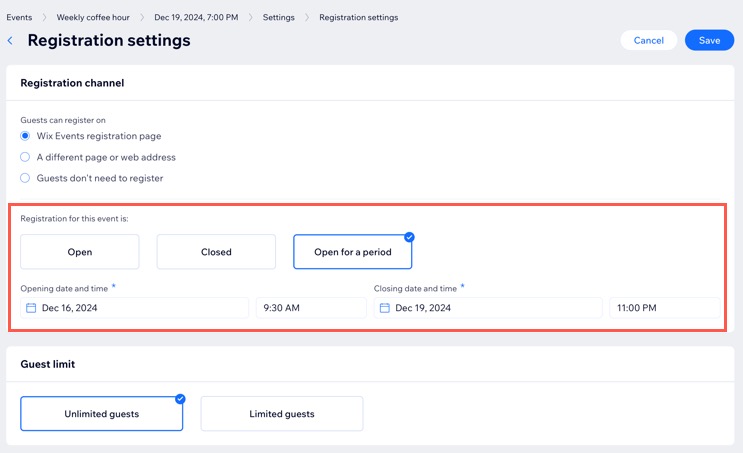
  5. Click Open for a period under Registration for this event is.

  6. Set an Opening / Closing date and time.

  7. Click Save.

A screenshot of setting the opening and closing date and time for an RSVP event.

Setting registration dates for ticketed events

Create multiple ticket types for the same event (e.g. student tickets, regular tickets) and set specific opening and closing dates for registration for each ticket type individually.

To set when registration opens and closes for tickets:

  1. Go to Events in your site's dashboard.

  2. Click the Tickets and Seating tab.

  3. Select a ticket or create a new one.

  4. Scroll down to Advanced settings (optional) and click the Set ticket sale period toggle to enable it.

  5. Set when your Ticket sale starts / ends.

  6. Enter an end date and time.

  7. (Optional) Select the Hide tickets from the event details page when they are not on sale checkbox.

  8. Click Save.

  9. Repeat steps 1-8 for any other ticket types.
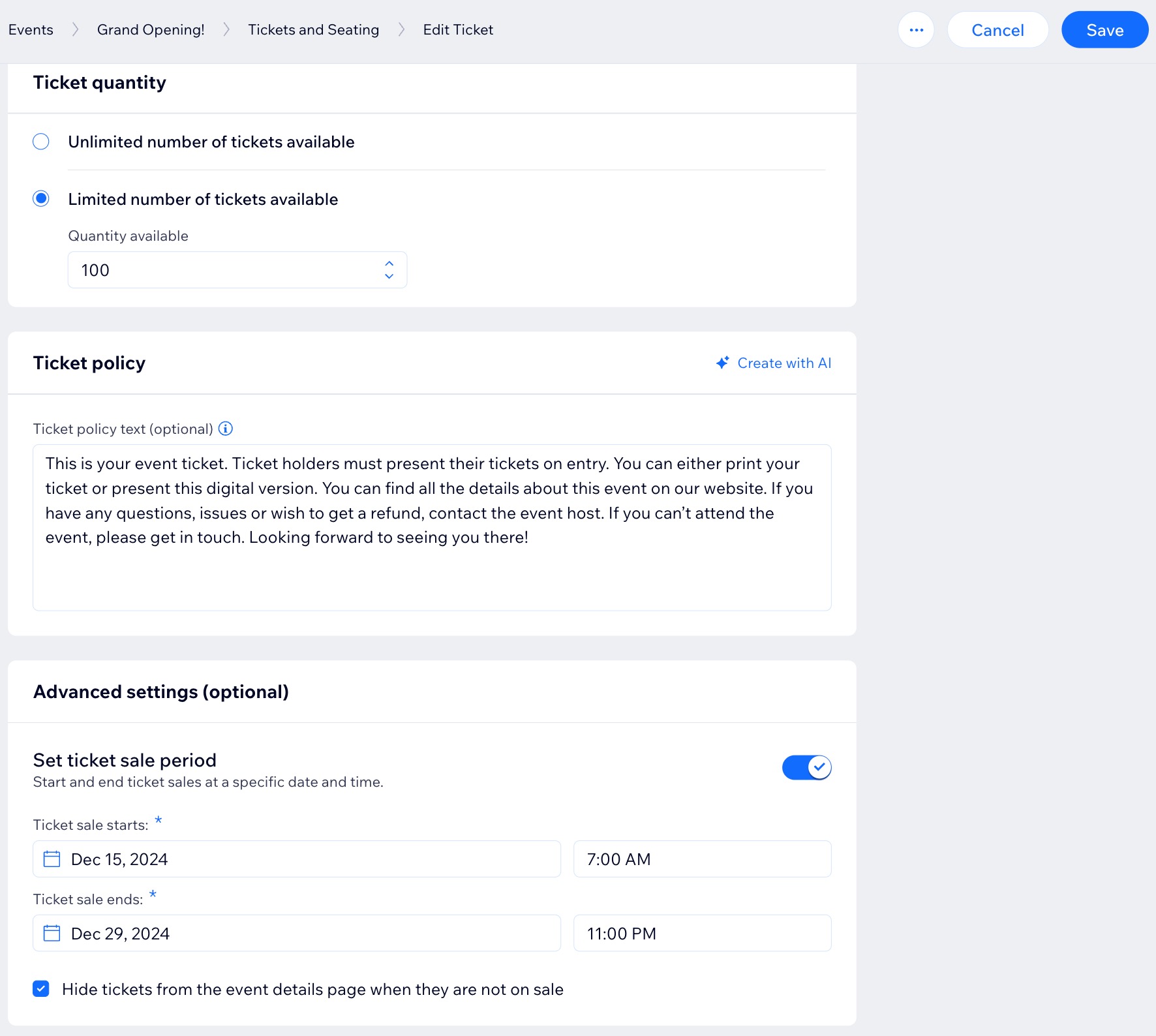
A screenshot of setting the opening and closing date and time for a tickets event.

Need A Professional Website?
Contact Us 
Today!

Embedding a Yandex Map on Your Wix Site

Apps Made by Wix: Adding and Setting Up the Wix Weather App

Adding and Setting Up the Wix Hit Counter App

Embedding a VKontakte Community Widget on Your Site

Embedding Your Tumblr Blog and Posts

Wix Comments: An Overview

Adding Pinterest Content to Your Site

Wix Apps: Adding and Setting Up the PDF Viewer App

Adding and Setting Up the Open for Business App

Embedding an Odnoklassniki (OK) Like Button on Your Site

Adding and Setting Up the Site Badges App

Gift Card Payment Confirmation

Adding and Setting Up the Get Funding App

Adding and Setting Up the Get Files to Dropbox App

Apps Made by Wix: Adding and Setting Up the Dropbox Folder App

Adding and Setting Up the Countdown Clock App

Adding and Setting Up Wix Site Search

Understanding & Customizing Your Search Results Page

Customizing Your Site Search Bar

About Wix Site Search

Displaying a Different Variant (e.g. Color) of an Item in the Amazon App

Retrieving Your Amazon Credentials

Adding and Setting Up the Amazon App

Setting Permissions for Google Drive Files and Folders

Adding and Setting Up the Google Drive App

Displaying Events Using Your Site Colors or Google Colors in the Google Event Calendar App

Displaying Private Events in Your Google Event Calendar App

Managing Your Google Event Calendar App

Adding and Setting Up Google Event Calendar

Wix FAQ App: Using the Wix App to Display FAQs in Your Preferred Member Apps

wix experts
Graphic2Traffic web design
©
bottom of page