top of page

Using the Wix app for Wix Events

Wix Events: Checking-In Guests Using the Wix App

Use the Wix app to check guests in as they arrive at your event. For ticketed events, you can use the app to scan the QR code found on event tickets.
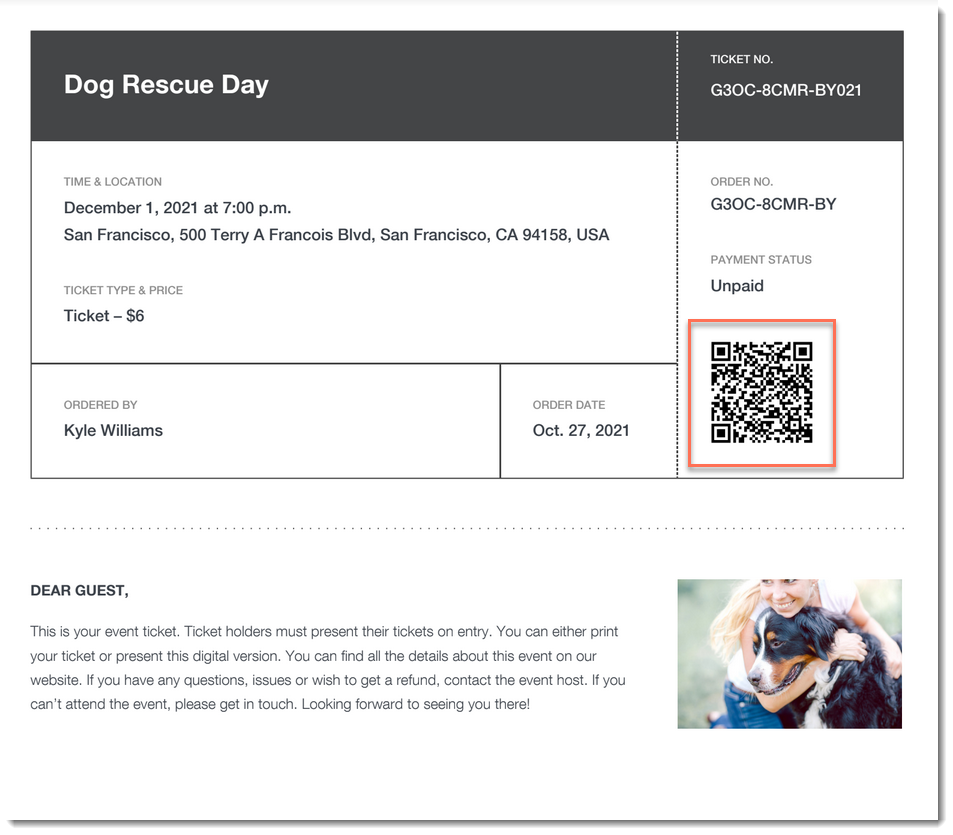
A screenshot of an event ticket PDF highlighting a QR code.

Important:

Go to your guest list in the Wix app shortly before you leave for the event, while you’re connected to the Internet. This ensures that you’ll be able to access the list and check guests in - even if you're offline during the event itself.

To check a guest in to an event:

  1. Go to your site in the Wix app.

  2. Tap Manage  at the bottom.

  3. Tap Events.

  4. Tap Published Events.

  5. Tap the event you want to view.

  6. Choose what you want to do:

Change a guest's status to "Checked In"

  1. Tap Guest List.

  2. (Optional) Filter your guest list:Tap the Filter  icon.

    Do any of the following:Select a status (e.g. Not checked in)
    Select one a payment status (ticketed events only).
    Select one or more a ticket types (ticketed events only).
    Select a sort option.
    Tap Save.

  3. Tap the checkmark next to a guest's name.
    A screenshot of a tapping a checkmark icon next to a guest's name in the Wix Owner app.

Scan a guest's ticket

  1. Tap Guest List.

  2. (Optional) Filter your guest list:Tap the Filter icon.

    Do any of the following:Select a status (e.g. Not checked in)
    Select one a payment status (ticketed events only).
    Select one or more a ticket types (ticketed events only).
    Select a sort option.
    Tap Save.

  3. Tap the QR icon at the top right.
    A screenshot of the QR icon in the Wix Owner app.

  4. Use your mobile device to scan the QR code that appears on the guest's ticket.
    A screenshot of an event ticket highlighting a QR code.

Tip:

You can also check in guests on desktop and on the Check-in by Wix app.

Need A Professional Website?
Contact Us 
Today!

Wix Forms: Troubleshooting

Wix Forms: Removing a Form from Your Site

Wix Forms: Saving Your Form Data to Your Contacts

Wix Forms: Creating Automated Email Responses for Form Submissions

Wix Forms: Choosing Who Gets Notified About Form Submissions

Wix Forms: Viewing and Managing a Submissions Table

Wix Forms: Customizing the Success Message and Thank You Page of Site Forms

Wix Forms: Designing Your Site Forms

Wix Forms: Adding a Signature Field

Wix Forms: Protecting Your Site Forms from Spam

Wix Forms: Adding a Subscriber Opt-In Checkbox to a Site Form

Wix Forms: Adding a File Upload Field

Wix Forms: Managing Your Form Fields

Wix Forms: Managing Your Standalone Form Fields

Wix Forms: Translating Your Forms with Wix Multilingual

Wix Forms: Adding and Setting Up a Standalone Form

Wix Forms: Adding and Setting Up a Form on Your Site

Wix Forms: An Overview

Wix Functions: Creating a Custom Loyalty Program Reward

Wix Functions: Adding Custom Validations to Your Forms

Wix Functions: Adding Additional Fees at Checkout

Wix Functions: Creating a Function

Wix Automations: Understanding Conditions Operators

Wix Automations: Using the Run Velo Code Action

Wix Automations: Troubleshooting Wix Automations

Wix Automations: Creating a Multi-Action Automation

Wix Automations: Sending Data via Webhook

Using Zapier to Automate Connections with Third-Party Apps

Wix Automations: Sending Data to Google Sheets

Wix Automations: Managing Your Automations

wix experts
Graphic2Traffic web design
©
bottom of page