Managing your calendar & bookings
Wix Bookings: About the Wix Booking Calendar
The Booking Calendar is the place to schedule your appointments, classes and courses. You can keep track of your bookings, make scheduling changes, manage clients, and much more.
Customize the calendar view
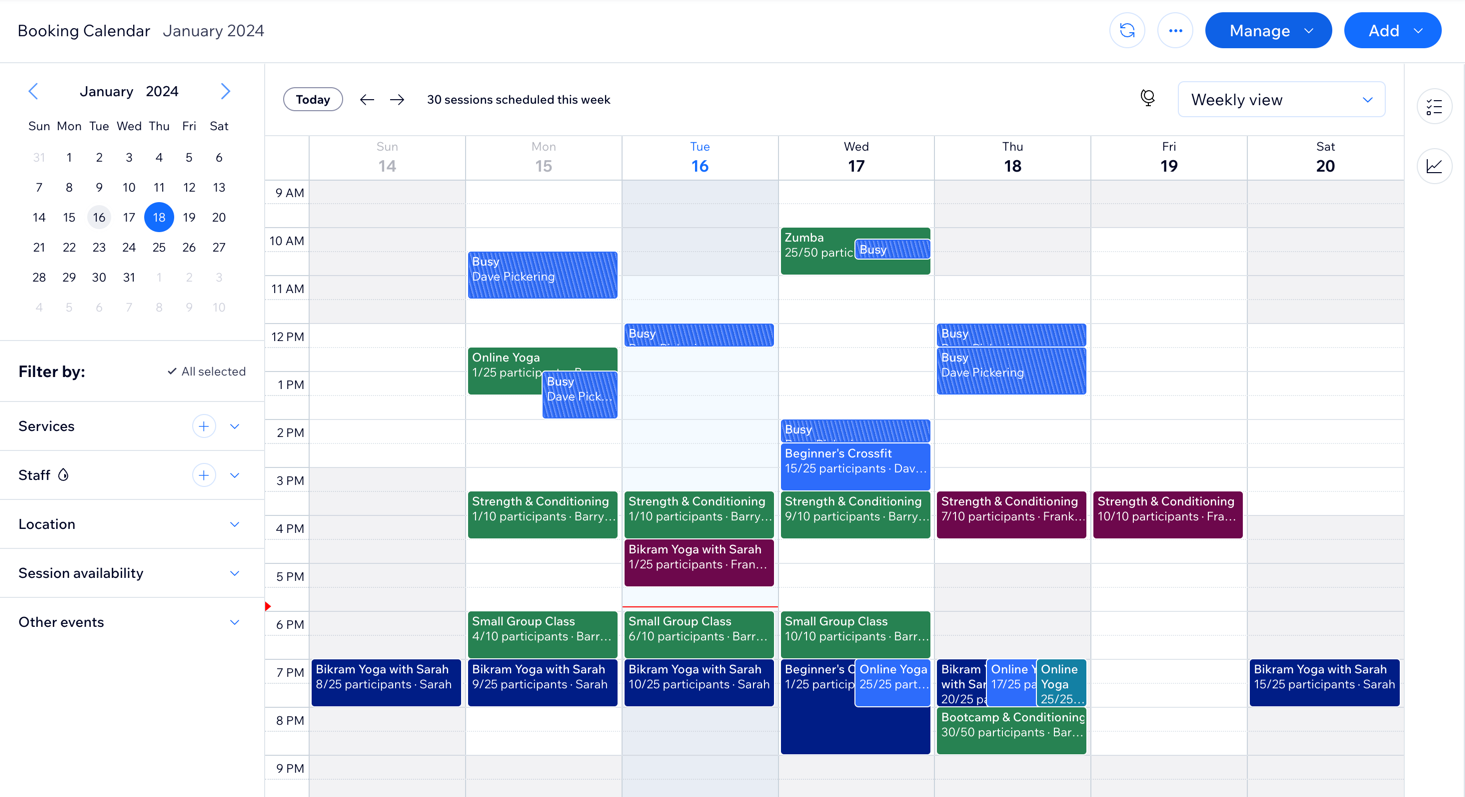
You can change how you view your Booking Calendar to suit your needs. Check the schedule for an entire week or a specific date, including all free time slots. You can also see the complete list of sessions for a single day or view upcoming bookings for each staff member.
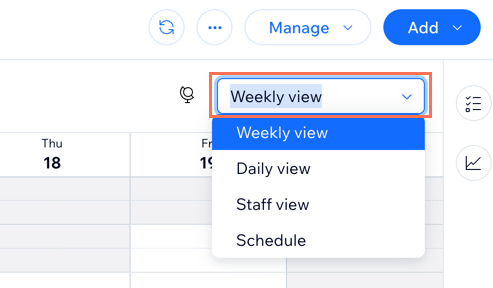
Choose from the following views:
Weekly view: View your entire calendar for the selected week, including all sessions and free time slots.
Daily view: View the schedule for the selected date, including all free time slots.
Staff view: Check the upcoming sessions for the selected date, with sessions sorted into columns based on the staff member in charge.
Schedule: View a list of sessions on the selected date, including the time, type, number of participants, staff member in charge and the location.
Customize the calendar display
Important:
We are in the process of releasing this feature, but it's not available to everyone yet.
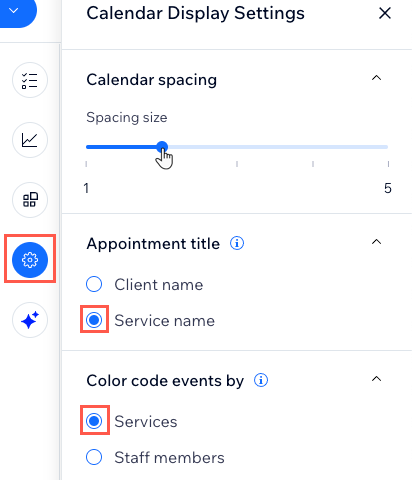
Choose how much spacing you want between sessions on your calendar, display appointments by client or service name, and color code your events by service or staff member. This allows you to streamline your day-to-day session management.
Click the Display Settings icon  on the right side of the calendar and use the available options to adjust how you display your Bookings Calendar. Start by choosing how you want to space out your sessions on the calendar.
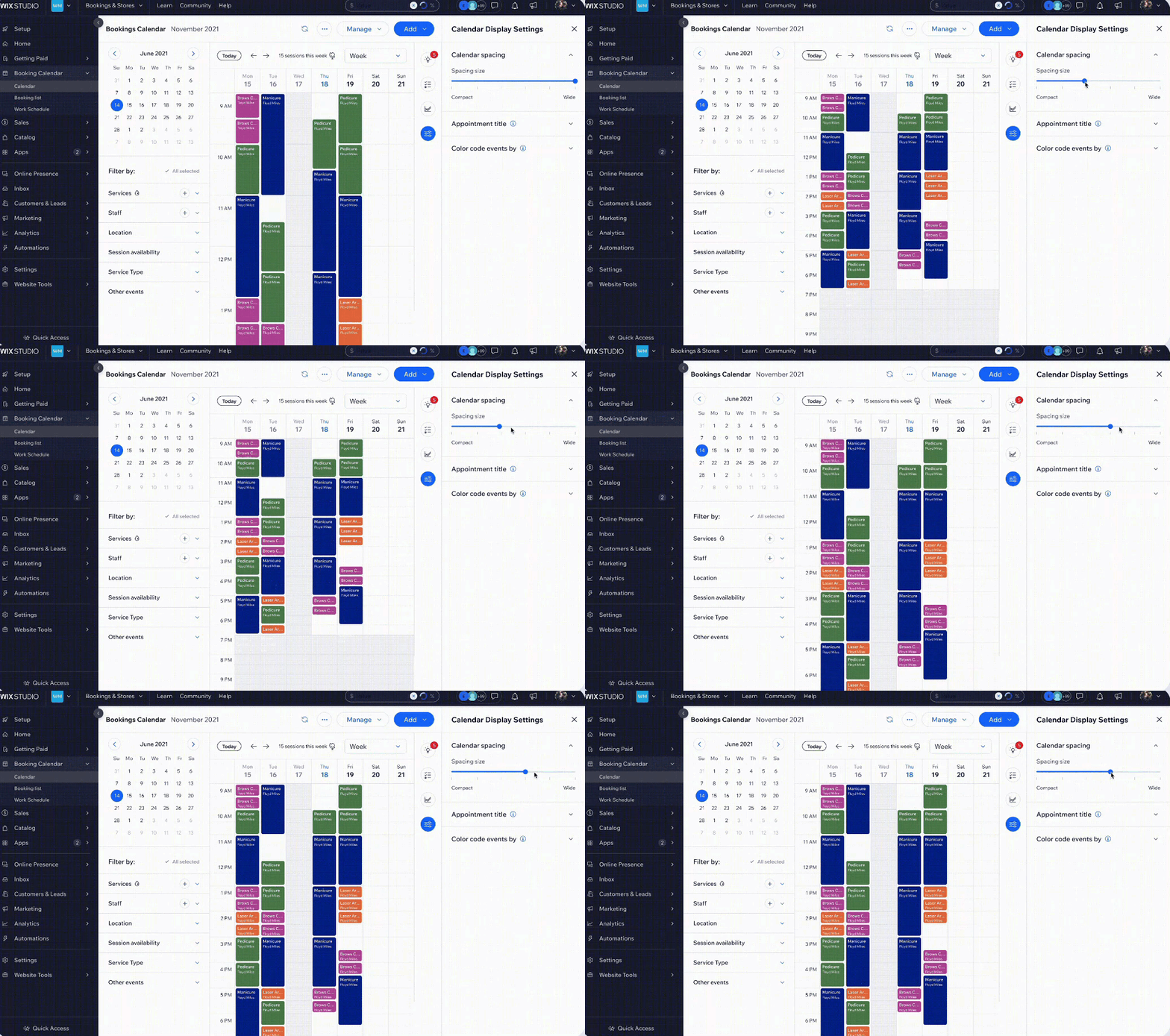
You can choose to display your appointment title using either the Client name or the Service name. You can also color code your sessions by Services or by Staff members.
Create filters and use color codes
Fine-tune what you see in your calendar by adding filters to it. You can filter by service, staff, location, session availability, and more. You can also color code your calendar to suit your needs. Learn more about filtering the Wix Bookings Calendar.
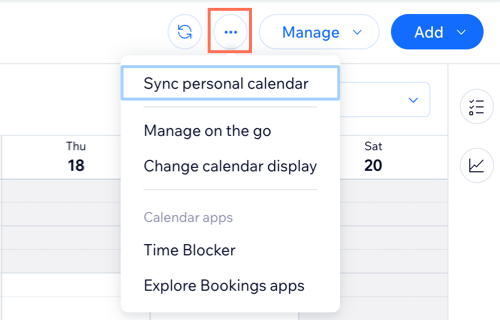
Click the More Actions icon 
You can then select a color for each one so that you can easily identify sessions on your calendar.
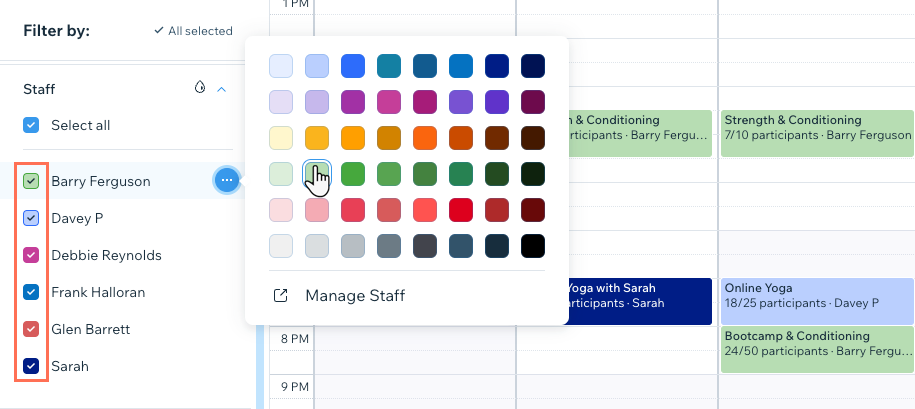
Sessions with no participants booked or bookings which are not yet approved are not shaded in with color.
Manage your complete schedule
Use your calendar to add new appointments, class sessions, and course sessions. You can also block off time you don't want clients to be able to book online or create a new service.

Learn more about:
Update your clients' attendance and payments
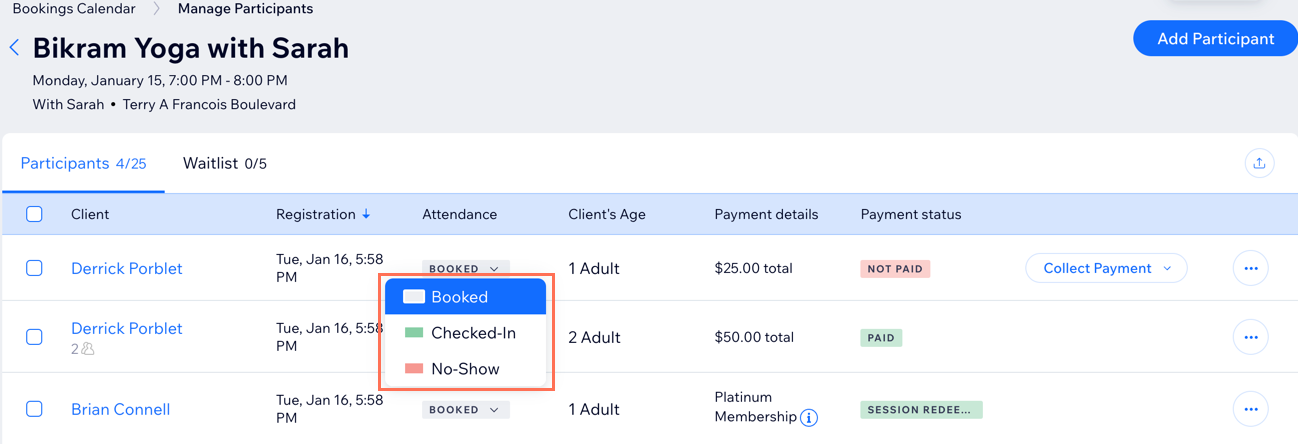
Manage the attendance and payment status for all clients that have made bookings. Select the relevant appointment, class or course in your calendar to view its participants list.
Learn more about marking attendance for sessions.
Tip:
Marking attendance is useful for keeping track of payments and seeing which of your services are most popular. You can check your site's statistics in the Reports tab.
Manage your clients' information
From the sessions or appointments in your calendar, you can access all your clients' contact cards to edit their details, book sessions for them, send messages and more.
Through a client's contact card, you can chat directly with them and book sessions or offer coupons. You can also add notes for yourself about your client and their progress, set up tasks, add an attachment (such as a medical permission form) and much more.
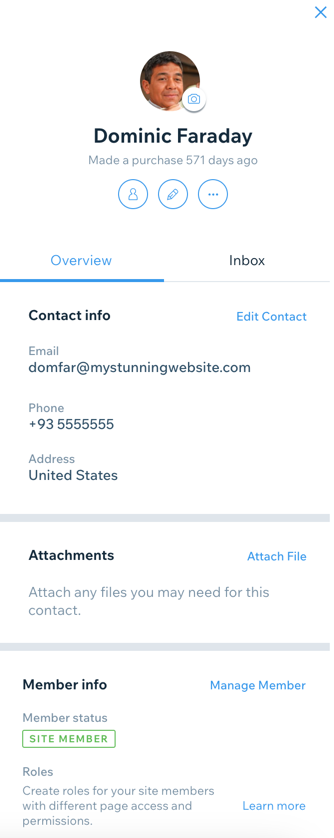
Learn more about editing your contacts.
Analyze your booking activity
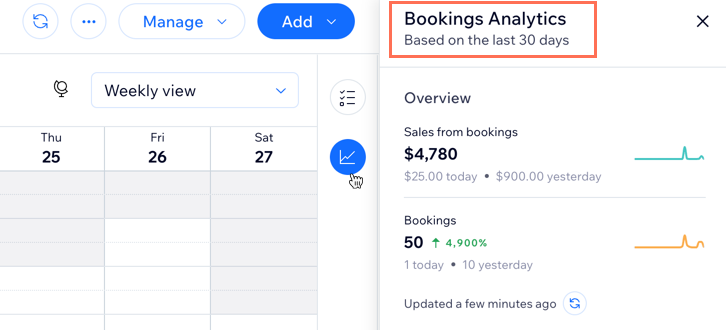
The Analytics panel on the right side of the Booking Calendar gives you a quick overview of all booking activity on your site in the last 30 days. This is a great way of using data to inform your decisions each month, including adding new time slots for your most popular services.
Learn more about managing your business with the Booking Activity Panel.