


Emails, SMS, and promotions
Wix Bookings: Adding a 'Book' Button to Instagram
Important:
You can only connect a Facebook page and an Instagram page to a single Wix site, not multiple sites.
You must connect a domain to your site to add a 'Book' button to your Instagram page.
Add a Book Now button to your Instagram business page to make it easier for clients to book your services while browsing social media. This is a great way to boost bookings for your new services during promotional campaigns on social media.
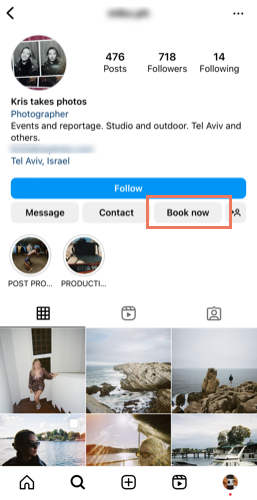
In this article learn more about adding a:
Single service calendar 'Book' button to your Instagram business page
Single service 'Book' button to your Instagram business page
Before you begin:
Make sure to upgrade your site so you can accept online bookings.
Create the relevant Wix Bookings service you want to connect to the Book button.
Adding a Service List 'Book' button to your Instagram business page
Add a single service calendar 'Book' button to your Instagram business page to direct clients to the calendar for a specific service. They can then choose the session date and time that suits them.
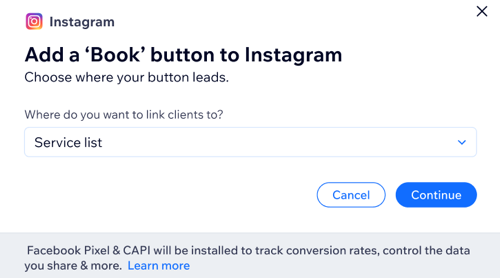
To add a Service list 'Book' button to Instagram:
Go to Booking Integrations in your site's dashboard.
Click Connect under Instagram.
Click the drop-down and click Service List.
Click Continue.
Review the link settings for the Facebook Business Manager, Facebook Page and Meta Pixel. Note: Visit the Meta Business Help Center for more information.
(Optional) Enable the Automatic advanced matching toggle to increase the visibility of your business to users on Instagram.
Click Continue.
Click Next.
Click Done.
Adding a single service calendar 'Book' button to your Instagram business page
Add a single service calendar 'Book' button to your Instagram business page to direct clients to the calendar for a specific service. They can then choose the session date and time that suits them.
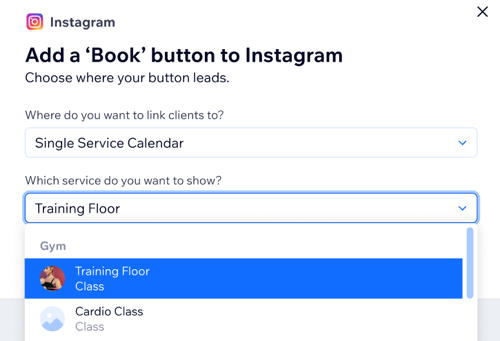
To add a single service calendar 'Book' button:
Go to Booking Integrations in your site's dashboard.
Click Connect under Instagram.
Click the drop-down and click Single Service Calendar.
Choose which service's calendar you want to show from the second drop-down.
Click Continue.
Review the link settings for the Facebook Business Manager, Facebook Page and Meta Pixel. Note: Visit the Meta Business Help Center for more information.
(Optional) Enable the Automatic advanced matching toggle to increase the visibility of your business to users on Instagram.
Click Continue.
Click Next.
Click Done.
Adding a single service 'Book' button to your Instagram business page
Direct clients to a specific service page with all relevant information they need to book a session. This is a great option for promoting your new services on social media.
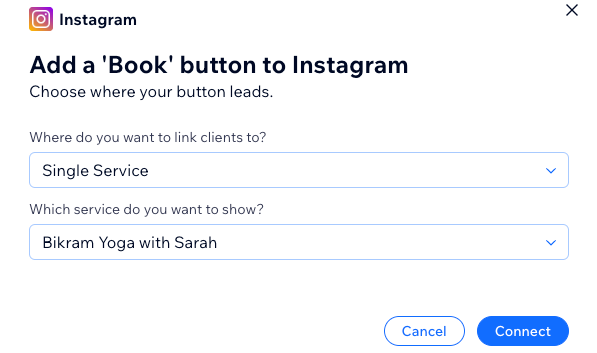
To add a single service 'Book' button:
Go to Booking Integrations in your site's dashboard.
Click Connect under Instagram.
Click the drop-down and click Single Service.
Choose which service you want to show from the second drop-down.
Click Continue.
Review the link settings for the Facebook Business Manager, Facebook Page and Meta Pixel. Note: Visit the Meta Business Help Center for more information.
(Optional) Enable the Automatic advanced matching toggle to increase the visibility of your business to users on Instagram.
Click Continue.
Click Next.
Click Done.
Adding a custom link 'Book' button to your Instagram business page
Direct clients to any page on your site, depending on your needs. For example, this is a great way to promote your memberships and packages.
To add a custom link 'Book' button:
Go to Booking Integrations in your site's dashboard.
Click Connect under Instagram.
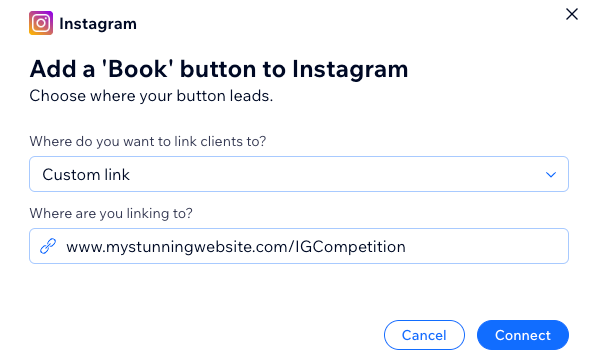
Click the drop-down and click Custom Link.
Enter the link to the page you want to direct clients to.
Click Continue.
Review the link settings for the Facebook Business Manager, Facebook Page and Meta Pixel. Note: Visit the Meta Business Help Center for more information.
(Optional) Enable the Automatic advanced matching toggle to increase the visibility of your business to users on Instagram.
Click Continue.
Click Next.
Click Done.
Frequently asked questions (FAQs)
Here are some frequently asked questions about adding a 'Book' button to Instagram:
Can I update my 'Book' button links?
You can disconnect or change the 'Book' button link at any time by clicking Manage under Instagram in Booking Channels in your site dashboard.
To update your 'Book' button link:
Clicking Manage under Instagram in Booking Channels in your site dashboard.
Enter the updated link in the Where are you linking to? field.
Click Save.
To disconnect the 'Book' button:
Clicking Manage under Instagram in Booking Channels in your site dashboard.
Click Disconnect.
Click Save.
What happens if I delete a service linked to my 'Book' button on Instagram?
When you delete the linked service, the 'Book' button no longer leads your clients anywhere. You see an error message in Bookings channel in your site dashboard, but you can link the 'Book' button to another service or link.
Can I link a course to my single service calendar 'Book'?
Single service calendar is not available for courses.
Troubleshooting adding a 'book' button to Instagram
Click to choose from the list of common errors below, where it is not possible to add a 'book' button to Instagram.
Your request is pending review.
Your request is pending review. Assigning new Facebook Page admins can take up to 7 days to be approved. Learn more about the approval process
Contact the admin of "Business Manager Name" for permission to connect this page.
Contact the administrator of the Facebook page and request admin permission to connect this page to Wix Bookings. Learn more about admin permissions
You need permission from the admin of "Ad account name" to connect this pixel. Contact the account admin for access.
You need to request admin permissions from the Business Manager account to connect a pixel. Learn more about removing or changing permissions on Facebook ad accounts.
"Page Name" is not connected to "Commerce Account Name". Please check your Commerce Manager settings
Select the page associated with the "chosen" CMS.
Go back and change the asset associated with that different CMS.
Delete the CMS associated with the previous assets.
Learn more about changing your Commerce manager settings.
This is the primary page of "Business Name". Choose another page or review your Business Manager settings.
You can resolve this error in one of two ways:
Go back and select a different business.
Go to Business Manager and remove the page as the primary page and then restart the flow from the beginning.
Learn more about changing your primary page in the Business manager.
Request permission from the admin of "Business Manager Name" to continue.
You need to request admin permissions in Business Manager.
Learn more about adding people to a business account and assigning a business asset.
Contact the admin of "Business manager name" for permission to connect this page.
You need to request permission from owner of the Business Manager account.