top of page

Managing your staff

Wix Bookings: About Bookings Staff Members

Add your staff to your site so they can provide services to clients and help manage your business. You can control each staff member's level of access to your site and business information.

The staff tab in the dashboard, showing staff members' details

Managing staff hours

Staff hours determine when a staff member is available to provide appointments. To manage your business hours, Wix Bookings offers a two-level system.

First, set your default work hours which apply to all staff. Then you can set individual staff members' hours to offer a more flexible service to clients.

A screenshot showing the various working hours for a single staff member during one week.

Inviting staff members to sync their Google calendars

To help staff members keep track of their schedule, you can invite them to sync their personal calendars with their Wix Bookings calendar. This helps prevent double bookings and allows staff to see their complete upcoming schedule in one place.

Make sure you assign the relevant permission level, so your staff member can sync their personal calendar (see section below).

A screenshot showing how to give a staff member the necessary permissions before they can sync their personal calendar.

Assigning permission levels

Wix Bookings allows you to assign different levels of permissions to your staff and others who help build and manage your site.

For example, adding someone as a Bookings staff member gives them permission to book their own clients, access their personal calendar and manage their sessions.

You may also want to invite non-staff members to contribute on your site. For example, if you hire a graphic designer or a copywriter to make changes to your site.

Note:

Only Bookings Admins have permission to send payment requests and charge credit cards.
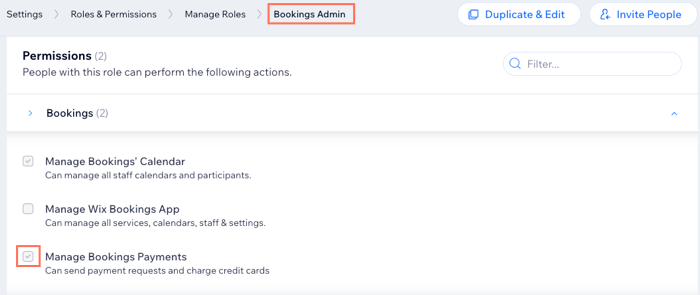
A screenshot showing the permissions a Bookings Admin has on your site.

Need A Professional Website?
Contact Us 
Today!

Wix Forms: Troubleshooting

Wix Forms: Removing a Form from Your Site

Wix Forms: Saving Your Form Data to Your Contacts

Wix Forms: Creating Automated Email Responses for Form Submissions

Wix Forms: Choosing Who Gets Notified About Form Submissions

Wix Forms: Viewing and Managing a Submissions Table

Wix Forms: Customizing the Success Message and Thank You Page of Site Forms

Wix Forms: Designing Your Site Forms

Wix Forms: Adding a Signature Field

Wix Forms: Protecting Your Site Forms from Spam

Wix Forms: Adding a Subscriber Opt-In Checkbox to a Site Form

Wix Forms: Adding a File Upload Field

Wix Forms: Managing Your Form Fields

Wix Forms: Managing Your Standalone Form Fields

Wix Forms: Translating Your Forms with Wix Multilingual

Wix Forms: Adding and Setting Up a Standalone Form

Wix Forms: Adding and Setting Up a Form on Your Site

Wix Forms: An Overview

Wix Functions: Creating a Custom Loyalty Program Reward

Wix Functions: Adding Custom Validations to Your Forms

Wix Functions: Adding Additional Fees at Checkout

Wix Functions: Creating a Function

Wix Automations: Understanding Conditions Operators

Wix Automations: Using the Run Velo Code Action

Wix Automations: Troubleshooting Wix Automations

Wix Automations: Creating a Multi-Action Automation

Wix Automations: Sending Data via Webhook

Using Zapier to Automate Connections with Third-Party Apps

Wix Automations: Sending Data to Google Sheets

Wix Automations: Managing Your Automations

wix experts
Graphic2Traffic web design
©
bottom of page