


New Automation Builder
The New Automation Builder: Viewing and Managing Automations Installed for You
Wix Automations streamline your site management by automatically performing tasks based on specific triggers. When you add certain apps to your site, some automations come already installed to ensure these apps function properly.
For example, adding a Wix Blog to your site installs an automation that notifies members of new blog posts. This saves you time on manual work and helps you manage your site more efficiently.
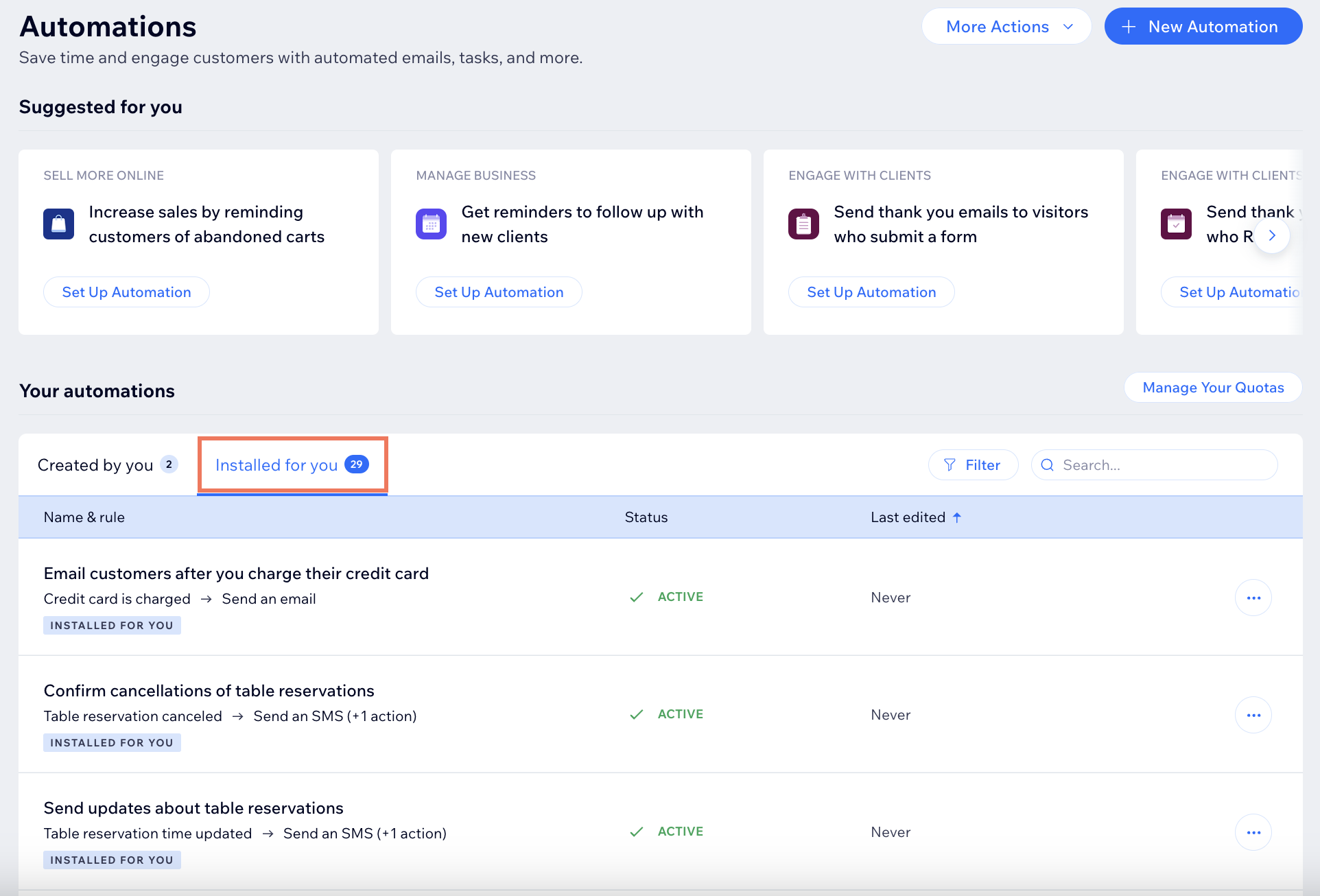
Viewing and managing your pre-installed automations
Go to Automations in your site's dashboard.
Click the Installed for you tab.
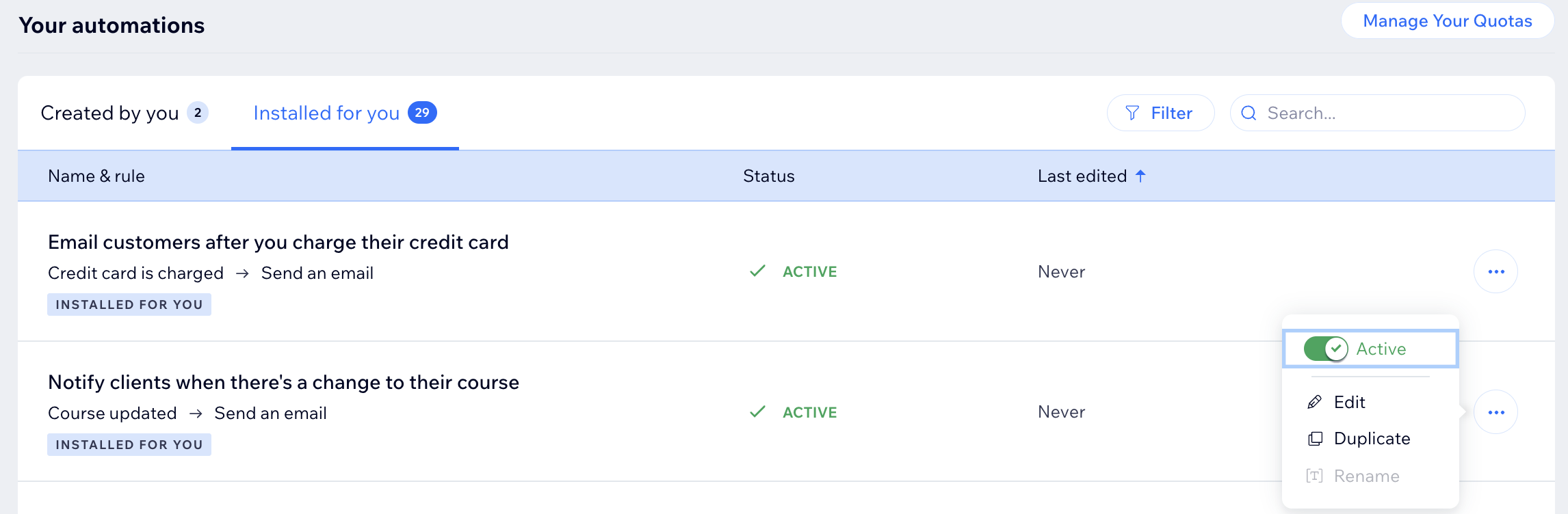
Hover over the relevant automation and click the More Actions icon
 .
.Select what you want to do:
Edit the automation
Click Edit.
Edit the automation to your needs.
Click Apply Changes.
Note: Some 'Installed for you' automations cannot be edited. Learn more about the limitations of editing in the FAQ section below.
Duplicate the automation
Click Duplicate.
Edit the automation to your needs.
Click Activate.
Note: This automation will be saved as an automation 'Created by you'. Learn more about what happens when you edit an automation Installed for you in the FAQ section below.
Activate or deactivate the automation
While the 'Installed for you' automations are active by default, you can always deactivate them by disabling the Active toggle and deactivate an automation.
Note: This availability of this option depends on the specific Wix app.

Reset to default
You can always choose to reset an 'Installed for you' automation that you previously edited. However, keep in mind that resetting to default also resets the automation's email template and statistics.
FAQs
Below are some frequently asked questions about managing automations that were installed for you.
What happens if I edit an automation that was already installed for me?
Since automations that were ‘Installed for you’ are created, owned, and managed by your site’s apps, editing them sets you as the owner instead.
Editing this type of automation separates it from the original. This means that the automation won't be automatically updated by the app that installed it (e.g. if the app releases a new version of this automation in the future).
Are the 'Installed for you' automations automatically running, or do I have to turn them on manually?
The automations in the ‘Installed for you’ tab start working as soon as the relevant app (e.g. Wix Stores) installs them to your site.
Some automations are installed on your site upon the app’s installation, and some are installed upon specific events. Depending on the app, you may be able to deactivate them.
What exactly can I edit in automations that were installed for me?
There are some edits that can be made to any automation that were installed for you. However, each step has its own limitations:
Triggers can’t be replaced or edited
Actions can be edited but can’t be added to or replaced
Different providers (i.e. Wix apps) allow you to edit different parts of the automations. Depending on the provider you can:
Deactivate the automation
Add, edit, or delete delays and conditions
Delete actions
Why does the statistics of my 'installed for you' automation show '0' even though the automation is running?
The statistics of an automation will reset if the app owner creates a new version of the automation.
For example: You have an automation 'installed for you' where event goers will receive an email if the event is canceled. If Wix Events (the app who installed the automation) creates a new version of this automation, any previous stastistics will be reset.
