


Wix AI Site-Chat FAQ
Testing Your Wix AI Site-Chat
Note:
Wix AI Site-Chat is currently available for Wix Editor only.
Providing your site visitors with the best possible service is the AI Site-Chat's goal. The best way to ensure it performs well is by testing it before you set it to be live on your site.
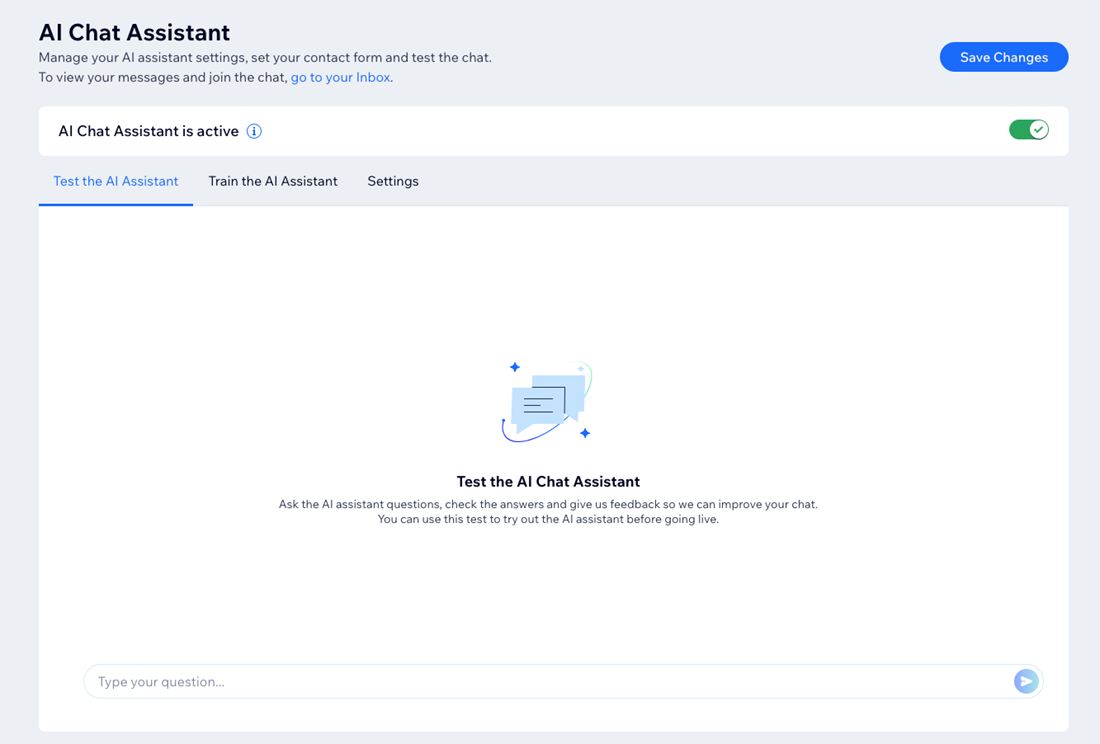
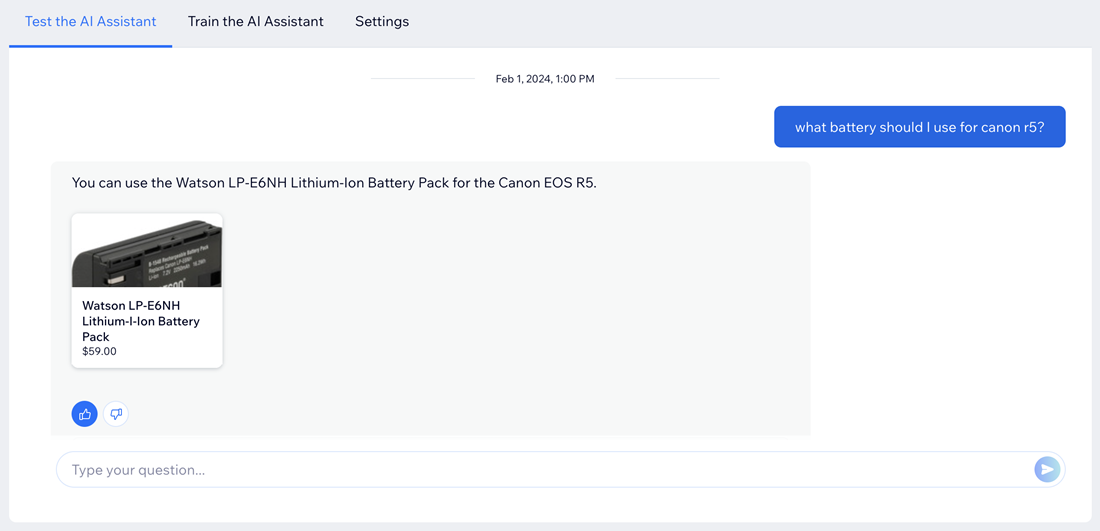
After adding the AI Site-Chat to your site, chat with it the same as your visitors would in a test environment that only you can see. Ask it questions about your products, services, content - anything a real visitor might ask. You can also give the AI Site-Chat feedback for every answer it gives you.
Choosing the right questions to ask
Test the AI Site-Chat's knowledge of your products and services in your site's dashboard.
Note:
After installing the AI Site-Chat, it takes a few minutes for it to scan your site and learn the information. If you ask it a question before it finishes learning your site, you will receive the answer "I'm still learning your website."
Think like a site visitor
If you were a visitor on your site, what types of questions would you have? For example, if you own a hair salon, you would likely want to know more about your products/services, booking availability and pricing.
The AI Site-Chat learns the information and content on your site and provides it to your visitors. Asking the right questions can help you identify areas of your site's content you can improve, and give your visitors a better experience.
Be specific with your questions
The more specific your questions are, the better you will be able to test your AI Site-Chat. Ask about the finer details of your services, such as prices, descriptions or related products.
Evaluate the AI Site-Chat's responses carefully. Are the answers clear and helpful? Do they accurately reflect your business offerings and site content? If the AI Site-Chat seems confused or gives incorrect information, you can add knowledge enhancements to improve the answers it gives.
Tips for effective testing
Making small changes to the questions you ask your AI Site-Chat can make a big difference when improving its capabilities.
Here are some tips for effectively testing your AI Site-Chat:
Vary your questions: Try short questions and longer phrases. Ask about different products, pricing, contact information, etc.
Be concise: Use words your site visitors would use. Avoid technical terms.
Try different formats: Use a variety of full statements, yes/no questions and open-ended questions.
Know your site: Look for areas of your site's content that need improvement. Ask questions about these areas to test whether the AI Site-Chat can also spot them.
Giving feedback to your AI Site-Chat
Submit your feedback to enhance the AI Site-Chat's ability to provide accurate answers based on your specific site's content. The more specific and clear your feedback is, the better the AI Site-Chat can improve its responses to your visitors' questions.
Tip:
When you think the responses are not good enough, it's highly recommended to provide negative feedback by indicating when the answers are incorrect. This helps train the AI to improve its responses.
To give feedback to your AI Site-Chat:
Go to Manage AI Site-Chat in your site's dashboard.
Send a question in the Test Chat tab.
After receiving an answer, choose what you want to do:
Give positive feedback
Click the Thumbs up icon  to let the AI Site-Chat know that it answered correctly. It will use this answer in the future when asked the same question by a site visitor.

Give negative feedback
Click the Thumbs down icon
 to let the AI Site-Chat know that it did not give a good answer.
Select an option under Tell us why this isn't a good response:Irrelevant: The answer has nothing to do with the question.
Incorrect: The answer is incorrect.
AI shouldn't answer: The information in the answer should not be given to site visitors.
It's ok but...: The answer is ok, but could be improved.
Other: Enter other details in the text field.
Enter more details about why this response isn't good in the Tell us more field.

Click Train the AI.
Click review and approval to open the knowledge enhancement the AI Site-Chat has created for you.

Edit the text fields as needed.
Click Save and approve.

Ready to go live?
When you're satisfied with the AI Site-Chat's performance, click the toggle at the top right of the page to set it as active. Your customers will appreciate the knowledgeable AI chat and the fast responses to their questions.