Setting up Pricing Plans
Pricing Plans: Managing Notifications You Send and Receive
Important:
The article below discusses the Wix subscriptions app, Pricing Plans. If you're looking for information about upgrading your site with Wix Premium plans, please check this article.
The Pricing Plans app sends notifications to keep you and your clients informed about any updates. You can choose what notifications your clients receive and also set the notifications you (the site owner) receive and how you receive them: by email, dashboard notification, or desktop notification.
In this article, learn more about:
Managing the notifications you send to clients
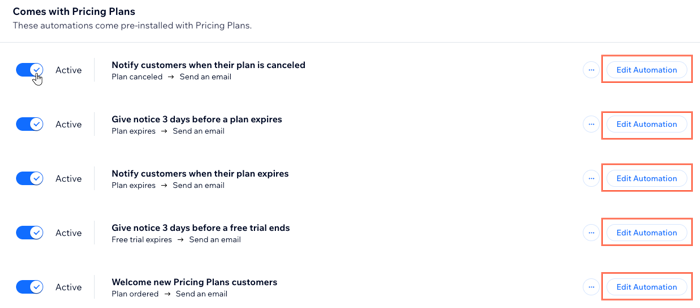
When you add the Pricing Plans app, it comes with 5 automated email notifications for your clients already set up. Your clients receive emails when:
They purchase a pricing plan
A plan they own is about to expire
A plan they own expires
A plan they own is canceled
A free trial for a plan is about to expire
These messages are managed through Wix Automations. Each automation is made of 3 parts: a trigger (the condition that causes the action to take place), an action (e.g. sending an email), and timing (when the action takes place). You can edit the message text itself or customize the message settings.
To edit the notifications your clients receive:
Go to Pricing Plans Settings in your site's dashboard.
Click the Automations tab.
(Optional) Click the Active toggle next to any of the automations to disable them.
(Optional) Click Edit Automation next to any of the automations to customize them.
Tip:
Go to Automations to see what other automated messages you can send to clients. You can also use Wix Automations to send yourself and your staff reminders to take actions.
Managing the notifications you receive
Choose which notifications you want to get and how you want to get them. There are 3 ways to receive notifications – click below to learn more.
Desktop notifications
Desktop notifications allow you to receive notifications on your desktop web browser, even when you’re not on Wix.com.

If you select to receive desktop notifications, and they aren't appearing, check to see if something is blocking them:
Go to the Firefox help center and search for "Web Push notifications."
If desktop notifications are blocked by your operating system, update the notification settings for your device.
Dashboard notifications
Dashboard notifications appear in your site's dashboard at Wix. This means you only see them when you visit the dashboard.

Email notifications
Receive notifications right in your inbox to make sure you don't miss a thing.

To choose how you receive notifications:
Go to Settings in your site's dashboard.
Scroll down to the Communications section and click Notification Preferences.
Click the Enable desktop notifications toggle to enable or disable browser notifications for this site (not only for Pricing Plans).

Click the Expand icon
 next to Dashboard and scroll down to Pricing Plans.
Enable the toggle(s) next to the dashboard notification(s) you want to receive.
Click the Expand icon
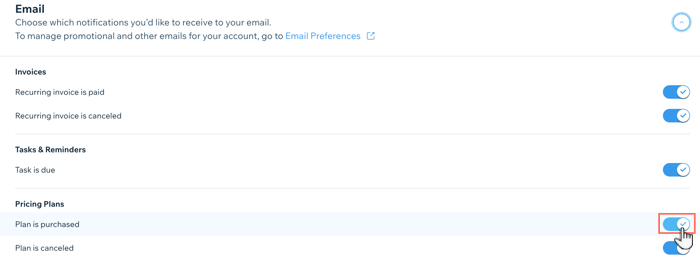
next to Email and scroll down to Pricing Plans.Enable the toggle(s) next to the email notification(s) you want to receive.
Note:
By default, you receive email notifications any time a client buys or cancels a plan. You can disable these email notifications.