top of page

Customizing Online Programs

Online Programs: Reordering and Hiding Your Programs from the Program List

Optimizing your program order is key to highlighting recent or popular offerings first, showcasing the most relevant content upfront. You can also hide programs temporarily to keep your list focused and impactful for visitors.

Tip:

Reordering or hiding programs on the Program List page only affects its display there; use the Program List Add-on to display programs on different pages throughout your site.

In this article, learn how to:

Reordering your programs in the Program List

Arrange your programs to emphasize key features. By reordering your programs, you can showcase new additions, prioritize popular programs, or feature seasonal promotions.

Wix Editor

Studio Editor

  1. Go to your editor.

  2. Click Pages & Menu  on the left side of the editor.

  3. Click Program Pages.

  4. Click your Program List page.

  5. Click the Program List element on your page.

  6. Click Settings.

  7. Click Programs.

  8. (For categorized programs) Click the Category drop-down and select the relevant one.

  9. Click and drag a program to reorder it in the list.
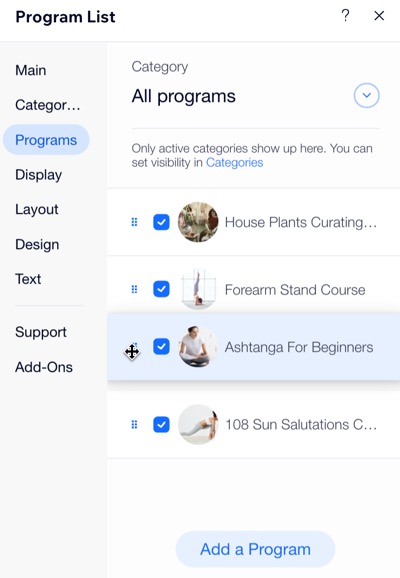
A screenshot of reordering programs on the Program List in the Wix Editor.

Hiding programs in the Program List

Hide a program when you no longer want it to appear as an active offering, ensuring that visitors see only current and relevant offerings.

Wix Editor

Studio Editor

  1. Go to your editor.

  2. Click Pages & Menu  on the left side of the editor.

  3. Click Program Pages.

  4. Click your Program List page.

  5. Click the Program List element on your page.

  6. Click Settings.

  7. Click Programs.

  8. (For categorized programs) Click the Category drop-down and select the relevant one.

  9. Deselect the checkbox next to the program(s) you want to hide.
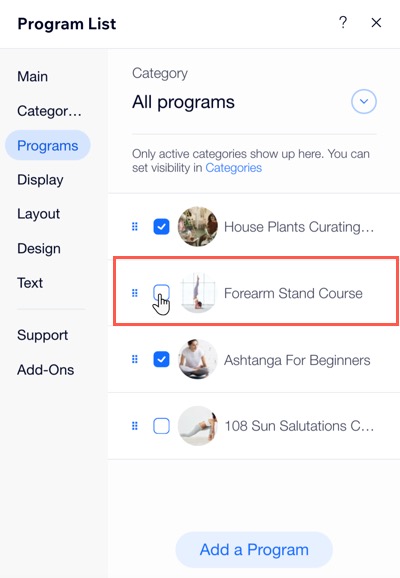
A screenshot of hiding a program from the Wix Editor.

Want to display a program again?

Follow steps 1-8, then select the checkbox next to the relevant program(s) you want to show.

Need A Professional Website?
Contact Us 
Today!

Wix Forms: Troubleshooting

Wix Forms: Removing a Form from Your Site

Wix Forms: Saving Your Form Data to Your Contacts

Wix Forms: Creating Automated Email Responses for Form Submissions

Wix Forms: Choosing Who Gets Notified About Form Submissions

Wix Forms: Viewing and Managing a Submissions Table

Wix Forms: Customizing the Success Message and Thank You Page of Site Forms

Wix Forms: Designing Your Site Forms

Wix Forms: Adding a Signature Field

Wix Forms: Protecting Your Site Forms from Spam

Wix Forms: Adding a Subscriber Opt-In Checkbox to a Site Form

Wix Forms: Adding a File Upload Field

Wix Forms: Managing Your Form Fields

Wix Forms: Managing Your Standalone Form Fields

Wix Forms: Translating Your Forms with Wix Multilingual

Wix Forms: Adding and Setting Up a Standalone Form

Wix Forms: Adding and Setting Up a Form on Your Site

Wix Forms: An Overview

Wix Functions: Creating a Custom Loyalty Program Reward

Wix Functions: Adding Custom Validations to Your Forms

Wix Functions: Adding Additional Fees at Checkout

Wix Functions: Creating a Function

Wix Automations: Understanding Conditions Operators

Wix Automations: Using the Run Velo Code Action

Wix Automations: Troubleshooting Wix Automations

Wix Automations: Creating a Multi-Action Automation

Wix Automations: Sending Data via Webhook

Using Zapier to Automate Connections with Third-Party Apps

Wix Automations: Sending Data to Google Sheets

Wix Automations: Managing Your Automations

wix experts
Graphic2Traffic web design
©
bottom of page