


Setting up Online Programs
Online Programs: Embedding Interactive Content in an Article or Section
Add interactive elements to your program steps like videos, gifs, files, and images. This helps you improve participant understanding and engagement throughout your programs. You can also embed your offerings from Wix apps like Stores, Bookings, and Events. For example, create an online event for your participants and embed it in your step so people can sign up.
Tip:
If you want to add a video to your article, consider adding a video step instead.
To embed interactive content in an article or section:
Go to Online Programs in your site's dashboard.
Select the relevant program.
Create a new step or edit an existing one:Add a new step: Click + Add next to Schedule (for scheduled programs) or Content (for self-paced programs) and select Article or Section.
Edit an existing step: Click Edit next to an Article or Section.
Add or edit the basic info for the step or section.
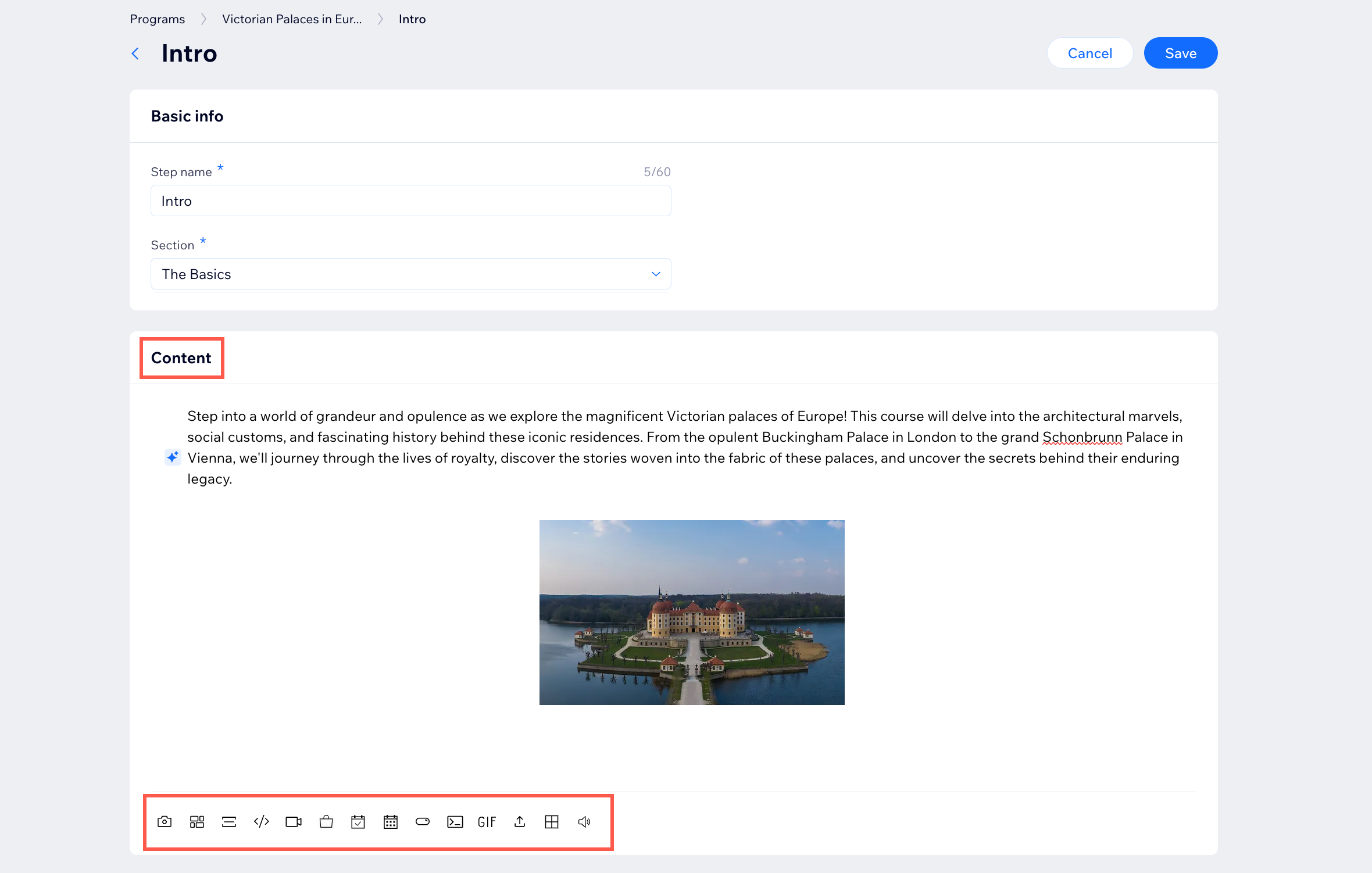
Add or edit the content of the step or section.
(Optional) Add more interactive content from the icons at the bottom:
Add interactive content
Select from the following icons at the bottom of the Content field:Image icon
 to add an image.
Gallery icon to add an image gallery.
Divider icon to add a dividing line.
HTML code to add HTML code.
Video icon to add a video to a post. You can upload a video from your computer or paste a URL from YouTube, Vimeo, or Facebook.
GIF icon to add an animated GIF.
File icon to add a file from your desktop.
Table icon to add a table.
Audio file icon to add an audio file.
Click Save when you're done adding content.
Add an event, service, or product
Select the relevant Wix app icon at the bottom of the Content field:Events: Click the Wix Events icon
 , select an event from your list, then click Embed.
Bookings: Click the Wix Bookings icon , select a service from your list, then click Embed.
Stores: Click the Wix Stores icon , select a product from your list, then click Embed.
Click Save when you're done adding content.
Add a call-to-action button
Click the Button icon
 .
.Click the newly added button in your post.
Click the Settings icon
 .
.Enter the text you want to display.
Paste the relevant link.
(Optional) Customize more of the button's settings and design.
Click Save when you're done adding content.