


Setting up Online Programs
Online Programs: Automatically Sending an Invoice When a Program Is Purchased
Automatically send an invoice when someone purchases your program, making it easier for you to track purchases and payments. This saves you time and ensures prompt delivery of invoices.
Important:
Make sure your site has been upgraded to a plan that accepts payments.
In this article, learn more about:
Automatically send an invoice when a program is purchased
When automatically sending an invoice, a detailed invoice is tailored to the purchased program and is sent to the relevant customer. You can enable this feature for both new and existing programs.
To automatically send an invoice:
Go to Online Programs in your site's dashboard.
Choose an option:If this is a new program: Click Create New to create a new program. Once you choose a template, click Edit to enter your program details.
Existing Programs: Click the More Actions icon next to the program you want to edit.Select Edit Settings.
Click Visibility and Pricing.
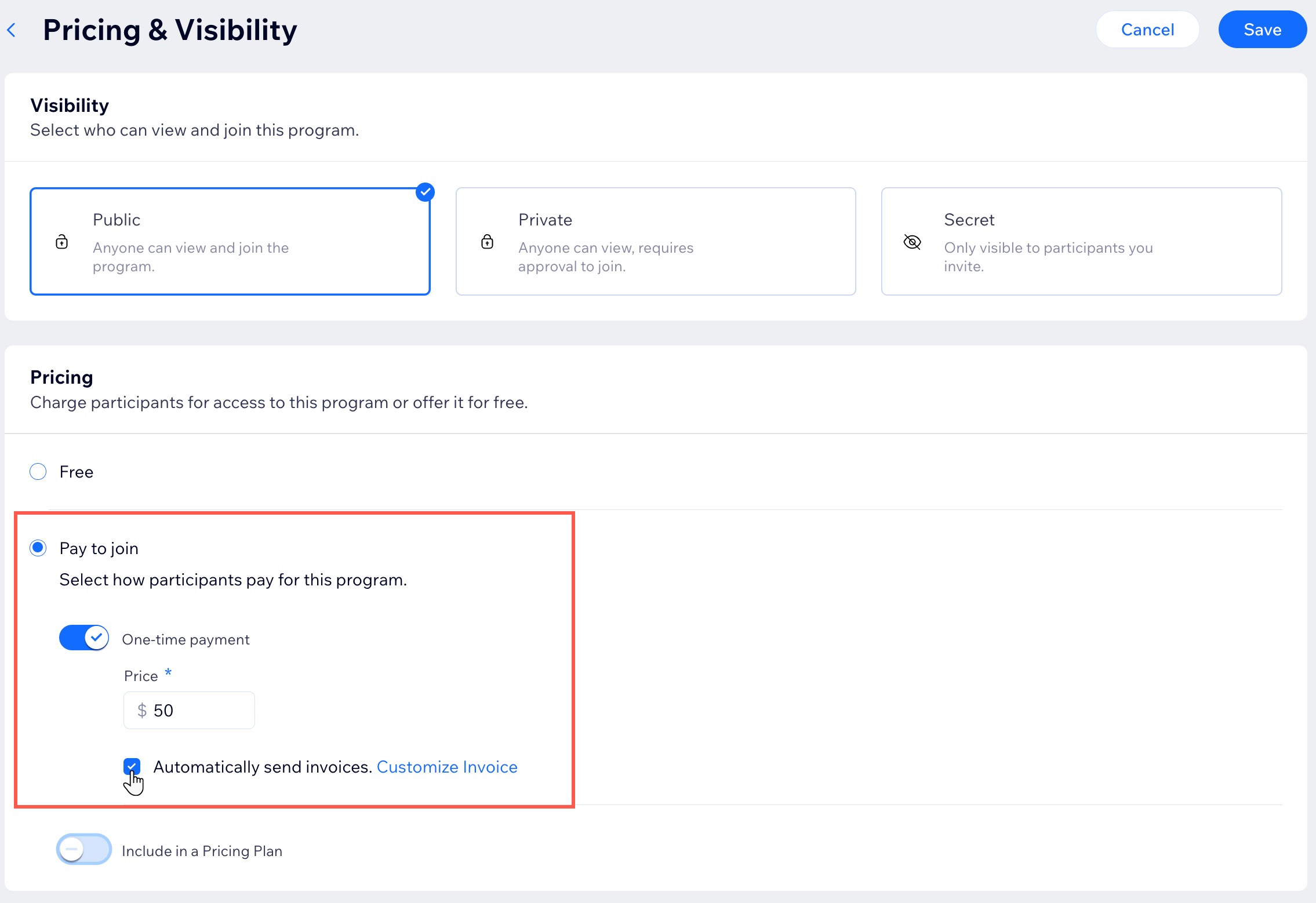
Select the Automatically send invoices checkbox.
Click Save.
Tip:
Click Customize Invoice to tailor the details of your invoices. This includes the invoice header, transaction details and incorporating company details from your Business Info.
FAQs
Click a question below to learn more.
How do participants receive an invoice after they purchase a program?
Participants receive an email with a link to download the invoice.
Can I enable automatic invoicing using the Wix app?
No. This feature is currently not available on Wix app. However, you can enable it directly from your site's dashboard.