Other music apps
Music Apps: Adding and Setting Up an iTunes button
Important:
iTunes button is not yet available in Studio Editor.
Have music on iTunes? Add a button that takes your site visitors to listen, download or buy it. You can add the button anywhere on your site, and choose which song, album or playlist it links to.

Step 1 | Add the iTunes button to your site
Adding an iTunes button is a great way to showcase your audio to your visitors. You can add it anywhere on your site.
To add the iTunes button:
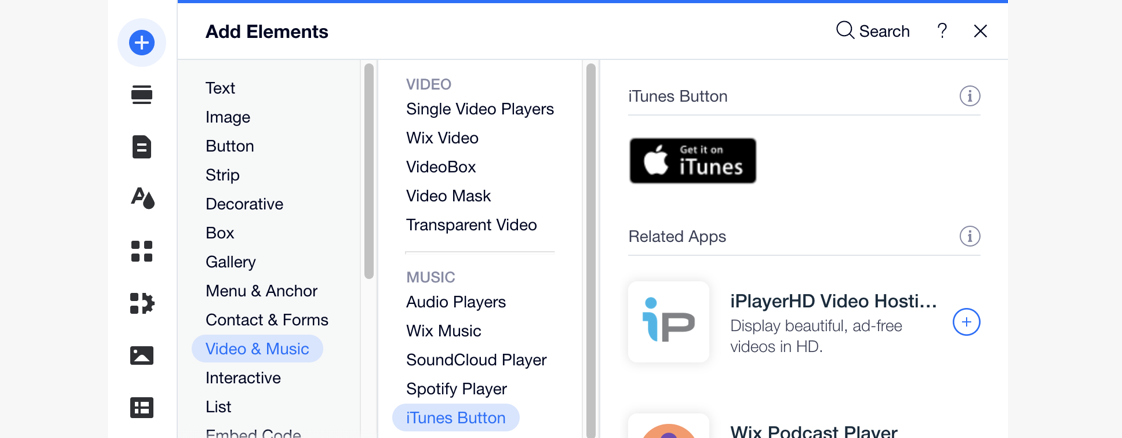
Click Add
 on the left side of your Editor.
Click Video & Music.
Scroll down to iTunes Button.
Click the iTunes Button to add it, or drag it to the relevant location.
Step 2 | Choose your music from iTunes
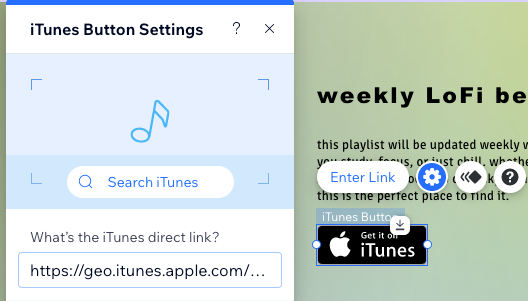
After adding an iTunes button, connect it to your music by entering its direct link. Once visitors click the button, it takes them to the song, album, playlist or music video you chose on iTunes.
To add music to your iTunes button:
Click the iTunes button in your Editor.
Click Enter Link.
Choose what to do next:Paste an iTunes link: Enter the URL under What's the iTunes direct link?.
Find music on iTunes:Click Search iTunes to go to iTunes.
Enter a search phrase for the music you want to add.
Click the relevant music item.
Scroll to Content Link and click Copy Link.
(In the Editor) Paste the link you just copied under What's the iTunes direct link?.
Step 3 | Set up your iTunes button
Now that your button is linked to the right place on iTunes, make sure it appears in the right language. You can also choose if you want your music to open in a new window or the same window as your site.
To set up your iTunes button:
Click the iTunes button in your Editor.
Click the Settings icon
 .
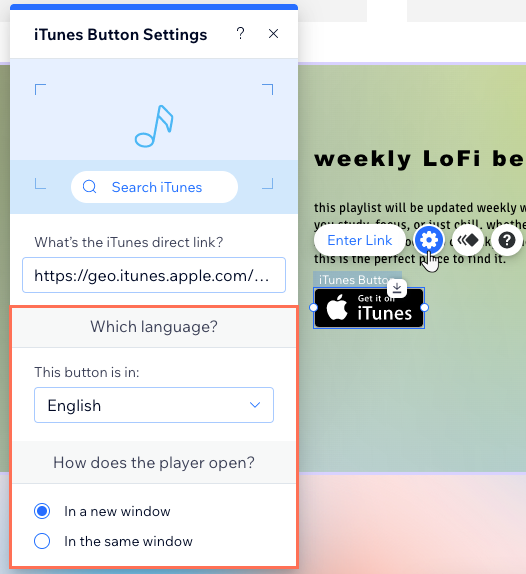
.Select the relevant language from the drop-down under This button is in:.
Choose an option under How does the player open?:In a new window: Opens in a new tab on the browser.
In the same window: Opens in the same window as the site page.