top of page

Connecting external services

Importing Reservations from an External Calendar (iCal) to Wix Hotels

Important:

This article refers to the original Wix Hotels. If you are using the new Wix Hotels by HotelRunner, which is not yet available to all users, please read the information here. Learn how to check which version of Wix Hotels you are using.

Import your reservations from popular external services including Airbnb, HomeAway, and VRBO  to your Wix Hotels reservation calendar.

Once you import your calendar, your Wix Hotels reservation calendar stays up to date.

Notes:

  • You can only import from services that allow you to export your calendar in iCal format.

  • The sync is one way only, from iCal to the Wix Calendar.

  • Imported rates do not appear in the calendar. Rates can be viewed by clicking on the reservation in the calendar and scrolling down to the Payment Details section.

  • This feature is not compatible with the Wix Hotels Channel Manager. If you want to connect the Channel Manager please delete all the URLs in this tab before doing so.

To import your external calendar:

  1. Locate your iCal URL.

  2. Go to your dashboard.

  3. Click the Hotels tab.

  4. Click to expand the Reservations tab.

  5. Select iCal.

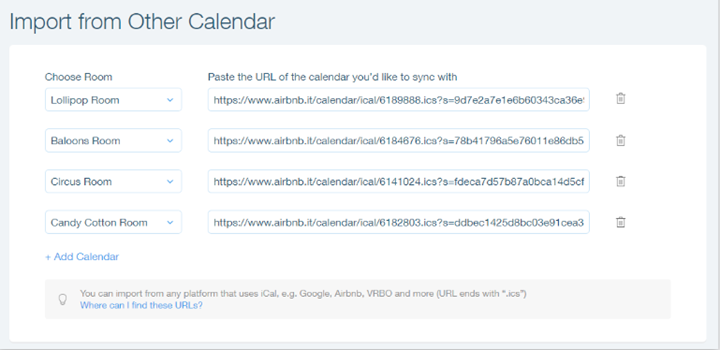
  6. Click the Choose Type drop-down menu and select a room type.

  7. Paste your iCal URL into the URL field.

  8. (Optional) Click Add Calendar to add another room type and paste the iCal URL in the URL field.

  9. Click Save.

Important:

If you have multiple room types, you must add a different iCal URL for each room type.

If you are having trouble importing your calendar, please contact us and prepare the following information:

  • Your iCal URL

  • A screenshot of the original calendar showing the reservations that do not show on your Wix Hotels calendar

Need A Professional Website?
Contact Us 
Today!

Wix Forms: Troubleshooting

Wix Forms: Removing a Form from Your Site

Wix Forms: Saving Your Form Data to Your Contacts

Wix Forms: Creating Automated Email Responses for Form Submissions

Wix Forms: Choosing Who Gets Notified About Form Submissions

Wix Forms: Viewing and Managing a Submissions Table

Wix Forms: Customizing the Success Message and Thank You Page of Site Forms

Wix Forms: Designing Your Site Forms

Wix Forms: Adding a Signature Field

Wix Forms: Protecting Your Site Forms from Spam

Wix Forms: Adding a Subscriber Opt-In Checkbox to a Site Form

Wix Forms: Adding a File Upload Field

Wix Forms: Managing Your Form Fields

Wix Forms: Managing Your Standalone Form Fields

Wix Forms: Translating Your Forms with Wix Multilingual

Wix Forms: Adding and Setting Up a Standalone Form

Wix Forms: Adding and Setting Up a Form on Your Site

Wix Forms: An Overview

Wix Functions: Creating a Custom Loyalty Program Reward

Wix Functions: Adding Custom Validations to Your Forms

Wix Functions: Adding Additional Fees at Checkout

Wix Functions: Creating a Function

Wix Automations: Understanding Conditions Operators

Wix Automations: Using the Run Velo Code Action

Wix Automations: Troubleshooting Wix Automations

Wix Automations: Creating a Multi-Action Automation

Wix Automations: Sending Data via Webhook

Using Zapier to Automate Connections with Third-Party Apps

Wix Automations: Sending Data to Google Sheets

Wix Automations: Managing Your Automations

wix experts
Graphic2Traffic web design
©
bottom of page