Fit by Wix
Fit by Wix: Adding a Performance Tracker
From the Wix app you can add a performance tracker to your site on Fit by Wix. This helps your members view their progress towards their fitness goals.
For best results, add the performance tracker to the homepage of your site on Fit by Wix. Your members then see their weekly progress each time they log in. This way they can stay motivated and book more sessions with you.
In this article, learn more about:
Adding a performance tracker to your site on Fit by Wix
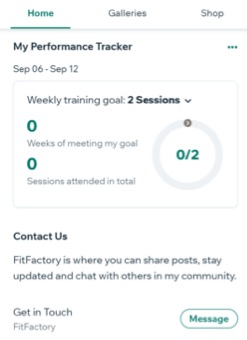
With the performance tracker, your members can track their progress by setting weekly progress goals within the app, which is displayed using the goal circle.

Note:
There is a maximum of 14 sessions for the weekly training goal. The app displays the total number of sessions completed as well as the number of weeks your members have achieved their goal.
To add a performance tracker:
Go to your site in the Wix app.
Tap Manage
 at the bottom.
Tap Mobile App.
Tap Edit.
Tap Add Section.
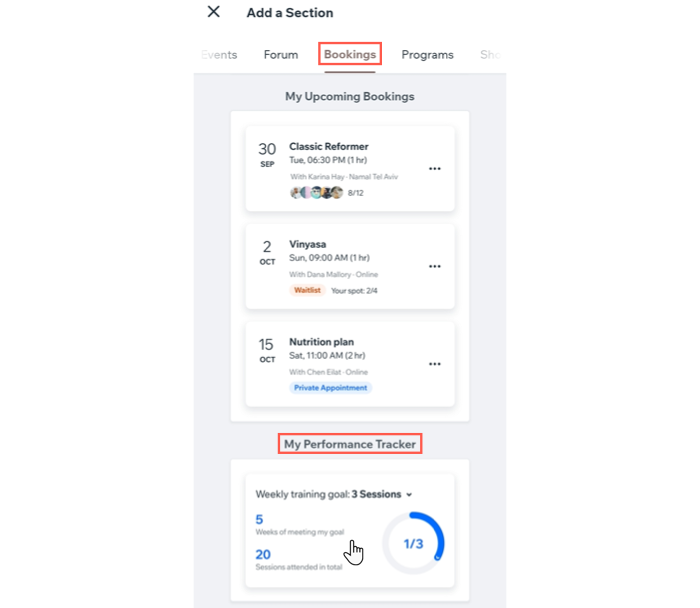
Tap the Bookings tab on the navigation menu at the top.
Scroll across the top menu and tap Bookings.
Scroll down and tap My Performance Tracker.
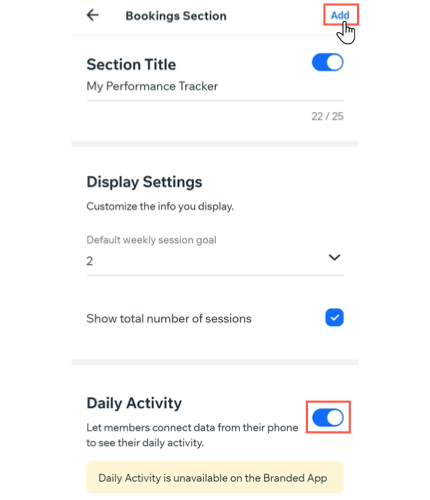
Select the Section Title toggle and tap to customize the name of your performance tracker.
Set the Default weekly session goal under display settings.
Tap the Show total number of sessions checkbox.
(Optional) Enable the toggle under Daily Activity to allow members to connect the health-tracking app on their device to Fit by Wix.
Note: Daily Activity is not available on the Branded App.Tap Add.
How your members can sync their activity trackers with Fit by Wix
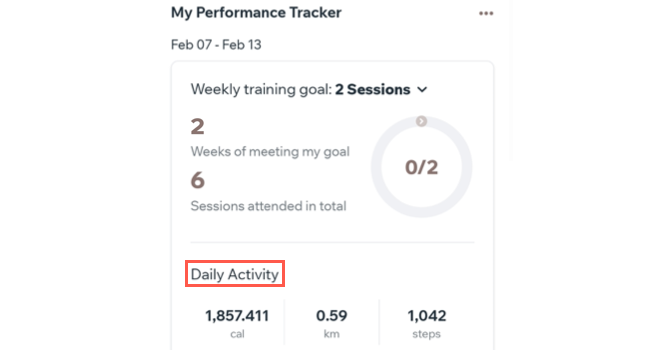
Allow your members to get a more complete view of their fitness levels by adding a daily activity tracker to their performance tracker.
When they sync, your members see their total calories burned, distance travelled and steps taken each day.
To sync a daily activity tracker to Fit by Wix:
In the Fit by Wix app, scroll to the Performance Tracker section.
Choose from the following options:
Sync Google Fit on Android
Tap Connect under Connect Google Fit.

2. Tap Allow to grant the relevant permissions to sync the apps.

Sync Apple Health on iOS
Tap Connect under Connect Apple Health.

Tap Turn All Categories On or enable the toggles to track specific health data.