


Google Event Calendar
Displaying Events Using Your Site Colors or Google Colors in the Google Event Calendar App
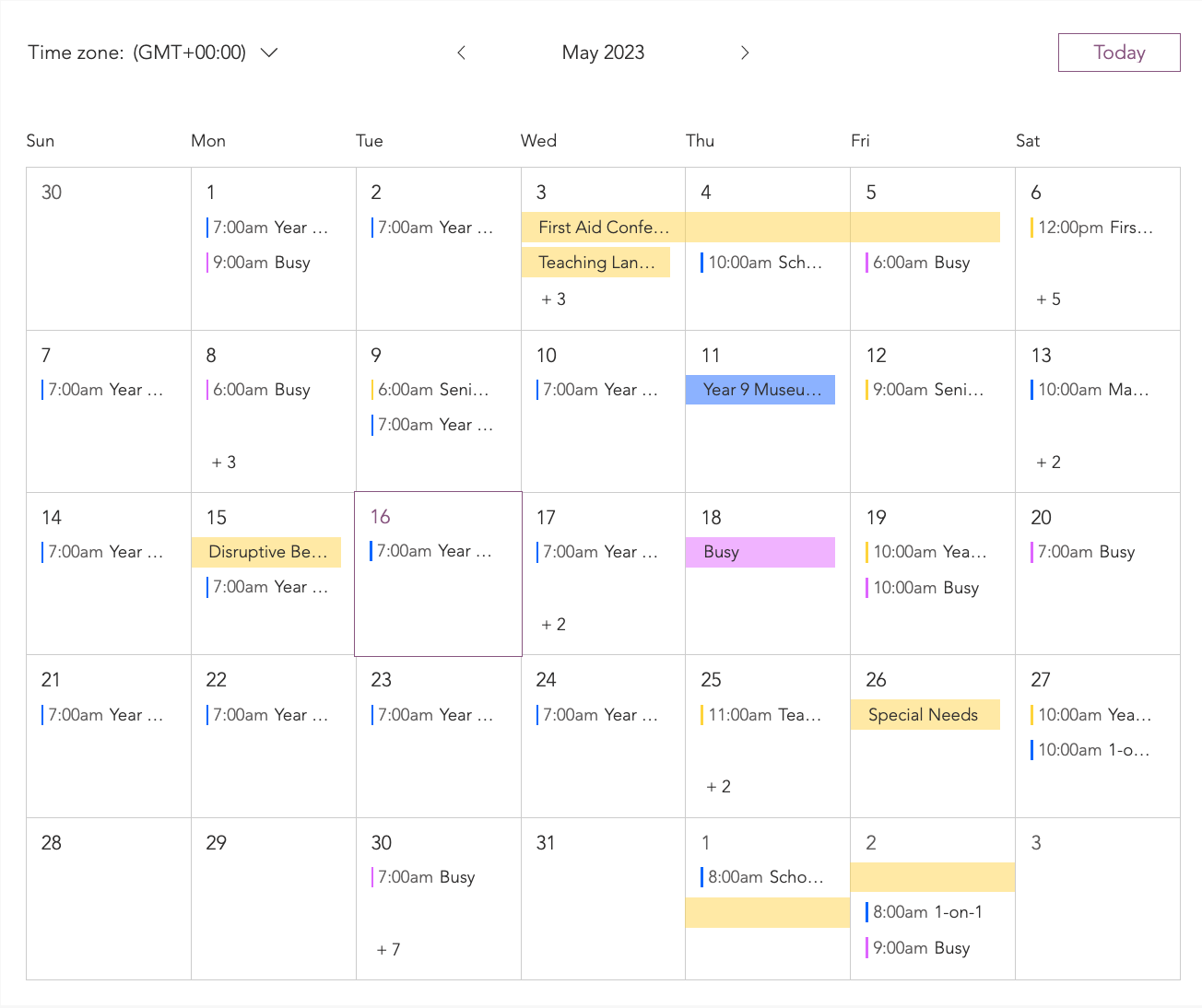
When choosing colors for your Google Event Calendar, you have 2 options; use your site's colors or use the colors that Google chooses for you. Your Google Event Calendar app can host multiple calendars for various purposes.
For example, you can add a calendar for events specifically related to teachers and another related to students. The events in each calendar are given specific colors based on the calendar they are aligned to.
In this article, learn how to:
Displaying your site colors in the Google Event Calendar app
You can choose to use your site theme colors for your calendars. Each calendar displays a different color from your main site colors.
To display your site colors:
Click the Google Event Calendar app in your Editor.
Click Settings.
Click the Design tab.
Click Events.
Scroll down to Event Colors.
Select Use site theme colors.
(Optional) Click the color boxes next to the relevant calendars to adjust the colors.
Displaying Google colors in the Google Event Calendar app
You can choose to use the colors from Google's logo in each of your calendars.
To display Google colors:
Click the Google Event app in your Editor.
Click Settings.
Click the Design tab.
Click Events.
Scroll down to Event Colors.
Select Use Google Calendar colors.
(Optional) Click the color boxes next to the relevant calendars to adjust the colors.
FAQs
Click a question below to learn more.
How are my site theme colors applied to my calendars?
When using site colors, it is the calendars that are colored and not specific events. By default, the app uses a different site theme color for each calendar.
Why do my site colors look different?
You may notice that your vivid and bright site colors are toned down slightly to make them more accessible.
What is a "Primary calendar"?
Your primary calendar is the default calendar that is created when you set up a Google account. It serves as the main calendar where you can add, manage, and view your events and appointments. It is often used as the central calendar for organizing your schedule.
What events are displayed?
When you sync or connect your Google account to your Google Event Calendar app, the app retrieves and displays your primary calendar's events. Any changes or additions you make to your primary calendar in the Google Event Calendar app by Wix are also reflected in your main Google Calendar.