


Shared Gallery
Deleting Photos in the Shared Gallery App
If you no longer wish to display media in your Shared Gallery, you can remove it either from your live site or in your site's dashboard.
Site admins and members with permission to manage a gallery can delete any images or videos in the gallery. Members can delete any images or videos that they uploaded themselves.
Important:
It's not possible to recover images and videos after you delete them.
In this article, learn how to delete content:
Deleting an image or video from your live site
You can delete a photo or video if you decide you no longer wish to display it on your site.
To delete content from your live site:
Go to the Shared Gallery app on your live site.
Log in using the email address associated with your Wix account.
(Optional) If you've created albums, select the album that has the image or video you want to delete. Learn more about albums.
Click the More Actions icon
 above the image or video.
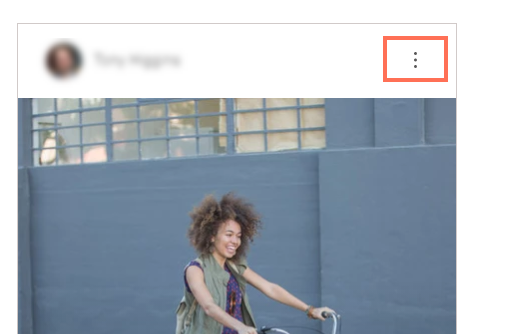
Choose what you want to do:
Delete a single image or video
Select Delete from the drop-down menu.
Click Delete in the pop-up to confirm.
Delete multiple images or videos
Choose Select from the dropdown menu.
Select the images or videos that you want to delete.
Click Delete in the top right corner of the app.
Click Delete in the pop-up to confirm.
Tip:
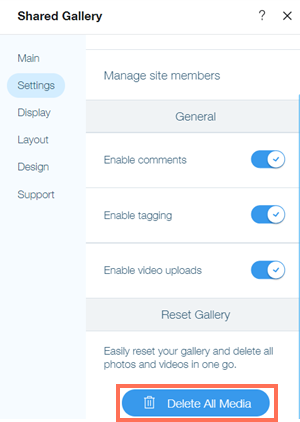
Click Delete All Media from the Settings tab in your Editor to reset your gallery and delete all images and videos at once.
Deleting an image or video from your site's dashboard
You can also remove content from your Shared Gallery directly from your site's dashboard.
To delete content from your dashboard:
Go to Shared Gallery in your site's dashboard.
Click Open next to the album that has the image or video you want to delete.
Choose what you want to do:
Delete a single image or video
Click the More Actions icon
on the image or video.Select Delete item.
Click Delete in the pop-up to confirm.
Delete multiple images or videos
Select the images or videos you wish to delete.
Click Delete from the menu on the top right.
Click Delete in the pop-up to confirm.