


Live streaming your videos
Wix Video: Downloading a Live Stream Encoder
In order to stream videos live from your computer you'll need an encoder. An encoder is the software that connects your computer's camera to the stream.
Important:
The output needs to be set to 'Simple'. If it set to 'Advanced' it can cause issues with the live stream.
In this article, we discuss downloading the OBS encoder, but you can choose to download any one you want as long as it supports custom keys.
Step 1 | Download the Installer from OBS Studio
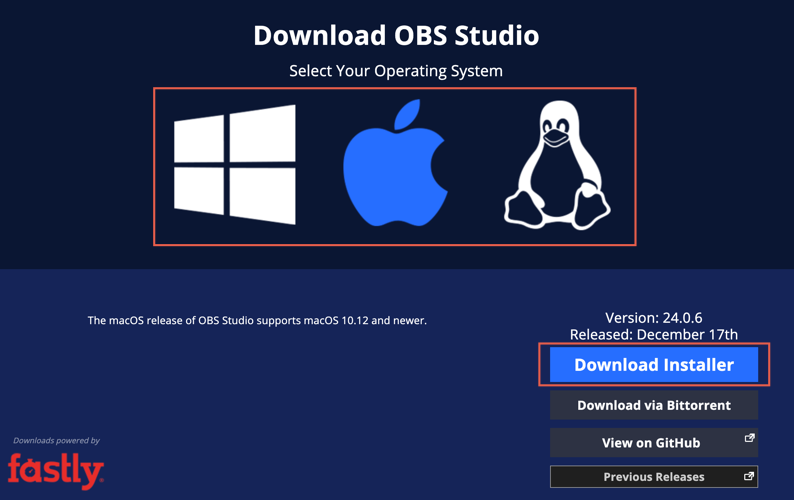
Go to the OBS Studio downloading page.
On the download page, select your computer's operating system.
Scroll down and click Download Installer.
Step 2 | Install the Encoder on Your Computer
On your computer, open the OBS Installer.
Note: If you see a verification window, click Install anyway.Click Next.
Click I Agree.
Choose where the file should go and click Next.
Review the components and click Install.
Click Finish.
Step 3 | Connect Your Camera to the Encoder
On your computer, open the OBS Studio Encoder. This is what the icon looks like:

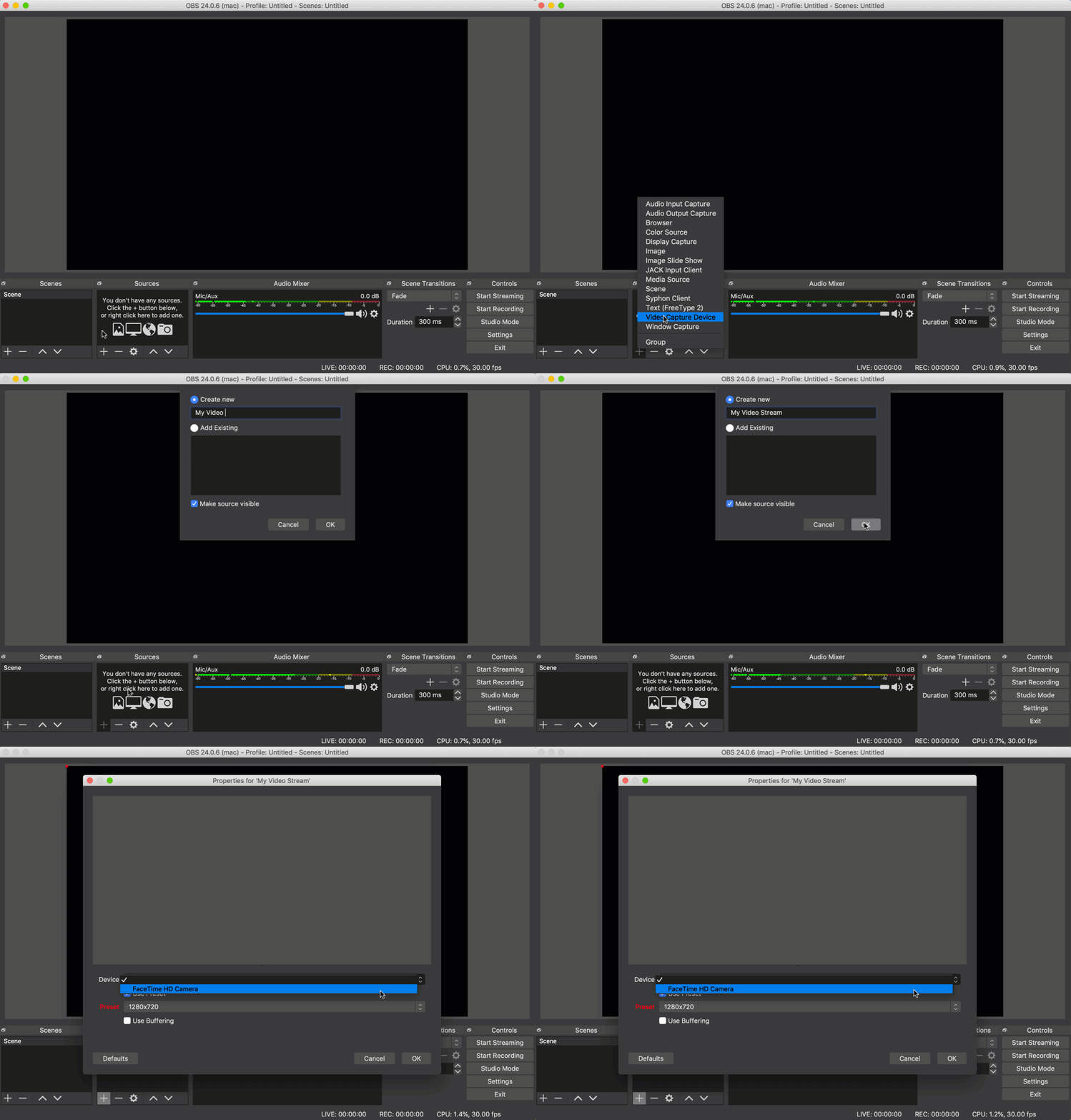
2. On the bottom left, under Sources, click Add  .
.
3. From the list, select Video Capture Device.
4. Select Create New and name your camera and click OK.
5. From the Device drop-down list, select your computer's integrated camera and click OK.
Step 4 | Change Your Streaming Settings
Open the OBS Studio Encoder on your computer.
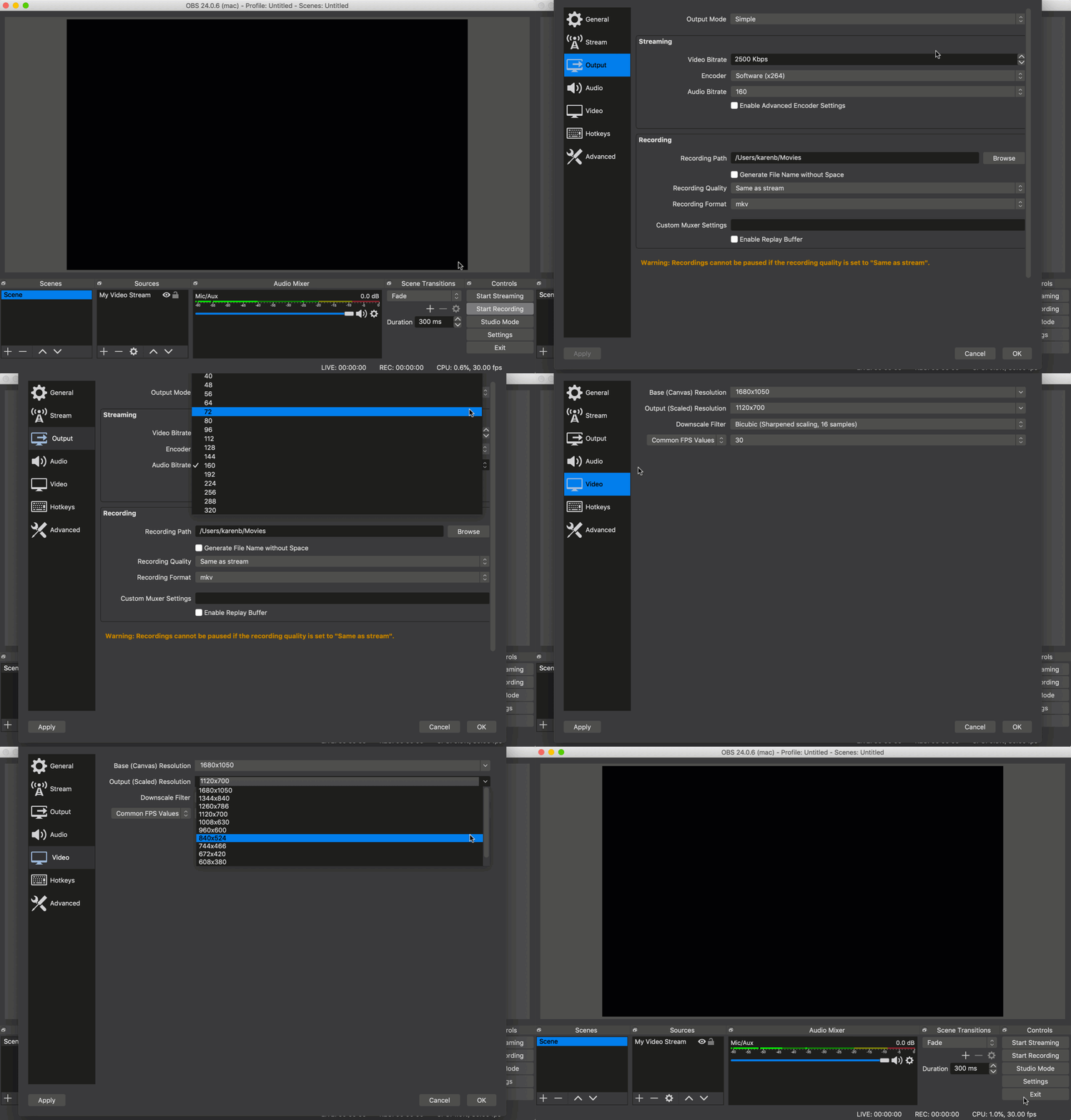
Click Settings on the bottom right.
Select the Output tab to change the codec, audio and video bitrates.
Select the Video tab to change the video resolution.
Note: To get the best results, make sure you don't exceed the following settings:
Video Resolution: 720p (1280x720)
Codec: x264
Video bitrate: ~2500 kbps
Audio bitrate: AAC 44.1kHz ~128kbps
Finished these steps and ready to go live?
Learn more about taking your stream online.
Note:
Currently, Wix Video only offers support and troubleshooting for the OBS Studio encoder - other encoders may not connect with Wix Video. If you want to use a different encoder, make sure you know where to enter the Server URL and the stream key.