


Mobile POS for Wix Stores
Wix Stores POS: Managing Inventory for Mobile POS Sales
Important:
This article is about Wix Mobile POS for mobile phones.
For info on Wix Retail POS for brick and mortar stores, click here.
Make sure you understand how your store inventory is managed when you make a mobile POS sale. You can decide whether you want to allow the sale of out-of-stock products.
How inventory updates after a POS sale
When you complete a store transaction at a point of sale using the Wix mobile app, your inventory in Wix Stores is automatically updated.
For Square app users:
Inventory is not automatically updated in the Square app. You can, however, set up real-time inventory updates in Square using the skuIQ inventory app.
Enabling the sale of out-of-stock products
When a product is out-of-stock in your online store, customers can't purchase it. However, at your mobile POS, you can choose to allow the sale of out-of-stock products. If you do, select who has permission to sell out-of-stock items – just you, or some team members as well.
To enable the sale of out-of-stock products:
Go to your site in the Wix app.
Tap Manage
 at the bottom.
Scroll down to the Getting Paid section and tap Point of Sale.
Tap the More Actions icon
 at the top right.
Tap POS settings.
Tap the Sell out of stock products drop-down and select an option:Allow: You and any team members (if you have them) can sell out-of-stock products.
Allow with permissions: You and selected team members with permission to manage inventory can sell out of stock products.
Don't allow: Sale of out-of-stock products is not allowed.
Processing the sale of out-of-stock products
When it's time to make a sale, you can simply select a product, even if it's out of stock. The product is added to the cart.
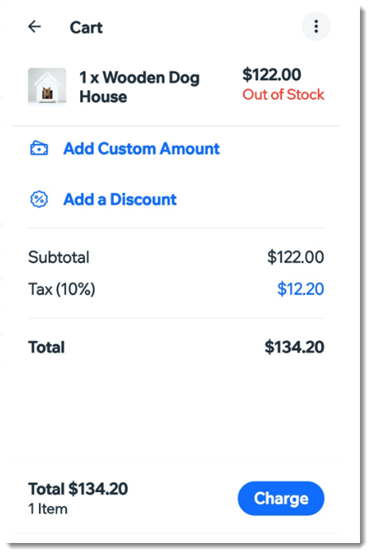
You'll be prompted to confirm that you want to sell the out of stock item. Click Continue and process the sale normally.
Managing inventory permissions
By default, team members with the Store Manager role have permission to manage inventory, which means they have permission to sell an out-of-stock product. Cashiers do not have inventory management permission.
Learn how to assign and manage roles and permissions for POS staff.
Tip:
You can create a custom role and decide whether you want this role to include permission to manage inventory.