


Managing products and categories
Wix Stores: Managing Product Subscriptions
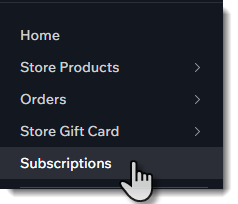
Any time a customer purchases a product subscription from your online store, it appears in the Subscriptions tab in your site's dashboard.
Important:
To fulfill subscription orders (or cancel / refund a single order) go to the Orders tab. Learn how to fulfill a subscription.
In this article, learn how to:
Updating the shipping address
If a customer moves or wants their subscription sent to another address, you can make that change in the Subscriptions tab.
To update a customer's address:
Go to Subscriptions in your site's dashboard.
Select the subscription you want to update.
Click Edit Shipping Details on the bottom right.
Update the address.
Click Save.
Showing customers how to update their payment method
Customers can make changes to their credit card or other payment details by logging in to your site and selecting the My Subscriptions tab.
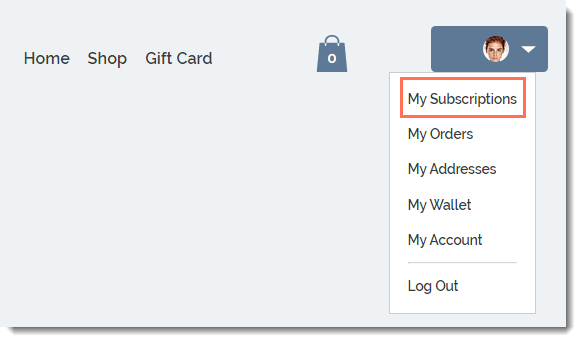
They can then select the relevant subscription and click the Update Payment Method link.
Temporarily suspending a product subscription
You can suspend a customer's subscription if they ask to stop it temporarily. New orders won't be created and your customer won't be billed until the suspension is lifted.
Important:
Stripe: Some subscriptions created before September 19, 2022 cannot be suspended.
Paypal: Some subscriptions created before June 22, 2022 cannot be suspended.
To suspend a product subscription:
Go to Subscriptions in your site's dashboard.
Select the subscription you want to update.
Click Manage Subscription.
Click Suspend subscription.
Click Yes, Suspend.
Reactivating a suspended subscription:
When you're ready to reactivate the subscription, click Manage Subscription and then Reactivate Subscription.
Canceling a subscription
You can cancel a customer's subscription at any time. When you do, no new orders connected to this subscription are created.
Note:
If you previously suspended a subscription and now want to cancel it, reactivate it first.
To cancel a product subscription:
Go to the Subscriptions tab in your site's dashboard.
Select the subscription you want to update.
Click Manage Subscription.
Click Cancel subscription.
Select Cancel now.
Click Yes, Cancel.
Want to learn more?
Check out the full course in Wix Learn on building your store or skip to the video on selling product subscriptions.
Adding a grace period
You can set a grace period to allow your customers a little more time if their recurring payment fails. This lets them resubmit payment before their donation is canceled automatically.
Learn how to set up a grace period.
Changing the date customers are charged
By default, subscription renewal dates are determined by the date of the original purchase. For example, if a customer orders a subscription on the 7th of January, a new order is created on the 7th of every month.
You can change the renewal date so that, for instance, the customer is charged on the 1st of every month. Learn how to change the payment date for your customers' subscriptions.