


Managing your Store in Retail POS
Wix Retail POS: Managing Out-of-Stock Inventory
Important:
This article is about Wix Retail POS tablet for brick & mortar businesses.
For info on using POS on a mobile device, click here.
Take control of whether your team members can sell out-of-stock store products using the Wix POS tablet. In addition, you can add "out-of-stock" labels to products so that your team can easily see its inventory status.
Tip:
You can set when inventory updates take place after online store purchases.
Managing who can sell out-of-stock products
When products are out of stock, you can block their sale entirely, allow only team members with permission to sell them, or permit any staff member to sell them.
To manage out-of-stock products:
Open the POS tablet.
Tap the Menu icon
 at the bottom left.
Tap the Settings tab.
Tap the Inventory tab.
Click the Sell out of stock products drop-down and select an option:Allow: Any team member can sell out-of-stock products.
Allow with passcode: Only team members with permission to manage inventory can sell out of stock products.
Don't allow: No one can sell out-of-stock products.
Selling with the "Allow with Passcode" Setting
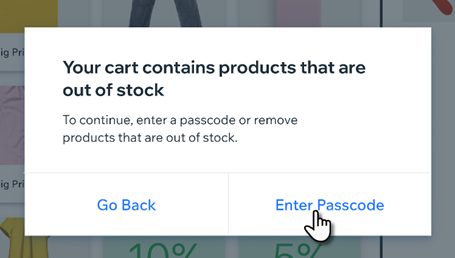
If you selected to allow the sale of out-of-stock products with passcode, you (the site owner), managers, or anyone else who has permission to manage inventory can go ahead and sell a product, even if it is out of stock.
When team members without permission try to complete a sale with an out-of-stock product, they can do so only by calling over a team member, such as a manager, who does have permission. The manager can then enter their passcode and allow them to complete the sale.
Managing inventory permissions
By default, team members with the Store Manager role have permission to manage inventory which means they have permission to sell an out-of-stock product. Cashiers do not have inventory management permission.
Tip:
You can create a custom role and decide whether you want this role to include permission to manage inventory.
Learn how to assign and manage roles and permissions for POS staff.
Add out-of-stock labels
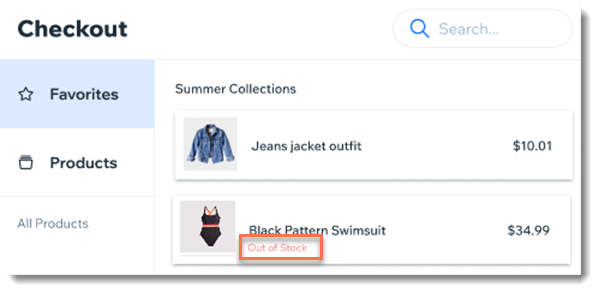
You have the option of displaying labels that indicate if a product is out of stock or in negative stock. This way team members are aware of the inventory status.
To add labels:
Open the POS tablet.
Tap the Menu icon
at the bottom left.Tap the Settings tab.
Tap the Inventory tab.
Tap the Show out-of-stock labels toggle to display notifications.
Notes:
If you blocked the sale of out-of-stock products, labels are automatically enabled.
Labels appear in the favorites tab, product page, cart page, and checkout.