


Setting up shipping & fulfillment
Wix Stores: Integrating with ShipStation
Important:
To print shipping labels, you must first enter your business's address in the Business Info page. Learn how
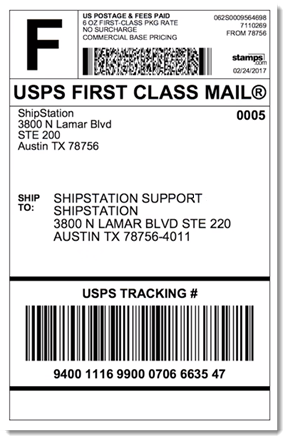
ShipStation - a third-party app that works together with Wix Stores - allows you to streamline the shipping process. With ShipStation you can easily buy and print shipping labels and packing slips. Once that's done, you can paste the labels on packages and ship the packages with your choice of carrier. You can also let customers track the progress of their packages by sending them a tracking number.
ShipStation syncs with Wix Stores which means that your orders, including past orders, automatically appear in your ShipStation dashboard - no need to manually create an order and then copy and paste the order details each time you make a sale.
Save even more time by using service mapping and automation rules.
ShipStation works with most major carriers. To check if ShipStation works with your preferred carrier, click here.
Important:
ShipStation is currently available only for stores located in the US, Canada, Australia, and the UK. Note that you can also use any of the following:
Boxtal (Available only in France)
Melhor Envio (Available only in Brazil)
Envia (Available only in parts of North and South America)
Note:
ShipStation comes with a 30-day free trial.
To integrate ShipStation with your Wix store:
Wix Editor
Studio Editor
Dashboard
Click Add Apps
 on the left side of the editor.
Search for the ShipStation app in the search bar.
Click Add to Site.
Click Agree & Add.
Do one of the following:
Log in to your existing ShipStation account:Click Login.
Enter your email / username and password.
Click Login.
Create a new ShipStation account:Fill in all the required fields.
Click Start your free trial.
Log in to ShipStation.
Click Connect to integrate your ShipStation account with your Wix store.
Click Allow and Install.
Click Orders at the top of the page to view your store orders.
Tip: If you have more than one store, click Stores on the left and select the store you want to view.
After connecting, you should see your all your orders, including past orders, for the selected site in the ShipStation dashboard's Orders tab. Now you're ready to start shipping orders using ShipStation. Learn more
