


Designing your store
Wix Stores: Hiding Product Prices
For some types of online stores, hiding product prices makes good business sense.
By default, prices appear wherever you display your products. You can decide if you want to remove the price display from any place where products are displayed.

In this article, learn how to hide the price display:
Hiding product prices in the Category Page
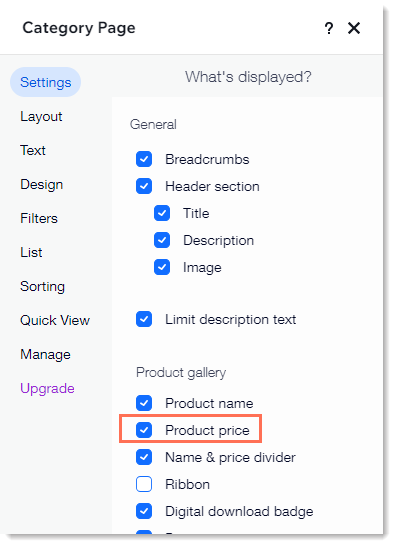
The new Category Page is your main store page. Go to this page in your editor to hide product prices (among other details that you can choose to show or hide).
Wix Editor
Studio Editor
Go to your Category page:Click Pages & Menu
 on the left side of the editor.
Click Store Pages.
Click Category Page.
Click the Category Page element on your page.
Click Settings.
In the Settings tab, deselect the Product price checkbox.
Hiding product prices in Product Galleries
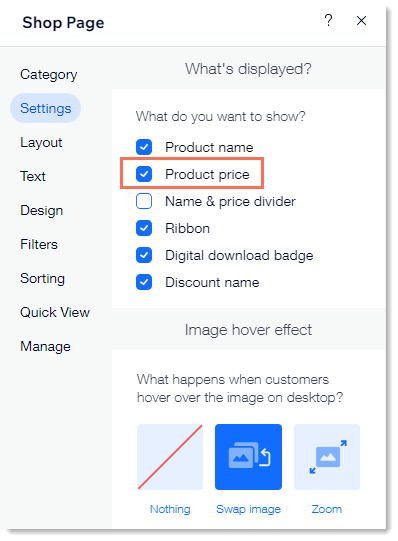
If your shop has any kind of Product Galleries, you can customize them so that the product prices are hidden.
To hide prices in a gallery:
Go to the page with the gallery you want to customize.
Click the gallery on your page.
Click Settings.
Select the Settings tab.
Deselect the Product price checkbox.
Hiding product prices in your Product Page
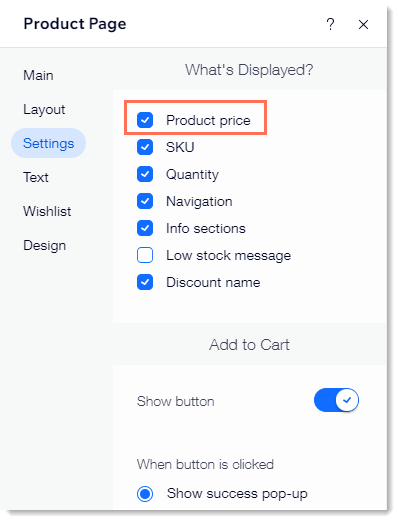
Even if you hide the product prices from the Category Page and your Product Galleries, once a customer clicks to view a product in the Product Page, they'll see the price - unless you also hide it there.
Wix Editor
Studio Editor
Go to your Product page:Click Pages & Menu
on the left side of the editor.
Click Store Pages.
Click Product Page.
Click the Product Page on your page.
Click Settings.
Select the Settings tab.
Deselect the Product price checkbox.
FAQs
We are here to help with all your questions. Click a question below to learn more.
Can I display products without prices and limit access to the product page to members only?
Yes. Start by hiding product prices in the Product Gallery according to the instructions above. Next, you can limit access to the Product Page:
Click Pages and Menu
 on the left side of the Editor.
Click Store Pages.
Click the Settings icon
 next to Product Page.
Click the Permissions tab.
Select Members only.
Can I display product information only to site visitors who are logged in or have a password?
You may want to hide your product information from site visitors, for example, if you're a wholesaler. You can do this by restricting store pages.
You can control which pages you restrict and whether users simply need to sign up and log in to get access or whether they need your approval to view the pages.