


Managing products and categories
Wix Stores: Allowing Customers to Pre-Order Products
Let customers pre-order anticipated, new products or out-of-stock items to make sure you don't miss potential sales.
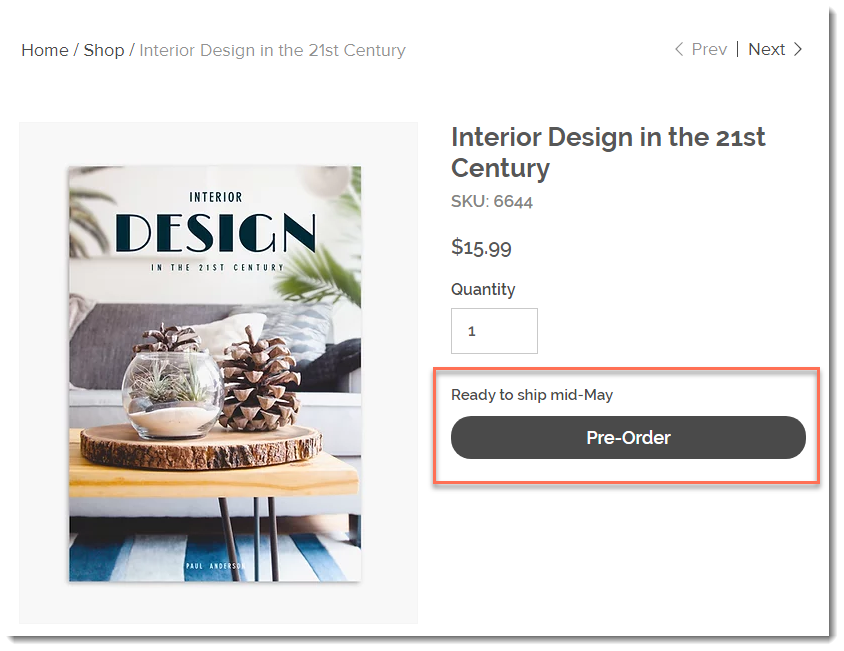
Customers click the Pre-Order button to purchase a product as they would for any other shop item. As soon as it's in stock, you can fulfill it.
In this article, learn more about:
Enabling pre-orders for a product
You can enable pre-order while creating or editing a product. This makes the pre-order button appear when the product or one of its variants is out of stock.
For example, you can create a new product with 50 items in stock and enable pre-order. As long as the product is in stock, customers can purchase it. When the product is out of stock, the "Add to Cart" button changes to "Pre-Order".
Notes:
Pre-order is not currently available through the standalone Add to Cart button.
When customers pre-order a product, they pay the full amount in advance. It's not possible to collect partial payment at checkout.
To enable pre-ordering:
Go to Store Products in your site's dashboard.
Create a new physical product or edit an existing one.
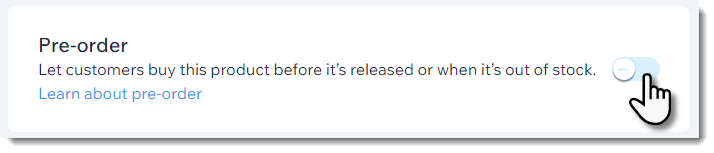
Scroll down to the Pre-order section.
Click the Pre-order toggle to enable it.
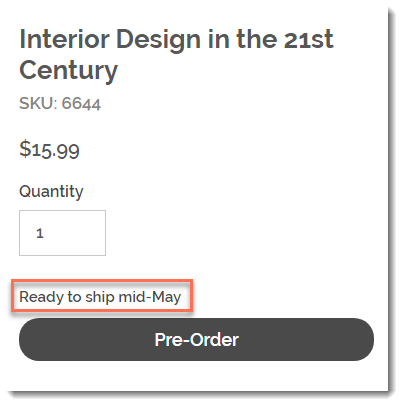
Enter a short pre-order message.
Tip: It's recommended to add a message about when the product should be available (e.g. Ready to ship by mid-May). The note appears above the pre-order button.
(Optional) Limit the number of possible pre-orders:Click Limit to.
Enter the maximum number of pre-orders you can accept.
Limiting pre-orders:
Set a limit if you think you might get more pre-orders than you can handle.
To be able to set a limit, you must track specific inventory amounts.
If the product has variants, the pre-order limit is placed per variant. This means that if you limit to 10, and your product comes in 2 colors and 2 sizes, each of the 4 variants is limited to 10.
Fulfilling pre-ordered products and managing inventory
If customers pre-order your product, your inventory (if you're tracking specific amounts) goes into negative numbers. This negative number indicates how many pre-orders you have for the product.
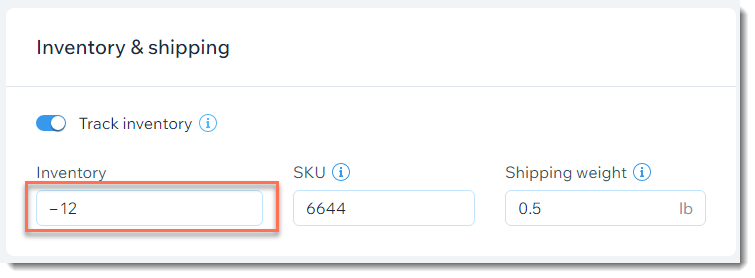
When you get new stock and update the stock levels, you need to take into consideration the products that are pre-ordered.
For example, if you have 12 pre-orders, your stock level is -12. If you get 50 units in, you need to updated your stock level to 38 (50 - 12 = 38), rather than updating it to 50.
To fulfill a pre-ordered product & manage inventory:
Update inventory to include the pre-orders:Go to Store Products in your site's dashboard.
Select the relevant product.
Scroll down to the Inventory and shipping section.
Calculate how much inventory you need to add (amount of new units minus the number of pre-orders).
Update the inventory level.
Fulfill pre-ordered products:Go to Orders in your site's dashboard.
Filter your orders to locate orders that contain the pre-ordered product:Click Filter.
In the Products filter, select the relevant product.
Click Done.
Fulfill the order as you would any other order.
Tip:
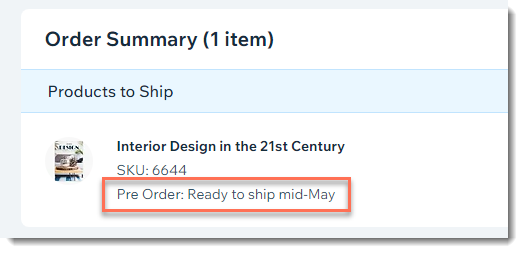
In the Orders tab, orders with pre-ordered items display an indication under the product name and SKU.
FAQs
Can I allow customers to pre-order a product subscription?
No, pre-order isn't available for product subscriptions. Note that if you have a product that can be sold both as a subscription and as a one-time purchase, you cannot allow customers to pre-order it.
Can I allow customers to pre-order a digital product?
No, pre-order isn't available for digital products.
Can pre-order be used as part of a crowdfunding campaign?
If Wix Payments is your payment provider, you cannot use pre-order to deliver products that are crowdfunded. If you use another payment provider, check their policies about crowdfunding campaigns.
Note: When using Wix Payments, products should be delivered after no more than 12 months.
Where does the pre-order button appear on my site?
The Pre-Order button appears in the Product Page. In addition, if you decided to display the Add to Cart button in a Product Gallery, it changes to "Pre-Order" when the stock level goes down to zero.

How can I use ribbons to let customers know about pre-order products?
You can add a ribbon so customers viewing the product in the gallery see that it's available for pre-order.
This isn't necessary if you enabled the Add to Cart button in the gallery, since the button text automatically changes to "Pre-Order".

Important: When a product is back in stock, the pre-order button automatically changes to Add to Cart. The ribbon, however, won't change automatically. If you added a ribbon to a pre-order product, make sure you remove it when it's not longer relevant.
What happens if a customer orders an in-stock product and a pre-order product?
You can fulfill part of an order and add a tracking number to that shipment. Then, when the pre-ordered item is in stock, you can ship it and add a 2nd tracking number.
What happens if I enable both back-in-stock notifications & pre-orders?
If you enabled the back in stock notifications feature as well as enabling pre-orders for one or more products, customers see only the option to pre-order those products.