top of page

Designing your store

Wix Stores: Adding and Setting Up an 'Add to Cart' Button

You can place a standalone 'Add to Cart' button anywhere on your site. The button is linked to the product you choose. This can come in handy when you're writing about a product somewhere on your site and want to make it easy for a customer to add the product to their cart.

Step 1 | Add the 'Add to Cart' button

Start by navigating to the relevant page and then dragging the Add the Cart button from the Add Panel to the ideal spot.

GIF showing how to add an Add to Cart button to a site page in a Wix site

Wix Editor

Studio Editor

  1. Go to your editor.

  2. Click Add Elements on the left side of the editor.

  3. Click Stores.

  4. Drag the Add to Cart Button to the page.

Step 2 | Connect the button to a product

For the button to work properly, you need to select which product is added to the customer's cart when clicked.
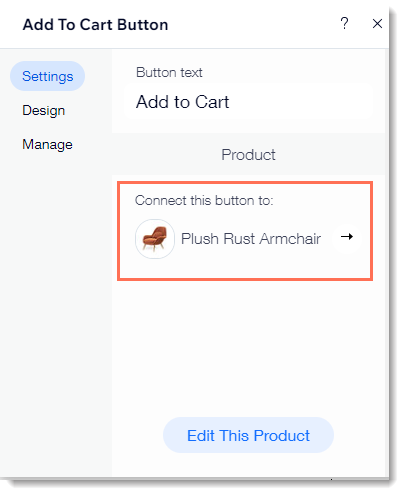
Screenshot of the settings panel where you select which product is connected to the Add to Cart button

To connect the button to a product:

  1. Click the Add to Cart button in your editor.

  2. Click Settings.

  3. (Optional) Edit the button text.

  4. Connect the button to a product. Select the default product or select a different product.

Step 3 | Design the button

Now you can design the button to fit perfectly on the page.

To customize the design of the button:

  1. Click the Add to Cart button in your editor.

  2. Click Settings.

  3. Click Design.

  4. Make any of the following customizations:Select a button style.
    Select a button color and drag the slider to adjust the opacity.
    Select a border color and drag the slider to adjust the border width.
    Drag the slider to make the corners rounder or more square.
    Select a text color or font.
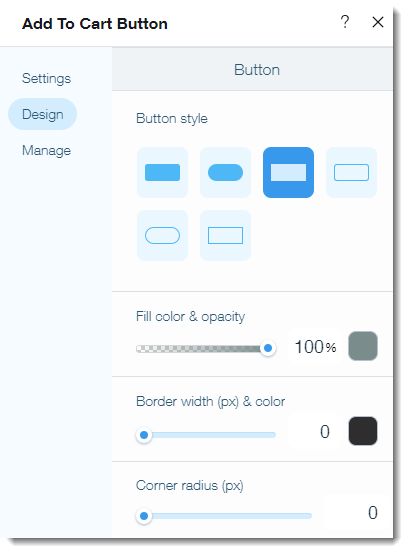
Screenshot of the design options available with the Add to Cart button

Note:

When a product is out of stock, the button text changes to "Out of Stock". It is not possible to edit the design of the "Out of Stock" button.

Need A Professional Website?
Contact Us 
Today!

Wix Invoices: Creating an Invoice

Wix Invoices: About Wix Invoices

Wix Price Quotes: Converting Price Quotes into Invoices

Wix Price Quotes: Managing Your Price Quotes

Wix Price Quotes: Creating a Price Quote

Desktop POS Solutions: Selling to Clients Using POS Checkout

Desktop POS Solutions: Collecting Payment with the Dashboard Card Reader Solution

Desktop POS Solutions: An Overview

Desktop POS Solutions: An Overview

Wix Retail POS: Managing Your Store's Staff

Wix Retail POS: Managing Shift Management for Team Members

Wix Retail POS: Managing Your Customer List

Wix Retail POS: Viewing Your Sales Report

Wix Retail POS: Managing Your Sales History

Wix Retail POS: Creating Invoices

Wix Retail POS: Accepting Exchanges from Customers

Wix Retail POS: Issuing Refunds

Wix Retail POS: Managing Business Locations

Wix Retail POS: Services Displayed on the Retail POS Tablet

Wix Retail POS: Accepting Payment for a Booked Session

Wix Retail POS: Booking Services and Accepting Payment

Wix Retail POS: About Purchase Orders

Wix Retail POS: Offering Shipping or Delivery

Wix Retail POS: Managing Out-of-Stock Inventory

Wix Retail POS: Setting Product Visibility for POS and Desktop

Wix Retail POS: Managing Your Store Catalog

Wix Retail POS: Creating Product Categories

Wix Retail POS: Adding New Products to the Catalog

Wix Retail POS: Selling Store Products at Your POS

Wix Retail POS: Customizing Printed Receipts

wix experts
Graphic2Traffic web design
©
bottom of page