top of page

Setting up Retail POS sales

Wix Retail POS: Organizing Your Favorites Screen

Important:

  • This article is about Wix Retail POS tablet for brick & mortar stores.

  • For info on using POS on a mobile device, click here.

Make sure your most popular products, discounts, and more are easily accessible by adding them to your Favorites. Your Favorites screen can include:

  • Products

  • Product categories

  • Discounts

  • Gift cards

When you're processing a sale, you can tap the Favorites tab and then add one of these items to the sale.
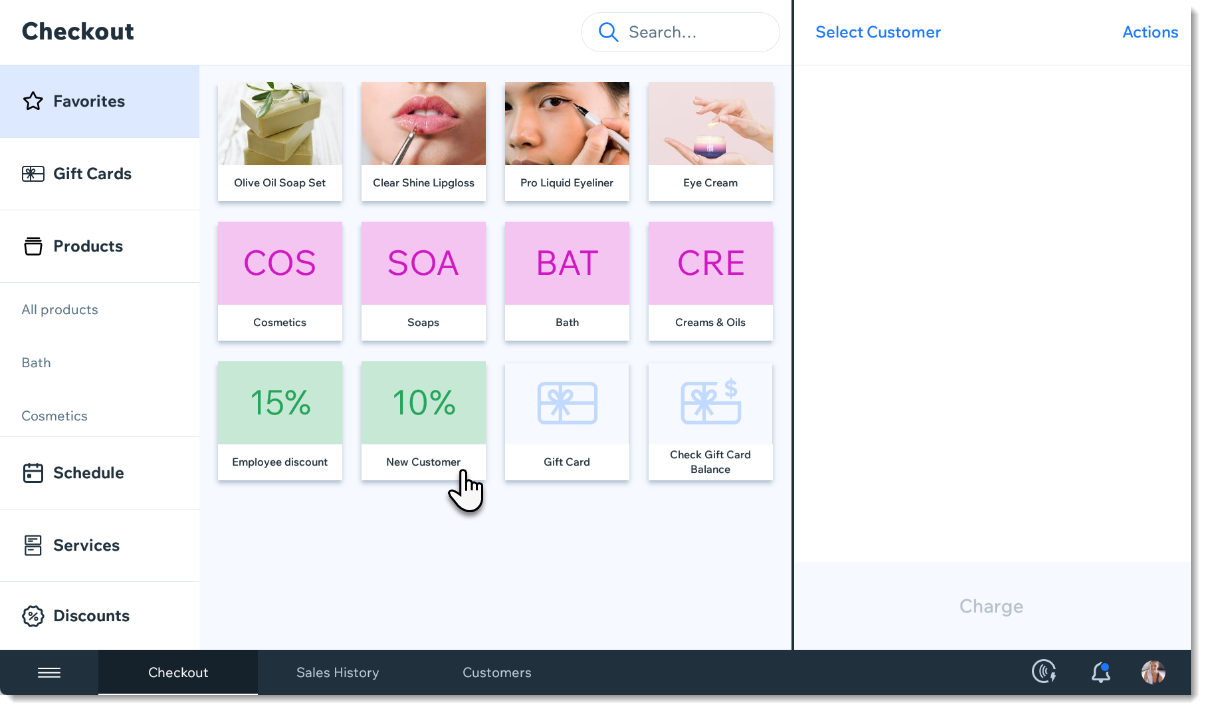
Screenshot of the Favorites tab in the checkout screen in the Wix Retail POS tablet

Adding items to your Favorites

  1. Open the POS tablet.

  2. Tap the Menu icon at the bottom left.

  3. Tap Settings.

  4. Tap Manage next to Favorites.

  5. Add an item to your Favorites.Tap the Add icon .
    Select Products, Categories, Discounts, or Gift Cards.
    Tap the item you want to add to your Favorites.

  6. (Optional) Drag items to reorder them.

  7. Tap Save.

FAQs

Click a question to learn more.

How can I remove an item from my Favorites?

To remove an item, go back to the Settings, tap Manage next to Favorites, then tap the X that appears in the top left corner of an item to delete it.

Screenshot of an item in the Favorites, in the Wix Retail POS system

Can I customize the color of the categories, discounts, and gift cards?

These colors cannot be customized.

Need A Professional Website?
Contact Us 
Today!

Wix Retail POS: Using the Stripe Reader M2 Card Reader

Wix Retail POS: Using the BBPOS WisePad 3 Card Reader

Wix Retail POS: Selecting a Card Reader

Wix Retail POS: About Your HP Tablet

Wix Retail POS: Connecting Your POS Hardware

Wix Retail POS: About Wix POS for Your Brick and Mortar Business

Wix Mobile POS: Setting Up a Point of Sale with SumUp

Wix Mobile POS: Setting Up a Point of Sale with Square

Wix Restaurants POS: Selling Restaurant Items at a Mobile Point of Sale

Wix Pricing Plans POS: Selling Plans at a Mobile Point of Sale

Wix Events POS: Selling Event Tickets at a Mobile Point of Sale

Wix Bookings POS: Booking Services and Accepting Payments with the Wix App

Wix Bookings POS: Accepting Payment for Booked Services at a Mobile Point of Sale

Wix Stores POS: Managing Inventory for Mobile POS Sales

Wix Stores POS: Setting up Tax Rules for a Mobile Point of Sale

Wix Stores POS: Selling Products at a Mobile Point of Sale

Wix Mobile POS: Customizing Receipts

Wix Mobile POS: Selling Physical Gift Cards at a Mobile POS

Wix Mobile POS: Redeeming Virtual Gift Cards at a Mobile POS

Wix Mobile POS: Setting Up Receipt Printing

Wix Mobile POS: Collecting Tips

Wix Mobile POS: Understanding Invoices for Mobile POS Transactions

Wix Mobile POS: Setting Up Tap to Pay

Wix Mobile POS: Letting Staff Members Accept Payments

Wix Mobile POS: Charging Clients at a Point of Sale

Wix Mobile POS: Setting Up a Point of Sale

Wix Mobile POS: An Overview

Collecting the Colorado Retail Delivery Fee

Accessing the Avalara Dashboard

Including Tax in the Product Price

wix experts
Graphic2Traffic web design
©
bottom of page