top of page

Setting up Retail POS sales

Wix Retail POS: Organizing Your Favorites Screen

Important:

  • This article is about Wix Retail POS tablet for brick & mortar stores.

  • For info on using POS on a mobile device, click here.

Make sure your most popular products, discounts, and more are easily accessible by adding them to your Favorites. Your Favorites screen can include:

  • Products

  • Product categories

  • Discounts

  • Gift cards

When you're processing a sale, you can tap the Favorites tab and then add one of these items to the sale.
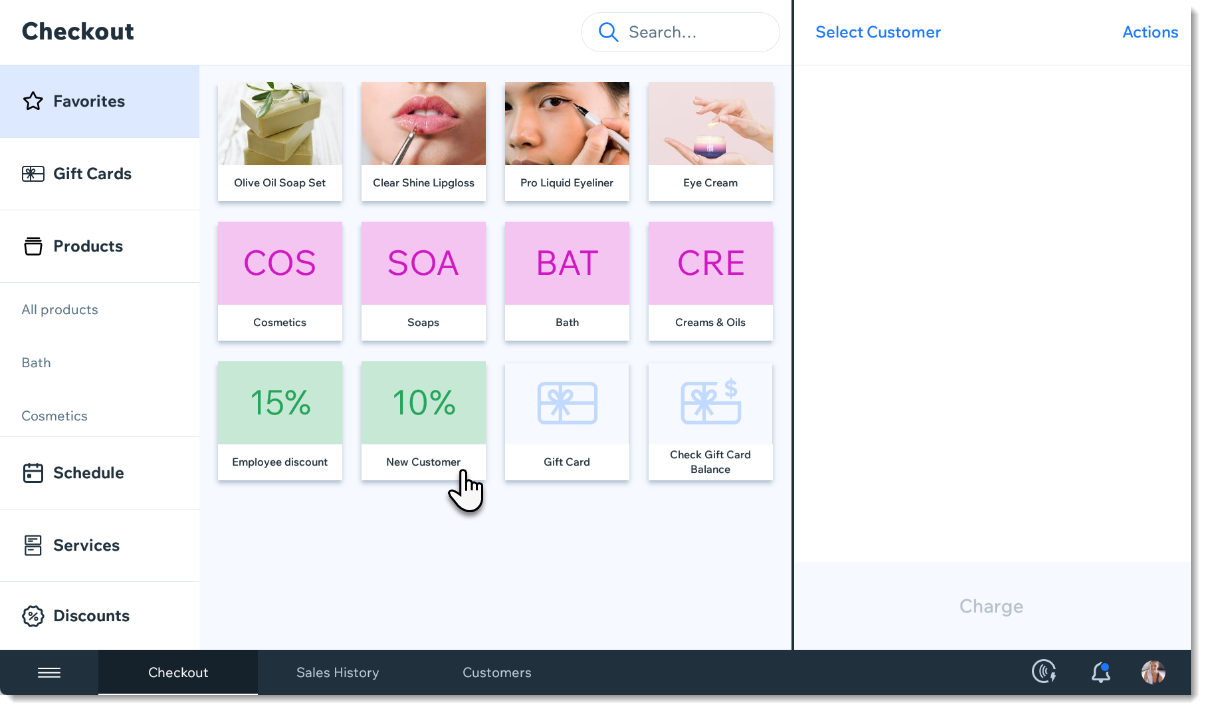
Screenshot of the Favorites tab in the checkout screen in the Wix Retail POS tablet

Adding items to your Favorites

  1. Open the POS tablet.

  2. Tap the Menu icon at the bottom left.

  3. Tap Settings.

  4. Tap Manage next to Favorites.

  5. Add an item to your Favorites.Tap the Add icon .
    Select Products, Categories, Discounts, or Gift Cards.
    Tap the item you want to add to your Favorites.

  6. (Optional) Drag items to reorder them.

  7. Tap Save.

FAQs

Click a question to learn more.

How can I remove an item from my Favorites?

To remove an item, go back to the Settings, tap Manage next to Favorites, then tap the X that appears in the top left corner of an item to delete it.

Screenshot of an item in the Favorites, in the Wix Retail POS system

Can I customize the color of the categories, discounts, and gift cards?

These colors cannot be customized.

Need A Professional Website?
Contact Us 
Today!

Wix Bookings: Offering Services at Multiple Locations

Wix Bookings: Creating a Course

Wix Bookings: Creating a Class

Wix Bookings: Creating an Appointment Without a Price Display

Wix Bookings: Requiring Approval for Appointment Bookings

Wix Bookings: Adding a Time Buffer Between Appointments

Wix Bookings: Understanding Availability for Appointments

Wix Bookings: Creating an Appointment

Wix Bookings: Creating the Right Service for Your Business

Wix Bookings: Selling Services as Products

Wix Bookings: Translating Your Site

Wix Bookings: Disconnecting Reserve With Google

Wix Bookings: Managing Your Resources

Wix Bookings: Offering Rewards and Incentives

Wix Bookings: Setting Up Your Booking Policies

Wix Bookings: Adding and Customizing a Cart

Wix Bookings: Understanding Your Checkout Settings

Wix Bookings: Setting Up a Waiver

Wix Bookings: Deleting Wix Bookings

Wix Bookings: About the "My Wallet" Page

Wix Bookings: Allowing Clients to Cancel or Reschedule Sessions

Wix Bookings: Allowing Clients to Become Site Members

Wix Bookings: Creating and Setting up Your Booking Forms

Wix Bookings: Changing Time Slots for Appointments

Wix Bookings: Setting the Time Zone Display

Wix Bookings: Changing Languages

Wix Bookings: Changing Your Currency

Wix Bookings: Setting Default Work Hours

Wix Bookings: Adding Your Business and Regional Details

Wix Bookings: The Essential Checklist for Beauty Business Owners

wix experts
Graphic2Traffic web design
©
bottom of page