Wix Bookings
Wix Bookings: Changing Languages
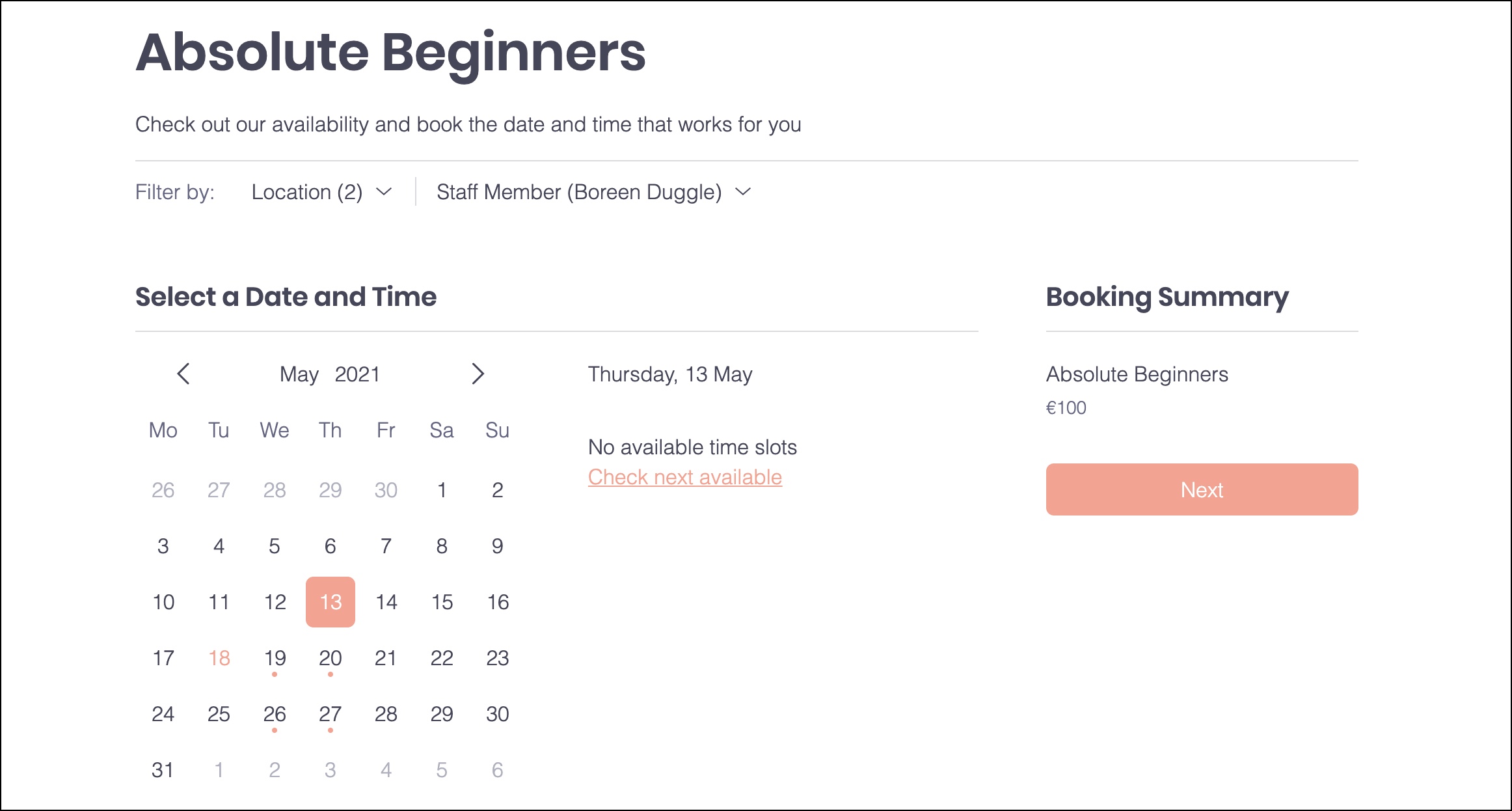
Some of the text that appears in Wix Bookings on your live site is text you wrote yourself (for example, the names and descriptions of your services). Other text is automatically generated, like the names of days and months in your calendar.
You can change the language of the automatically generated text into any of over 25 languages.
View the list of available languages for automatically generated text
Bahasa
Bulgarian
Czech
Danish
Dutch
English
Finnish
French
German
Greek
Hindi
Hebrew
Hungarian
Italian
Japanese
Korean
Norwegian
Polish
Portuguese
Romanian
Russian
Spanish
Swedish
Tagalog
Thai
Traditional Chinese
Turkish
In this article, learn how to change the language of:
Note:
We are in the process of releasing a new version of the Booking Calendar, so it's not available to everyone yet. Your version may appear slightly different.
Changing the language of your site's automatically generated text
Make sure the automatically generated text on your website, like the types of services you offer, is in the correct language for your clients. The site language, currency and regional settings you choose can make your client's experience feel much more local.
To change the language of your site's automatically generated text:
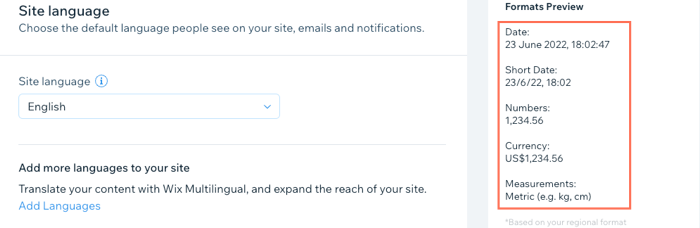
Go to Language & Region in your site's dashboard.
Select a language from the Site language drop-down.
(Optional) Choose a region from the Regional format drop-down. This controls how you show dates, numbers and measurements
Tip:
Changing your site language does not translate text you add to your site manually. If you would like to see this feature in future, you can click here to vote for it.
Changing the language of your dashboard and Editor
Set the language of your dashboard and Editor to one you're comfortable working with. This doesn't change the language clients see on your site. However, if you have more than one site, this change does affect the entire account.
To change the language of your dashboard and Editor:
Go to Language & Region in your site's dashboard.
Scroll down to Account language and choose a language from the drop-down.
Tip:
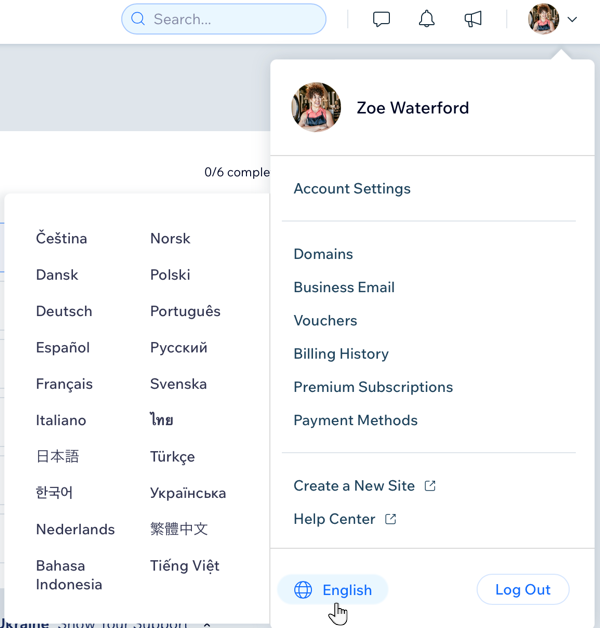
You can also update your site language from your account panel at the top. Click the panel to open it, hover over the language at the bottom and choose your preferred language.
Can't see your language in this list? Click here to vote for additional languages for Wix Bookings.