top of page

Table reservations

Wix Restaurants: Setting Up Prepayment for Table Reservations

Set up prepayment rules for reservations for larger groups or individual guests. Accept credit card payments when guests book online. With automatic approval, customers are charged immediately.

With manual approval, customers aren’t charged right away. After approval, charge them by sharing a payment link, sending an invoice, or handling the payment directly. Plus, you can access detailed analytics for all your table reservation payments.
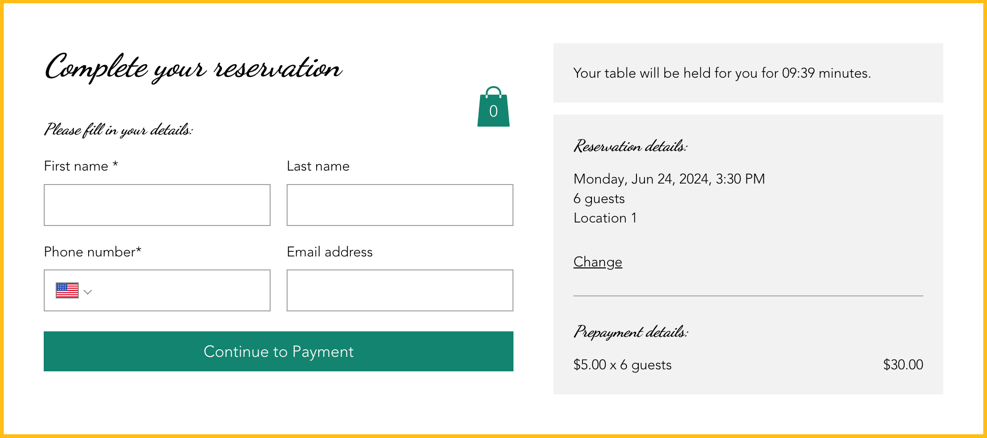
A screenshot of how prepayment appears when a customer reserves a table.

Adding a payment rule

Reduce last minute cancellations by collecting payment upfront. This helps reduce no shows and minimize last minute cancellations.

You can do this from your site's dashboard or straight from the Wix app on your mobile device.

To add a payment rule:

Dashboard

Wix app

  1. Go to Table Reservations in your site's dashboard.

  2. Click Settings at the top right.

  3. Click Prepayment.

  4. Click + Add Prepayment and define your prepayment rules:Party Size: Enter the minimum number of guests the fee applies to.
    Charge Fee: Enter the fee to charge each guest for this reservation.

  5. Click Save.

A screenshot of defining your prepayment rules for table reservations.

FAQs

Click a question below to learn more.

Can I customize the table reservation form?

Customize your table reservation form to include information about your table reservation fees for your guests.

How do I change the currency on my site?

To change the currency on your site, go to language & region in your site's dashboard.

How do I set up tax?

To set up tax for your site, go to tax in your site's dashboard.

Need A Professional Website?
Contact Us 
Today!

Wix Invoices: Creating an Invoice

Wix Invoices: About Wix Invoices

Wix Price Quotes: Converting Price Quotes into Invoices

Wix Price Quotes: Managing Your Price Quotes

Wix Price Quotes: Creating a Price Quote

Desktop POS Solutions: Selling to Clients Using POS Checkout

Desktop POS Solutions: Collecting Payment with the Dashboard Card Reader Solution

Desktop POS Solutions: An Overview

Desktop POS Solutions: An Overview

Wix Retail POS: Managing Your Store's Staff

Wix Retail POS: Managing Shift Management for Team Members

Wix Retail POS: Managing Your Customer List

Wix Retail POS: Viewing Your Sales Report

Wix Retail POS: Managing Your Sales History

Wix Retail POS: Creating Invoices

Wix Retail POS: Accepting Exchanges from Customers

Wix Retail POS: Issuing Refunds

Wix Retail POS: Managing Business Locations

Wix Retail POS: Services Displayed on the Retail POS Tablet

Wix Retail POS: Accepting Payment for a Booked Session

Wix Retail POS: Booking Services and Accepting Payment

Wix Retail POS: About Purchase Orders

Wix Retail POS: Offering Shipping or Delivery

Wix Retail POS: Managing Out-of-Stock Inventory

Wix Retail POS: Setting Product Visibility for POS and Desktop

Wix Retail POS: Managing Your Store Catalog

Wix Retail POS: Creating Product Categories

Wix Retail POS: Adding New Products to the Catalog

Wix Retail POS: Selling Store Products at Your POS

Wix Retail POS: Customizing Printed Receipts

wix experts
Graphic2Traffic web design
©
bottom of page