


Creating your Wix Restaurants menu
Wix Restaurants: Managing Dish Options
Important:
This article is about the original Wix Restaurants Menus App. Try out our new, improved menu app. Learn how to add and set up Wix Restaurants Menus (New) app.
Allow your guests to add any options you want them to have. Let them add extras or remove ingredients they can't eat. Take a temperature for a steak order. Match the skill of your chefs with the individual tastes of your customers. You can offer these options for free or at an extra cost.
If your prefer, you can keep your restaurant menu looking streamlined by only showing the options on your online ordering menu.
Important:
You can't use archived dishes as options for other menu items. Once you archive dishes, any other menu item tied to the archived dish won't be available.
In this article, learn how to:
Adding options to your menu
Let your menu be your waiter by giving the customer options. For a pizza dish, for instance, you might create an option called "Toppings" with choices such as mushrooms, pepperoni, and onions.
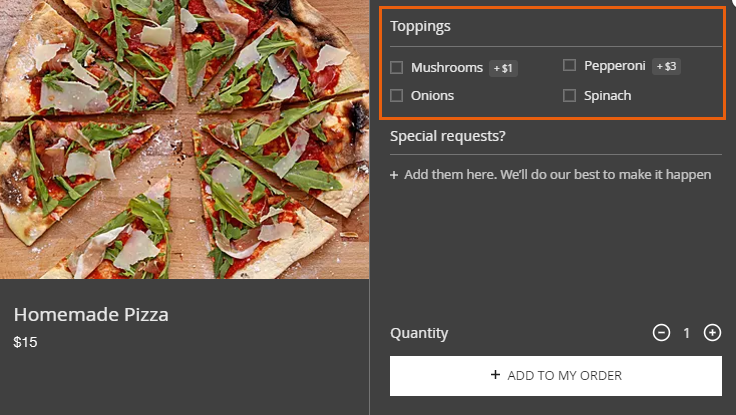
To add dish options:
Click the Menus tab.
Do one of the following:
Edit a dish:Navigate to the dish you want to add options to.
Click to edit it.
Create a new dish:Click New Dish.
Enter the dish details.
In the Dish Options section, click New Option.

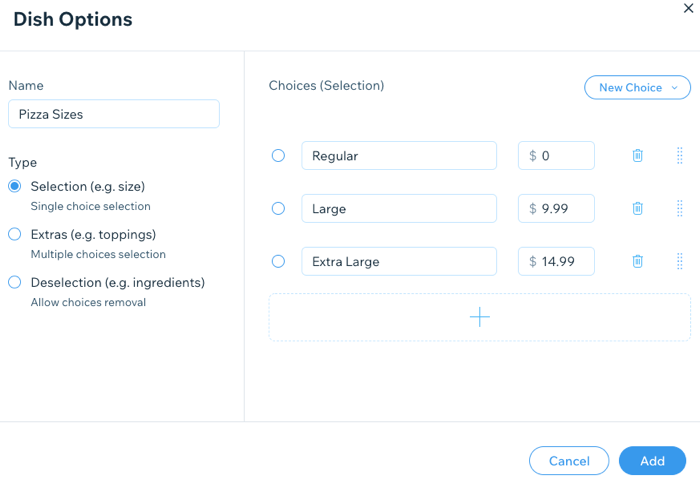
In the Name field on the left, enter a name for this option (e.g. Toppings, Temperature, Hold the...).
Under Type, select Selection, Extras, or Deselection.
Under Choices, enter the first choice (e.g. Pineapple, Rare, Sauce) or select it from the list of existing choices.
(Optional) Enter a price for the choice.
(Optional) Click New Choice and repeat steps 7 - 8 to add additional options.
Click Save.
Note:
If you add "single choice selection" dish options, the price displayed on the online ordering page will always follow this formula: "base price + cheapest single choice available". If you'd like to add a single choice dish option that will not increase the cost of the dish, then simply set it to $0.00.
Note:
If you add an additional set of options to a dish, only the first set of options are shown on your Menu page.
Hiding the dish options from your restaurant menu
If you added options to your dishes in Wix Restaurants, the options show both in the Menus and Online Ordering apps. You can hide the options from the Menus app if you have the New Menu Settings. The options still appear in the Online Ordering app so that your customers can select them.
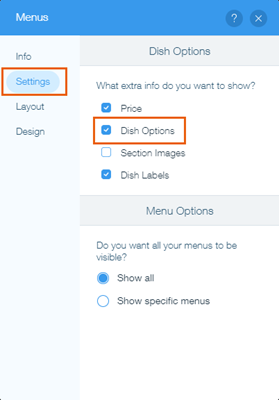
To hide the dish options from your menu:
Go to the menu page in the Editor.
Click Wix Restaurants Menus.
Click Settings.
Click the Settings tab.
Deselect the Dish Options checkbox under What extra info do you want to show.